
Related topic: How to edit Mobile View : Force24 Support
Previously, getting columns/images in your email templates to not stack in mobile screens has required a bit of HTML knowledge (or some help from our Product Experts!). However, with recent changes to the mobile styles editor you can now do this entirely in the front-end of the platform - no coding required!
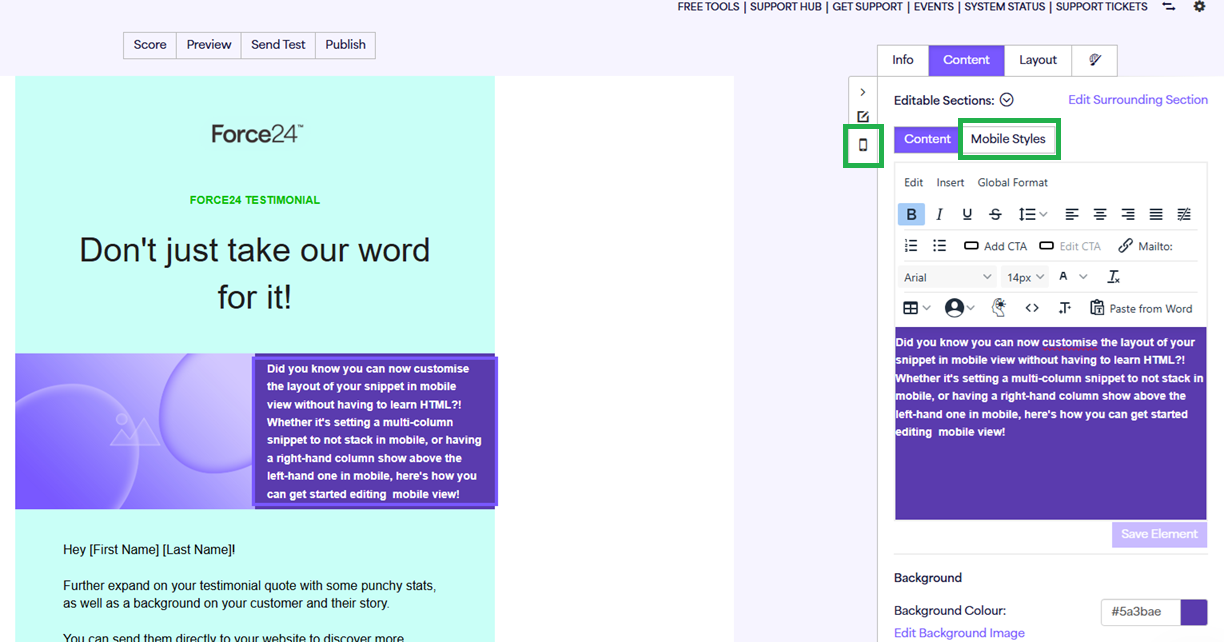
Let's run through an example of a 2-column snippet that would usually stack on mobile screens at first. This snippet would show the image column on top of the text column by default when first created, but if we navigate to the Mobile Styles or Mobile View editor from Content mode (as shown below) we can tell Force24: "Don't Stack" the columns in smaller screens.
This will then bring up the screen below, where you can see the current mobile layout of the two columns stacking.
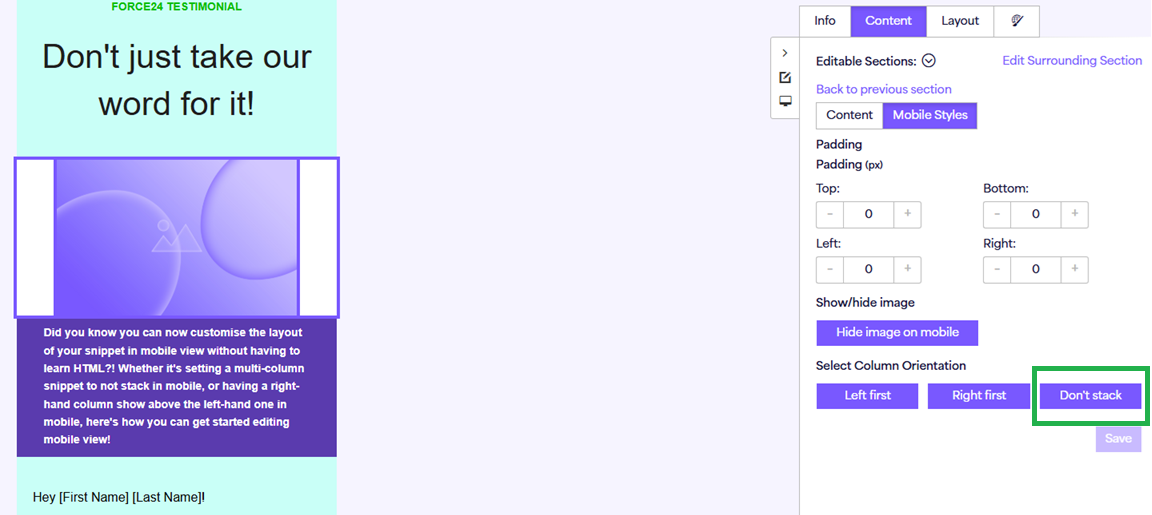
We can then simply click "Don't Stack" and you will see the columns appear side-by-side in mobile view:
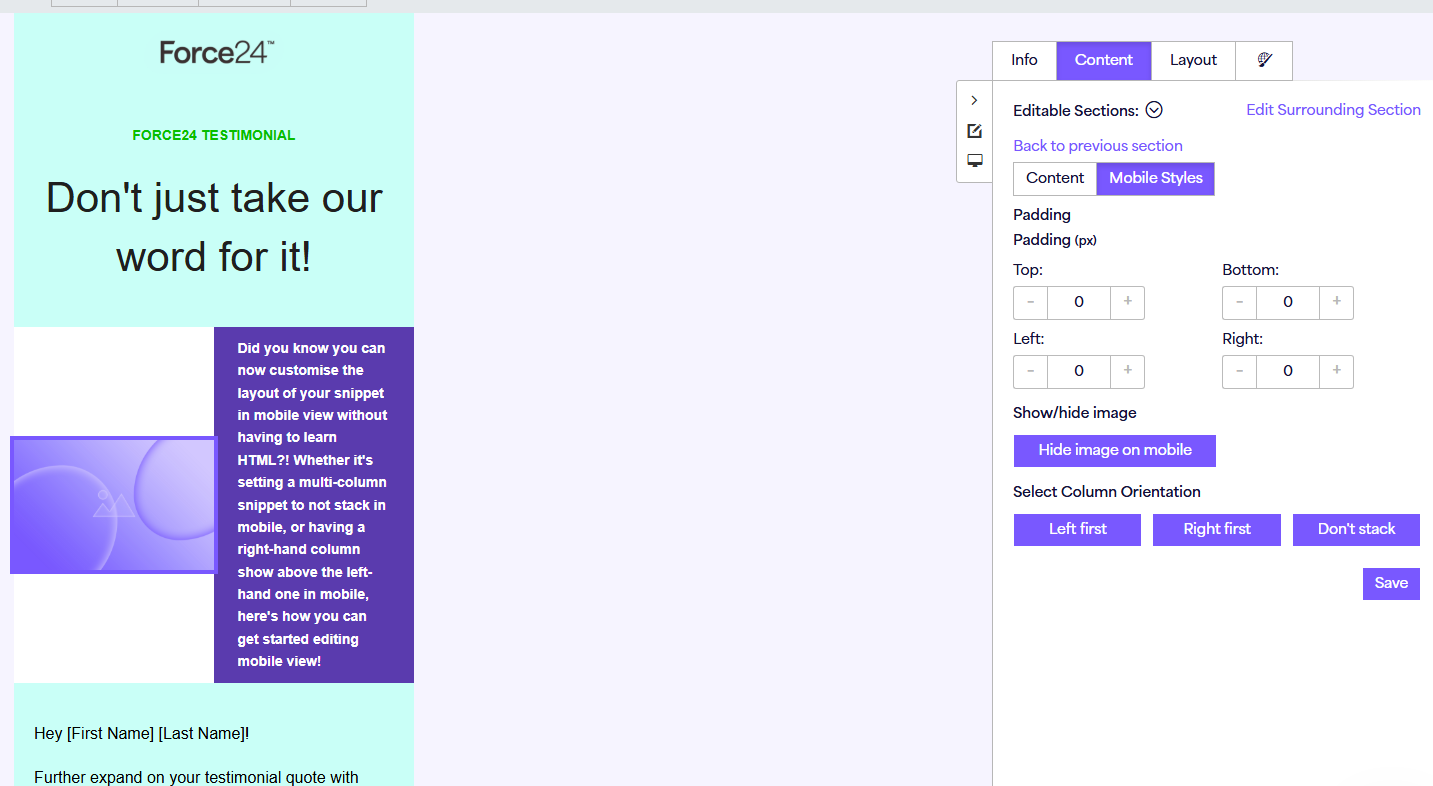
Make sure to hit "Save" below "Don't Stack" and this will save the mobile formatting to your template code and you will see the new layout if you navigate back to the standard mobile preview section.
This works for any multi-column snippet, it doesn't just have to be a 2 column one!
If you have more bespoke stacking requirements that can't be achieved purely within the editor, you can still reach out to our Product Expert team via the live chat and they will be happy to assist.