
The vast majority of data upload issues are caused by formatting, whether visible or hidden. This formatting can confuse our systems and may cause your file to be rejected. This article shows you how to clean your file so it uploads successfully.
Good to know
Nine times out of ten, following the steps below will solve the problem.
How do I fix a file that won't upload?
Copy your data into a fresh spreadsheet to strip out any hidden formatting:
- Select all of your data in your spreadsheet and copy it.
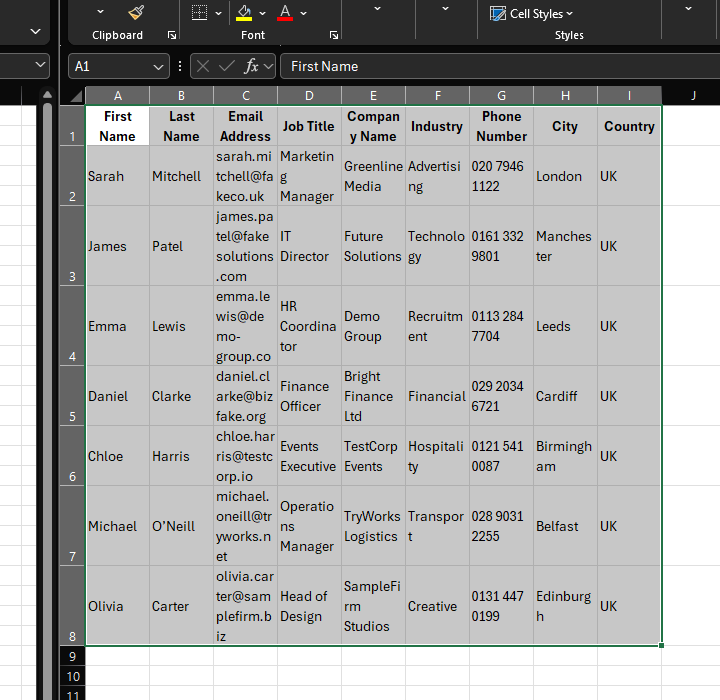
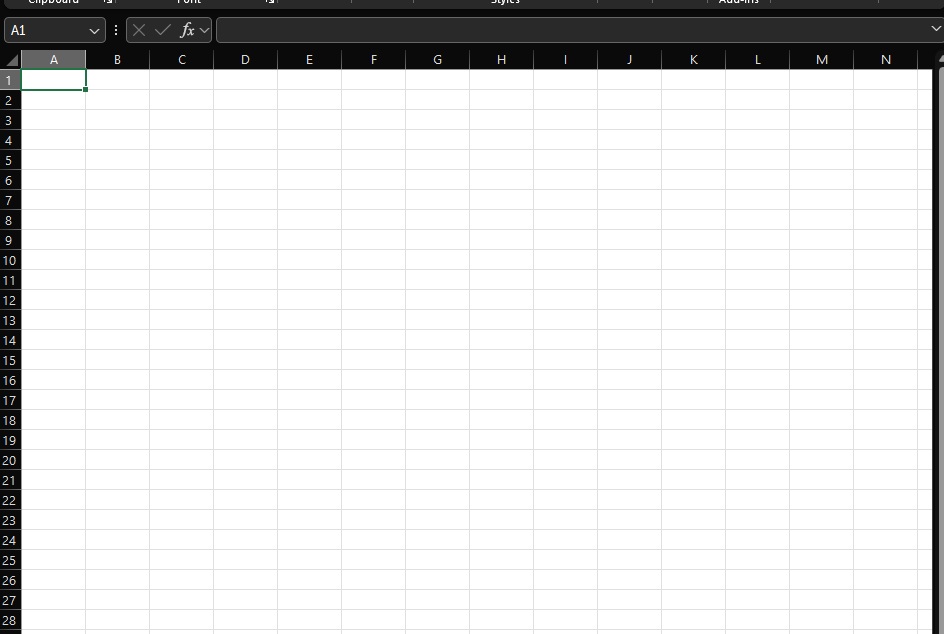
- Open a new, separate blank spreadsheet file and click on cell A1.
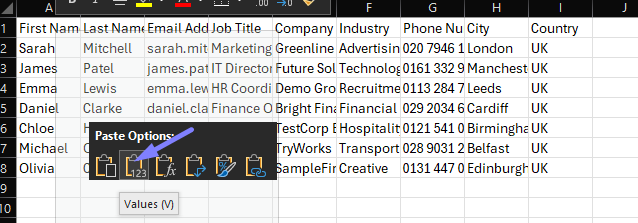
- Right-click on cell A1 in the new sheet and select Paste as values.
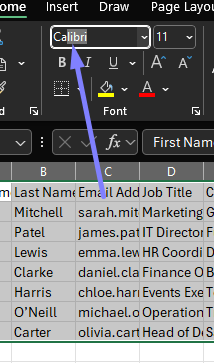
- With the pasted data still selected, change the font to Calibri.
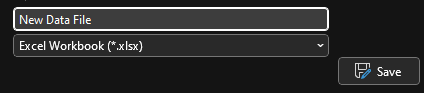
- Save the new spreadsheet as an .xlsx file.
- Upload this new file into Force24.
Check your file name
Make sure there are no special characters in the file name when you save it.
This process strips out hidden formatting, leaving you with clean data that's ready to upload.
What if it still doesn't work?
If your file still fails to upload, it may contain special characters hidden in the data fields. These are sometimes introduced when data is copied from other systems, or when the source file contains errors.
- Find out more in our article on special characters.
- If you can't figure it out, you can always speak with us on live chat.
Summary
Most data upload issues are caused by hidden formatting. Copying your data into a new spreadsheet, pasting as values, switching the font to Calibri and saving as .xlsx solves the issue in the vast majority of cases. For the rest, check for special characters or contact our support team and we'll get you back on track.