Once you have created your form in the form builder, you may be wondering how to add it to your landing page - this article explains how!
If you're looking for how to build your landing page, click hereclick here
Step 1: Head to the Landing Pages tab
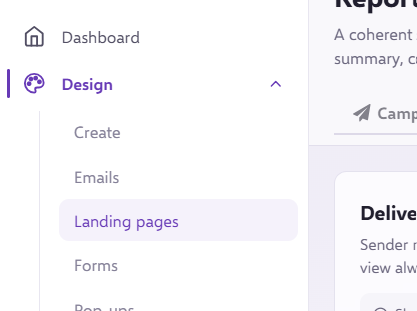
You will first need to go to the Landing Pages section of the platform, this can be found under the Design tab:
Once there, you may have a number of Landing Pages already in place, which may look something like this:
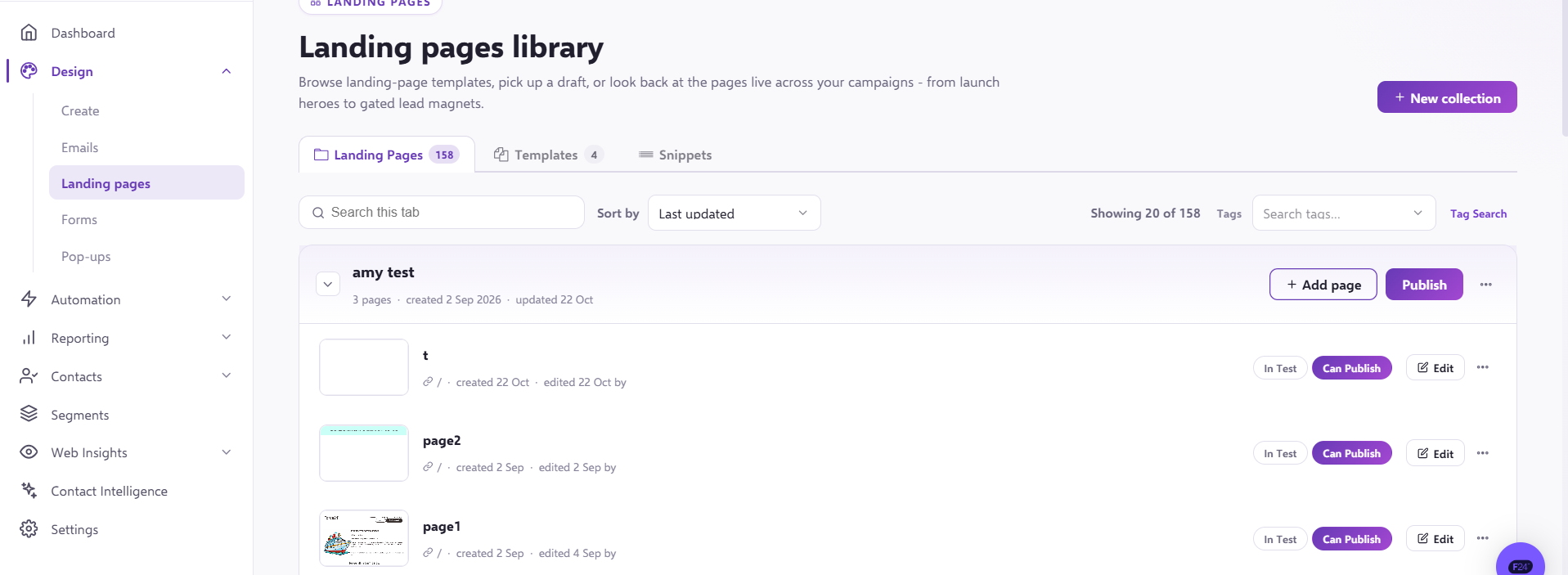
Alternatively, if you need help building your first microsite, you can read our help article on this!
Step 2: Select the relevant landing page
You can expand a landing page to view the separate pages by clicking on it.
To select the page you want to add the form onto, you will need to hover over it and then press "Edit":
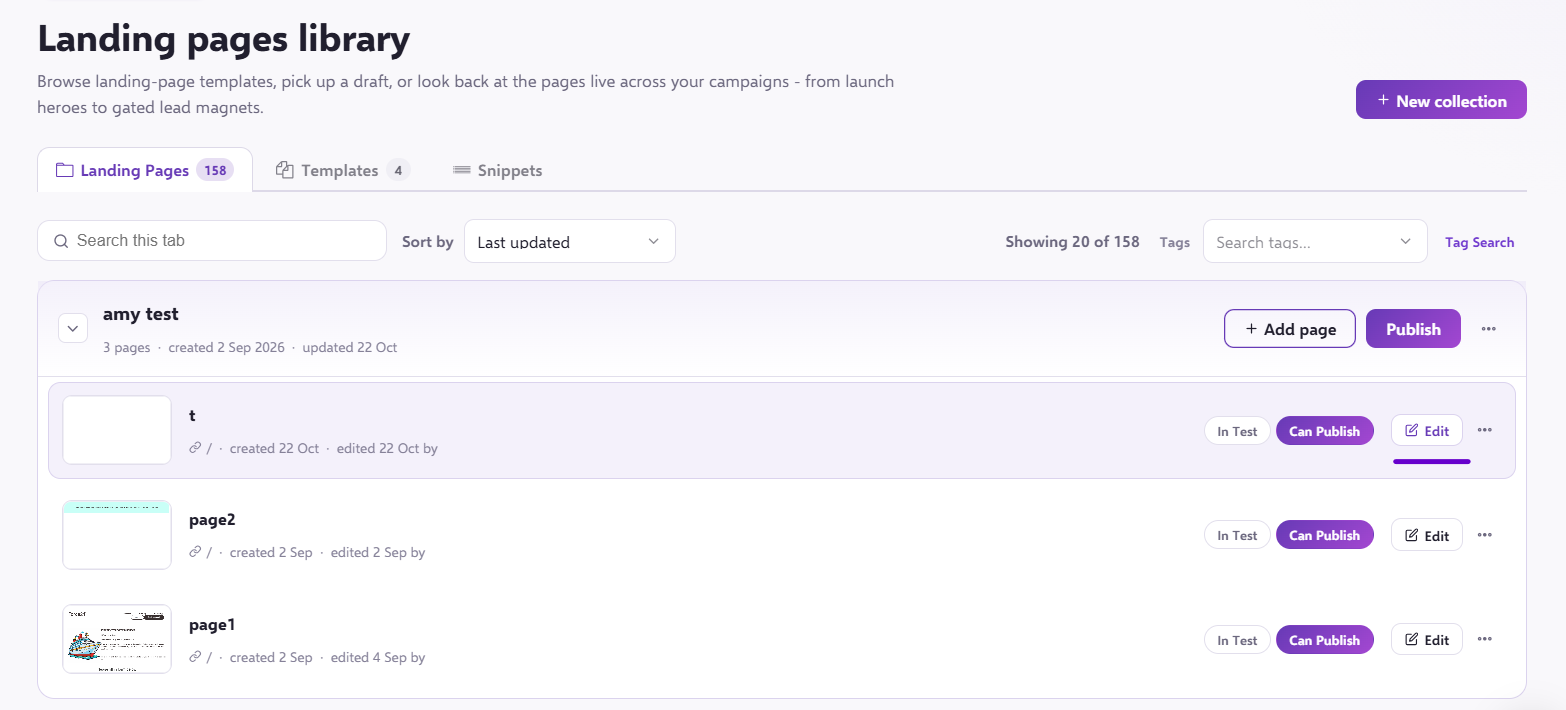
That will bring you to the correct page in the Landing Page builder.
Step 3: Add the form to the page and form configuration settings
You will then be taken to the Landing page builder. To add the form to your Landing page, you will need to select the "Form" button: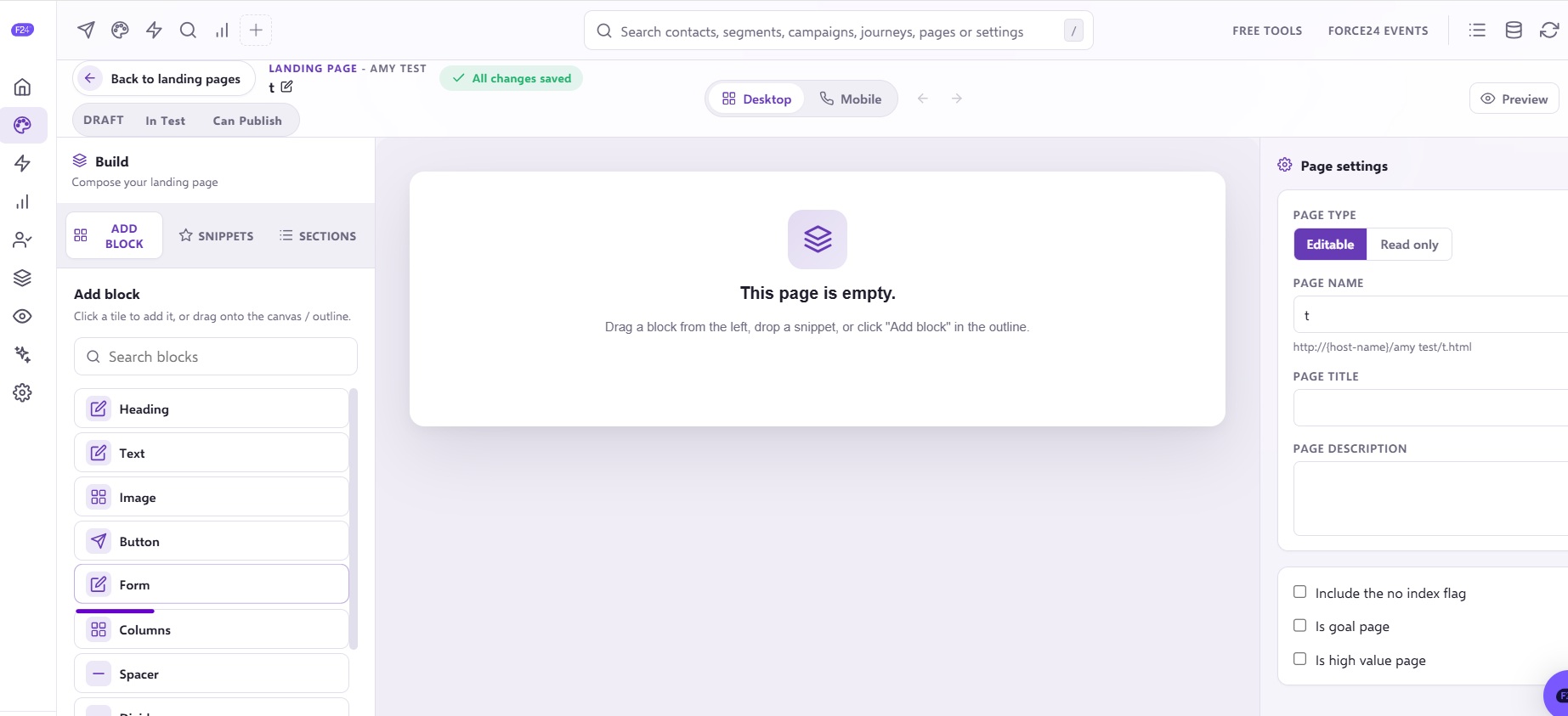
You will then need to select the form you want to add, and select "Use This Form".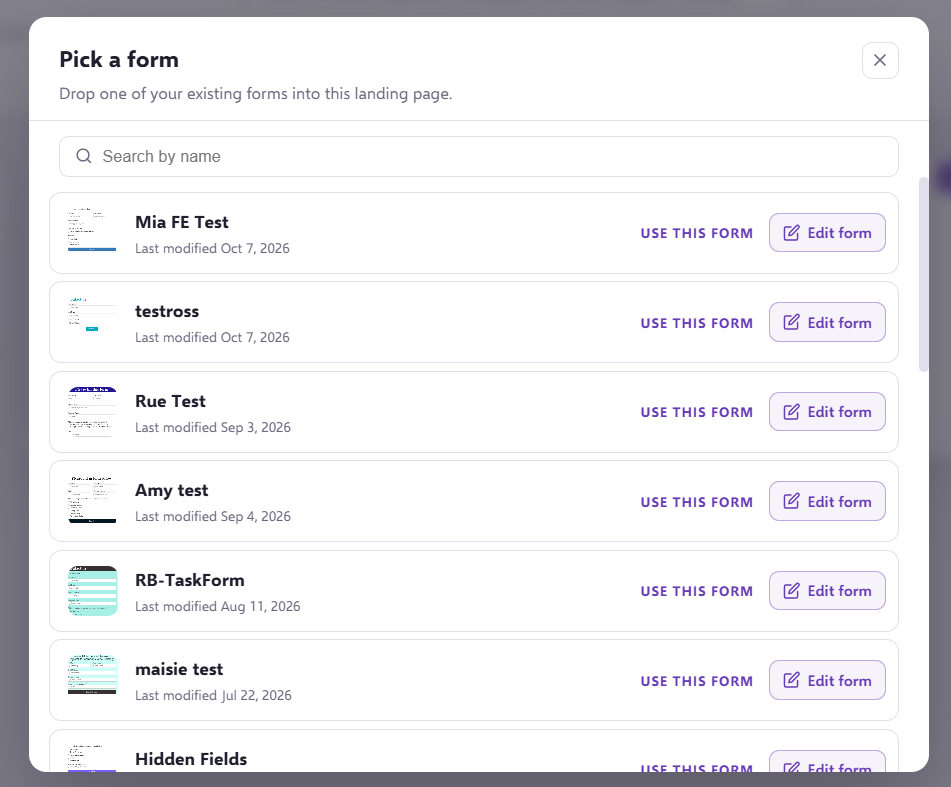
Your Form will then be placed into your Landing page:
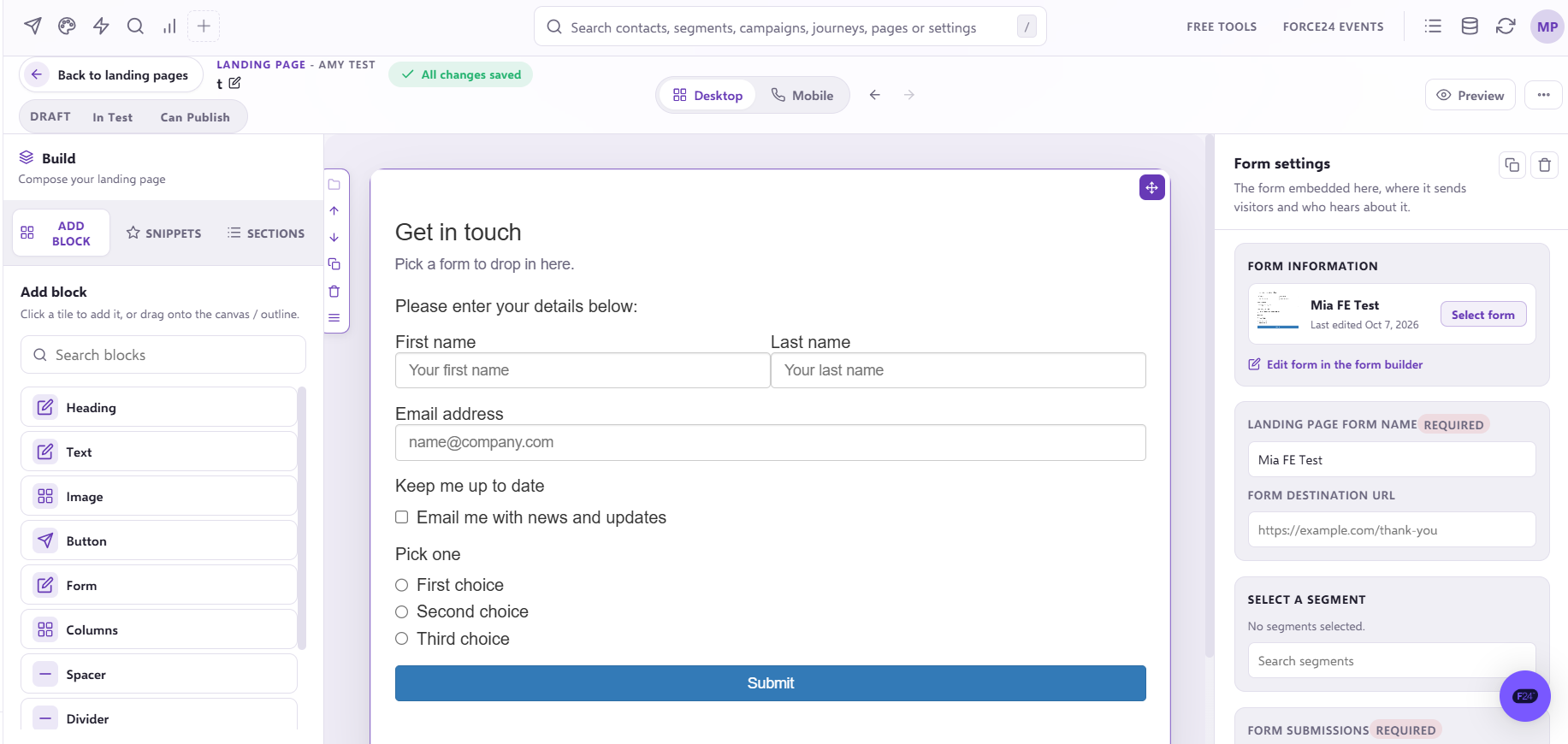
On the right hand side of the page, you will find the 'Form settings' - This is where you can amend the Form name, Form destination URL, the Segment where the submissions will fall into and which email will receive the form submission emails: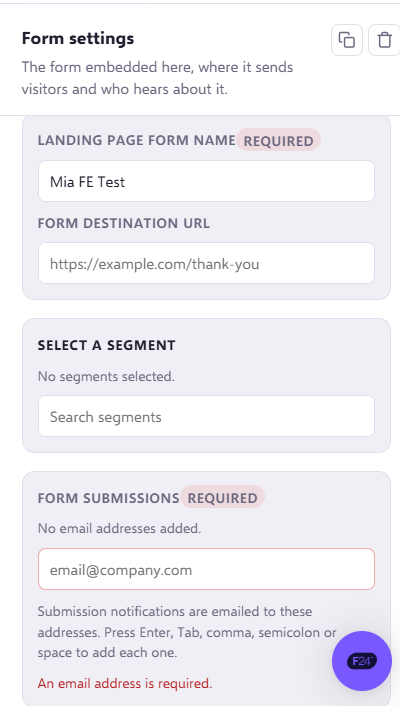
Please do not forget to re-publish the Landing page once you have made any changes.