
CTA button's are useful tools to use when directing customers to a link to additional information. This can be to a website, a pdf document or link to a form for example.
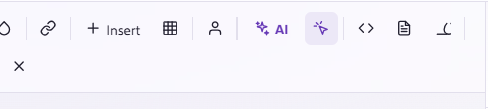
There are two ways to add a CTA button into your email, either adding it in within the text by clicking this button on the text editor;
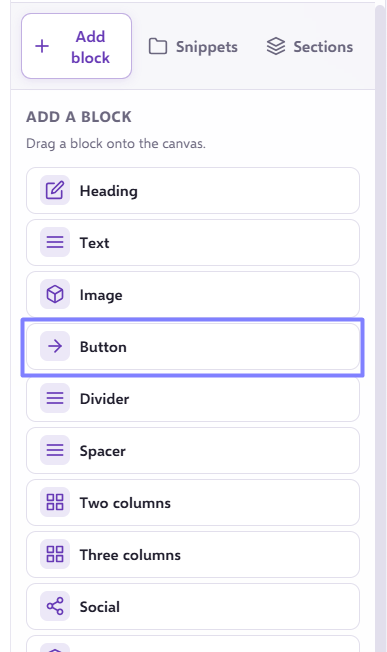
Or by dragging in a 'Button' snippet from the 'Add block' menu on the right hand side;
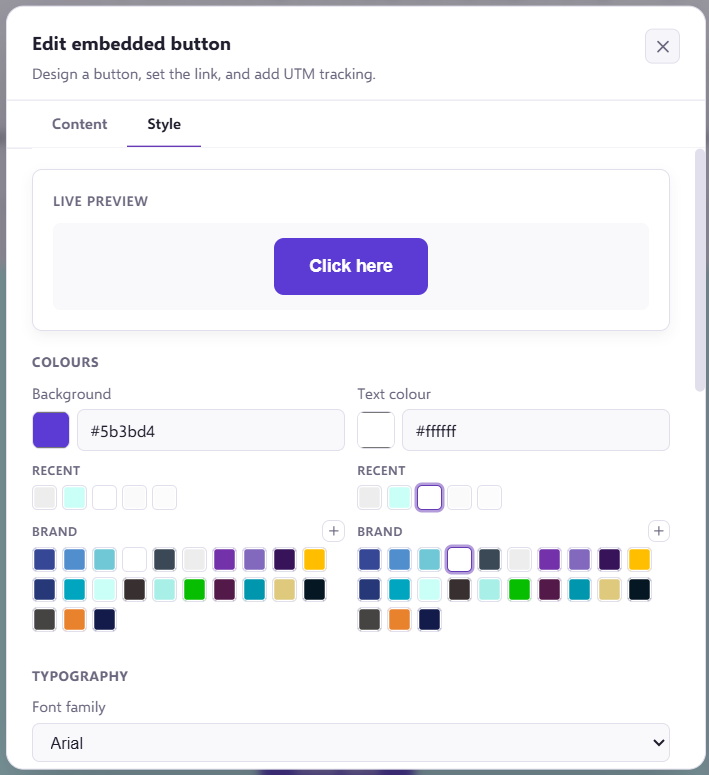
When you have clicked to add in a 'CTA' the 'Embedded Button Editor' screen will open. Under 'Content' you can change the text and insert a hyperlink, under 'Style' you can change text colour, size, style, font and weight.
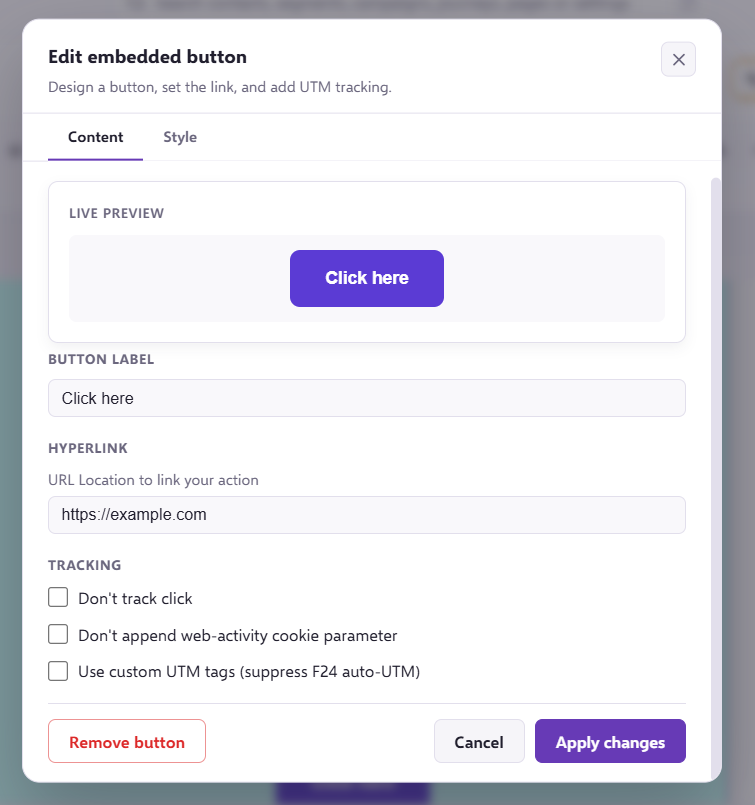
You also have the option here to tick additional information if your link contains any custom UTM tags, if you do not want to track the clicks of the button and if you do not want to append web-activity cookie parameter.
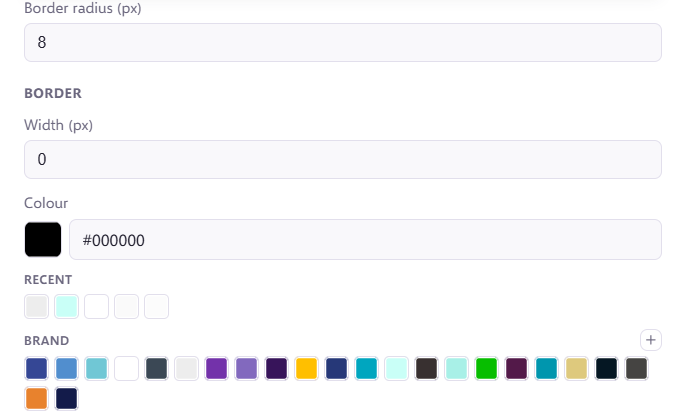
If your link does contain UTM tags and this hasn't been ticked, you will find an error when clicking through the CTA and this will not load the page.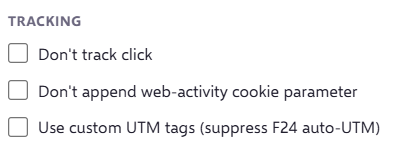 You can edit the border of the button, this includes radius, weight and border colour.
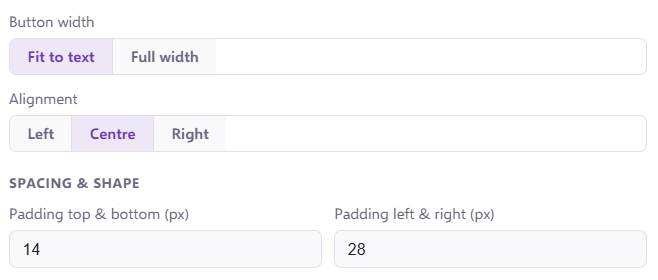
 You can also edit the position and padding of your button, including left, centre, right, fit to text, rounded edges.
The editor will always display a button preview whilst making changes before you save. Please note that closing the button editor via the 'X' button in the top right corner will not save your changes.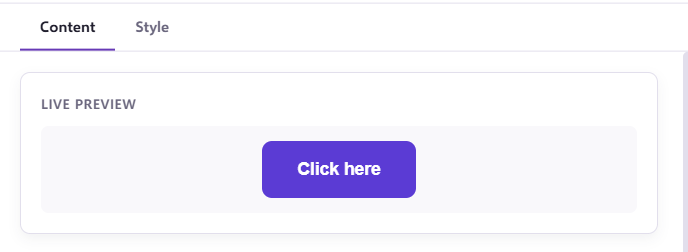
Once you are happy with your button, it is important that you click on the 'Apply changes' at the bottom of the page to save any changes and insert the button into your chosen location in the text box.
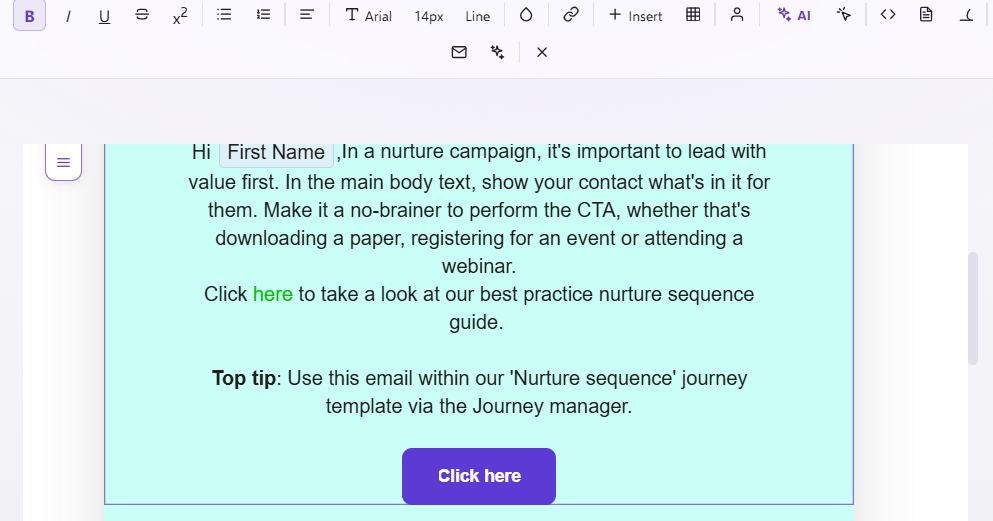
Once you have inserted your button to edit this you just need to click on the button and the 'Embedded Button Editor' will come up. Here you can also delete the button by clicking on 'Remove button' option.

If you have any questions, feel free to reach out to us through the live chat function available bottom right in your Force24 Platform. Our team is ready to assist you and provide support whenever you need it.