
This article shows you how to view the reporting for your single-send campaigns, and explains what each part of the report tells you.
How do I open a campaign report?
- To see the reporting for a specific email or SMS campaign, go to the Reporting tab and click Campaigns on the left then Single Send.
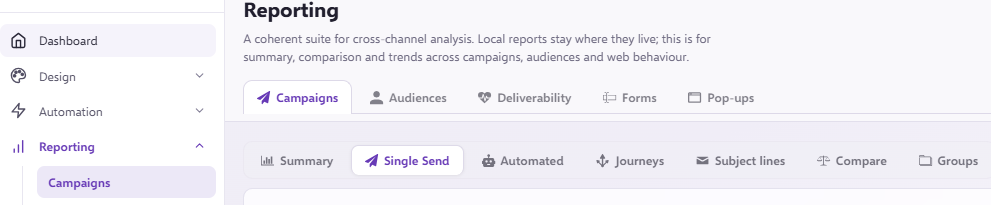
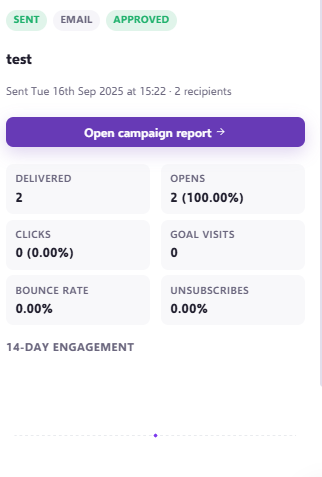
- Click on the campaign, an information panel will appear on the right with an overview and more information once you click the option to 'Open campaign report'.
How do I change the timeframe?
You can change the timeframe the statistics pull from by clicking the 'All time' option in the top right hand corner and altering to your desired time frame.
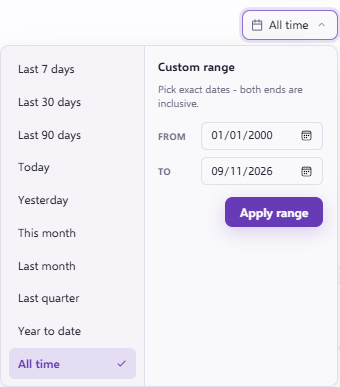
This lets you change the timescale you are reporting on, for example Last 30 Days or Last Week.
What does each tile show?
Campaign Stats
The first tile is Campaign Stats. It shows the Total Emails Delivered and Sent for the campaign, as well as these statistics:
- Total sent
- Delivered
- Open rate
- Click rate
- CTOR (click to open rate)
- Unsubscribes
- Bounce rate

How do I see more detail on a statistic?
You can get a full report on each statistic by using the options to the left or scrolling down. Each section has either the option to choose Search Contacts or Export to Excel file.

- View in contact search brings up a list of the contacts in the platform who, for example, clicked a link in the email.
- Export contacts (CSV) downloads an Excel report containing all the relevant statistics.
Not sure what a statistic means?
If you want to understand the difference between Email Clicks or Opens and Unique Clicks or Opens, learn more in our What is the difference between clicks and unique clicks? and What is the difference between opens and unique opens? articles.
How are non-human interactions shown?
Force24 marks activity that doesn't look genuine, such as clicks from security software, as Non-Human Interaction (NHI). NHI activity is deducted from your opens, clicks and unique figures, and the original figures are also shown so you can see the difference.
You can also search for NHI clicks and opens in Contact Search.
NHI can't catch every bot
No bot detector can identify every bot, and NHI is no exception, but it makes your reporting more accurate. Only campaigns sent after NHI was enabled on your account are included.
Want to know more about NHI?
If you want to understand how NHI works, learn more in our Non-Human Interaction: What is it and what's changing? and Non-Human Interaction FAQs articles.
E-Commerce
If you have E-Commerce set up, this tracks any purchases made by contacts as a result of the campaign.
This section tracks Campaign ROI (Return on Investment), Number of Sales, Average Conversion (£) and Conversion Rate.
Engagement Timeline
This charts the campaign's activity over time, Opens, Clicks and Goal visits.

Click the icons in the legend below the chart to tailor the view by filtering out certain statistics and focusing on others.

Peak Engagement Times
Peak Engagement Times splits the information into days as well as morning and afternoon. This lets you track when your emails are being viewed and interacted with the most.

Bounce Analysis
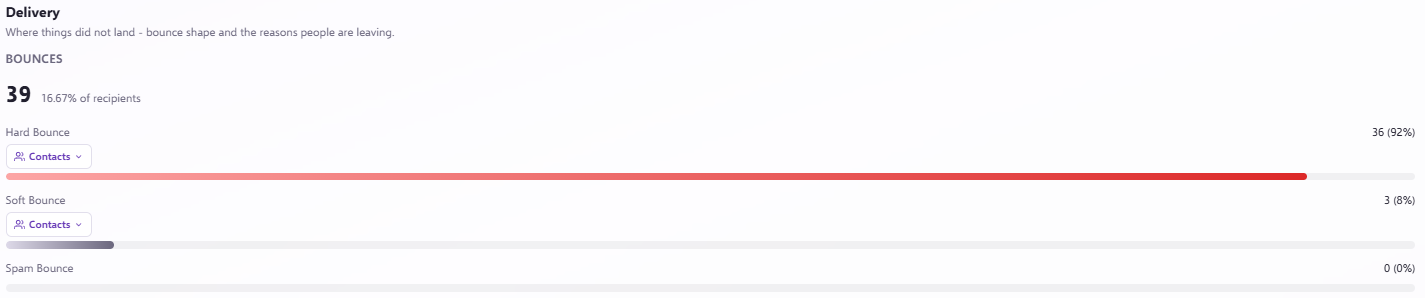
Bounce Analysis shows the overall number of bounces for a campaign, as well as the percentage of contacts that bounced out of the total number the campaign was sent to.
The bounces are also split into Hard, Soft and Spam bounces, so you can see which types a particular campaign has had.
Want to know more about bounces?
If you want to understand the different types of bounce, learn more in our What is a Hard/Soft/Spam Bounce? article.
Link Report
The Link Report tile shows, for every clickable link in your email, how many times each distinct URL has been clicked.

Technical
The Technical section has one chart showing the type of device used to view your email, and web browsers your audience used to look at it.

Need a hand?
If you have any questions about campaign reporting, reach out to us on live chat using the chat bubble at the bottom right of your Force24 platform. Our team is happy to help.