
Force24 allows you to upload templates from other platforms or from other Force24 accounts.
Formatting your template
For a template to work correctly:
- the file structure must be set up correctly
- the code must be formatted in a way that is compatible with Force24.
We cannot guarantee that other platforms will export code in a format that is compatible with Force24. However, following this guide gives you the best chance of uploading and using your template successfully.
Important: formatting the template properly
Before you upload, make sure your file is in the correct format. It must be a zip file. You can name the zip file whatever you like.

The zip file must contain these two items and nothing else:
- A folder named "images"
- Your HTML file, which must be named "template.html"

There must not be anything else in the zip file. For example, do not place these two items inside another folder.
The images folder can be empty, but it must still be in the zip file. If it is missing, the upload will not work correctly.
Before you upload:
We recommend running your code through our validator tool: Force24 Email HTML Validator
You must also read and follow the instructions in our Self Service Template Upload Handbook:
Uploading your template
Go to Email Templates in the left-hand navigation.

Select the Upload tab in the top right of the screen.

On the next screen, choose either Standard Upload or Enhanced AI Upload. We recommend trying a standard upload first, but you can try the AI upload if unsuccessful.
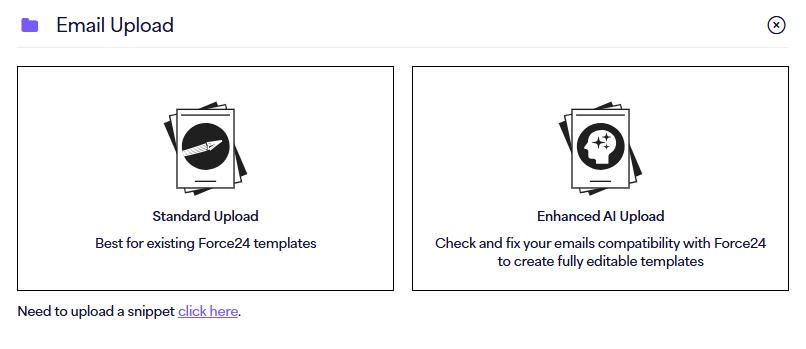
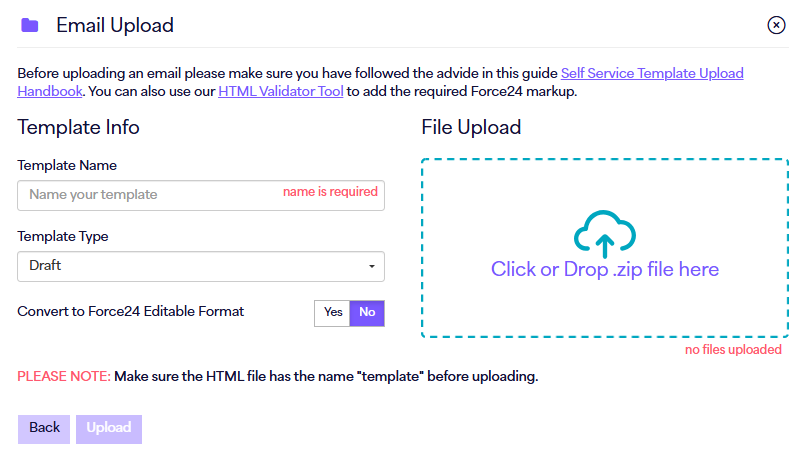
Drop the .zip fie into the 'File Upload' area.
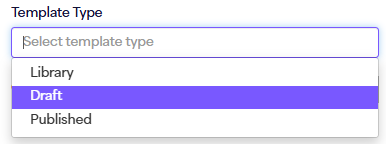
You will be prompted to select the Template Type you want to upload to:
- Library: these templates cannot be edited directly. You must make a copy first, which means you always start from a perfect template.
- Draft: these are your current work in progress templates.
- Published: these templates are locked and ready for the system to use. This is where you put your finished templates.
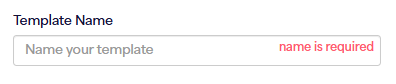
Enter a template name. This is the name you will use to search for your template later on.
Choose whether you want your upload to be converted into a Force24 editable format.

Click Upload. Your template will be built in the location you selected.
If you have any questions, use the live chat in the bottom right of your Force24 platform. Our team is ready to help whenever you need it.