
This article shows you how to set up your landing page subdomain in Force24, so you can host landing pages on the internet. You will need to generate a set of DNS records in your account, add them to your DNS Host (the service or software your company uses to manage its domain and DNS records), then contact our support team to finish the setup.
Before you start
You will need access to your DNS Host to add the records. If someone else looks after this for you, such as an internal colleague or an external agency, you can still follow steps 1 to 4 yourself, then send them the records to add in step 5.
Landing Page Subdomain Configuration
To use landing pages in Force24, DNS records need to be added to your DNS Host. Follow the steps below to generate and obtain them.
1Open your Account Settings
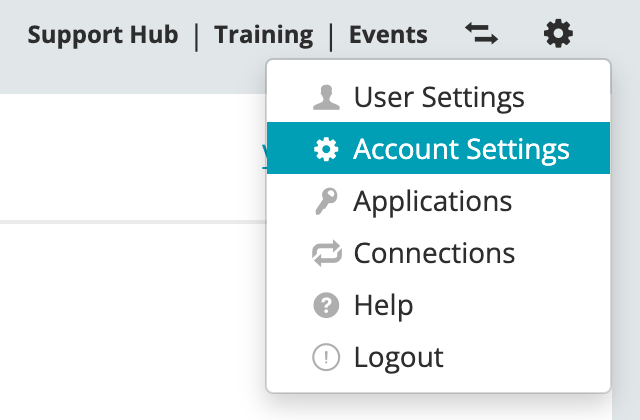
Click the cog icon in the top right-hand corner of your account, then select Account Settings.
2Start adding a new landing page subdomain
Scroll down to the Landing Page DNS Configuration section and click Add New Landing Page Subdomain.

3Enter your subdomain and domain
In the Landing Page DNS Configuration - Add New pop up that opens, enter the details of your Subdomain and Domain.
NOTE: If you are unsure what to enter here, it is typically something like:
landing.yoursite.com
Essentially, this should be your apex domain (in this example, replace yoursite.com with your own website - ours would be force24.co.uk) and a subdomain of your choosing - another option might be 'pages', for example.

4Generate your DNS records
Click Generate DNS records. Your DNS records will be created and shown on screen.

5Add the records to your DNS Host
You can copy and paste the records' values directly from Force24 into your DNS Host, which makes sure they match exactly:

If you aren't the person who manages this, you can send those records and values to the people who do.
If you need further help adding your DNS records with your specific DNS Host, there are additional support articles in the section below:

For specific information on GoDaddy, 123 Reg or Krystal configuration, please see the help articles below.
- How to add DNS records using GoDaddy
- How to add DNS records using 123Reg
- How to add DNS Records to Krystal Hosting
- Adding other DNS Records
6Contact support to validate your subdomain
Once your DNS records have been added to your DNS Host, contact our support team to complete the final setup of your landing page subdomain. The easiest way is through the chat, as below:

The chat team will then raise a ticket for your landing page subdomain to be validated in your account.
If you would prefer, you can email support@force24.co.uk instead, which will automatically create a ticket for you.
NOTE: If you need any additional assistance with the process above, please contact our support team.