
How to add/create new Objects and fields
To add and/or create new Objects and fields to hold your Nexus data:
- Visit the ‘Nexus’ Dashboard from the left-hand toggle menu.
- Navigate to the ‘Settings’ segment on this dashboard. Here you will find all your pre-created objects, as well as the option to ‘Add’ to create a new Object and fields (If you have never created an object before, you will be taken to this page by default).
- Once you press ‘add’ you will be able to choose how you will be adding the data in future, to inform how the data structure should look. This might be via RSS, or via an integration/data upload.
If you’re using the standard ‘external data’ option:
- Select ‘External Data’
- Name and give a description to your Object
- Begin creating the fields within your object; paying special attention to the data type to ensure the data you plan on inputting match the required parameters
- Once you are happy with the fields created and all needed are listed, press ‘finish adding fields’. *Don’t worry if you forget to add one at this stage, you can update if required in future!
- Once you have finished adding the fields, you will be required to publish them in order to access them in other platform areas like email builder and journey builder.
If you’re using the RSS option:
- Select ‘RSS’
- Name and give a description to your Object
- Input the RSS URL and select how often you would like the data to be fed into the platform (from weekly to daily, or even more regular than that if required)
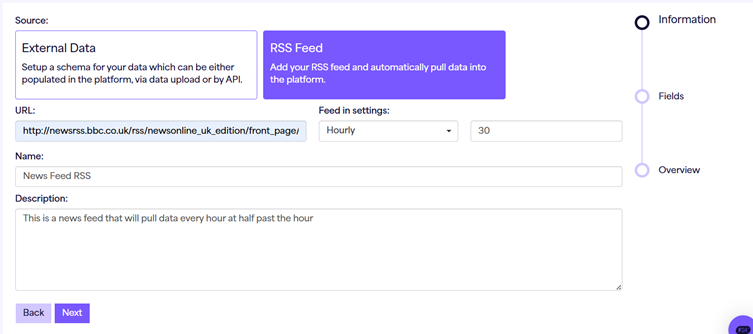
- Once you have inputted this, press next and select which fields you would like to pull into Force24 from your RSS feed, you MUST select pubDate as it is a compulsory field that manages the recency of the latest published items from your feed.
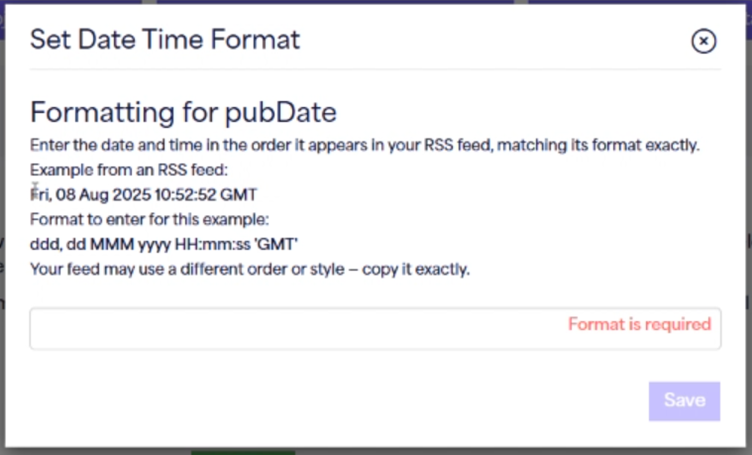
- On the pubDate field, you will be required to align your date/time formatting with whatever appears within your feed. So for example, if the feed shows Fri, 08 Aug 2025 10:52:52 GMT that would be translated as ddd, dd MMM yyyy HH:mm:ss ‘GMT’, if the timezone is not specified as text, e.g. “+00:00:00” you can instead use ‘zzz’.
- Once the fields have been selected, the next page is where you can choose your external ID for the RSS feed. The external ID is the unique identifier per instance (in this example, it would be the identifier per each of my news articles). You can select the externalID from the list of fields being pulled from your RSS feed, for example ‘Title’.
***ExternalID has a character limit of 100 and is restricted to the following characters: A-Z , a-z , 0-9 , (space) and -"_~!$'(),;@={}^[]| - You will also be required to select pubDate as a reference point to last update (as mentioned previously).
- Finally, press next and save/publish this to begin using.