How to upload data into Nexus via a ‘data upload’?
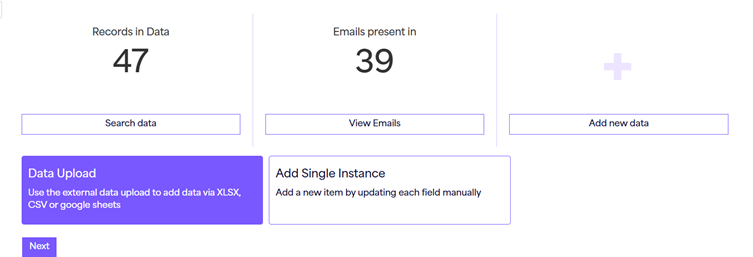
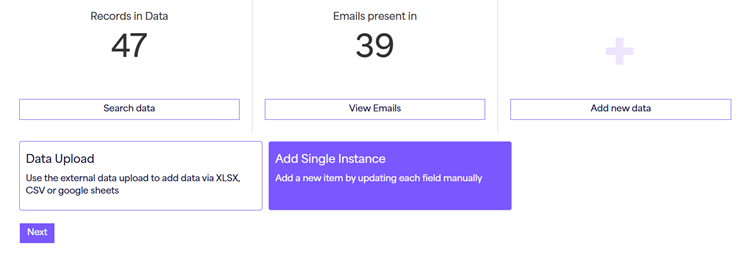
To upload a new data set to External Data using ‘data upload’, simply navigate to the ‘Nexus’ dashboard, and ensure you are on the ‘Overview’ segment. Then press the ‘Add new data’ option beside the Object you wish to upload your data to, and then select the data upload option from the selection. You can also use the ‘quick action’ for adding data.
When uploading your data set, ensure you map the correct External ID to each of your rows to ensure it maps to the correct data, and updates or creates new data where appropriate (External ID is the ID that matches your data and will be used to update values for each row of data in the External Object.).
Data upload accepts three different file types: CSV, XLSX and Google Sheets. To find out more about how to upload data, click here **This is going to link to the DU article I did**.
How to ‘add’ data to a singular object instance?
To add data to a singular object, navigate to the ‘Nexus’ Dashboard on the ‘Overview’ segment and click ‘Search data’.
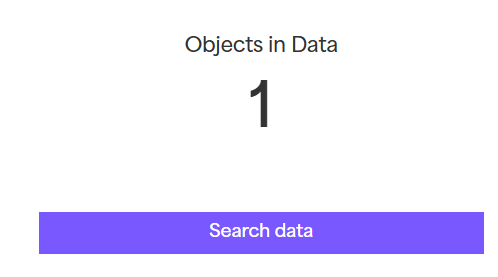
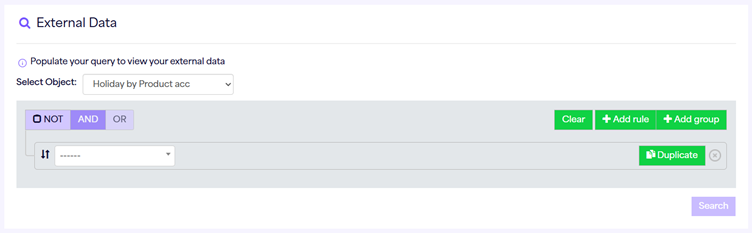
This will take you to a ‘contact search’ style page, specifically designed to view your external data relating to the object selected (you can populate the query to view any data relating to this data set).
After pressing ‘search’ on an external data query you will now see the option to ‘show ID/Hide ID’ (this shows/hides the external ID for each of your instances), and an ‘add’ button besides this.

Click the add button and you will now be able to add data to your external data set. You will need to populate this with a unique external id, as well as the data you would like to add.
If you are happy with the data press ‘save’, or if there is more you wish to add, press ‘save & add another’ to continue adding to your data set.
Adding data can also be achieved by pressing ‘add new data’ and selecting ‘add single instance’ which will prompt you to input the required fields for the new row.
How to ‘edit’ data of a singular object instance?
To edit data within a singular object instance, navigate to the ‘Nexus’ Dashboard and click ‘Search data’ beside the object you would like to edit data within. This will take you to a ‘contact search’ style page, specifically designed to view your external data relating to the object selected.
You will be required to populate the query to view any data relating to this to locate the data you wish to edit. After pressing ‘search’ on an external data query you will now see the option to ‘edit’ beside each of your object instances.
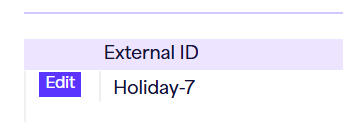
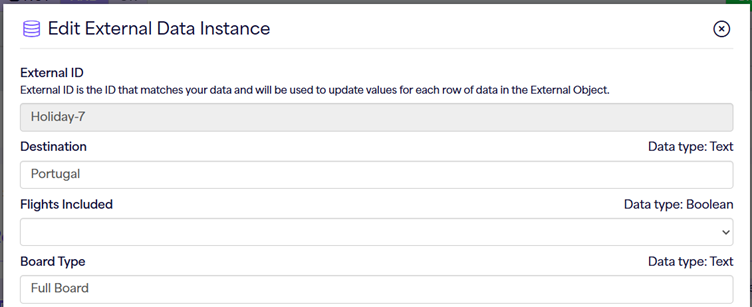
Click the ‘edit’ button and you will now be able to edit the data within your external data set. The external ID is prepopulated and cannot be edited to avoid any additional work for you.
How to use delete a single instance of External Data from your Object
To delete a single instance of your data within a singular object instance, navigate to the ‘Nexus’ Dashboard and click ‘Search data’ beside the object you would like to edit data within. This will take you to a ‘contact search’ style page, specifically designed to view your external data relating to the object selected.
You will be required to populate the query to view any data relating to this to locate the data you wish to edit. After pressing ‘search’ on an external data query you will now see the option to ‘edit’ beside each of your object instances.
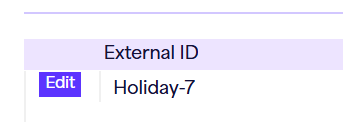
Click the ‘edit’ button and you will now be able to edit the data within your external data set. The external ID is prepopulated and cannot be edited to avoid any additional work for you.
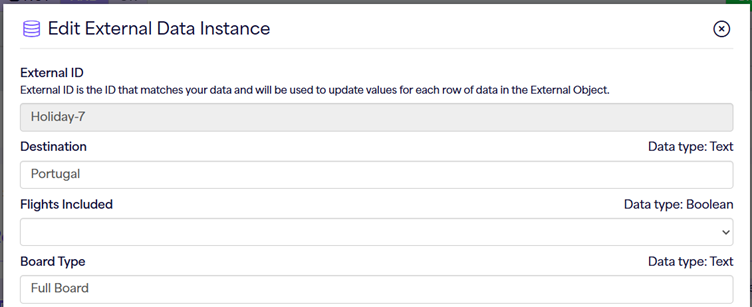
If you scroll to the bottom of this modal, you will be able to see a red ‘delete’ option. Clicking this will delete the single row of data from your data set.
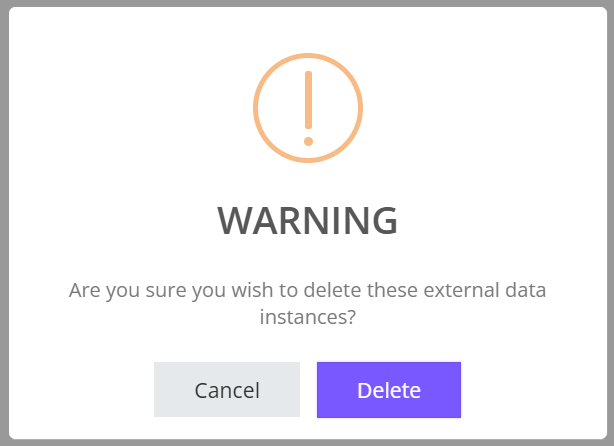
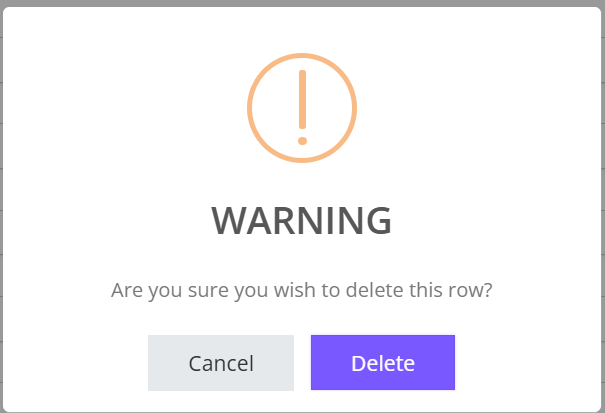
You will need to approve this change to continue, as a modal will appear to ask if you are sure you wish to delete. Click ‘Delete’ to go ahead with this change. By clicking ‘Cancel’, no data will be removed from your account.
How to bulk delete data from within your external data object
To bulk delete data within a singular object you will be required to be the master user of the account as this permission is only granted to master users. If you are the master user on the account, navigate to the ‘Nexus’ Dashboard and click ‘Search data’ beside the object you would like to edit data within. This will take you to a ‘contact search’ style page, specifically designed to view your external data relating to the object selected.
You will be required to populate the query to view and narrow down the data you are wanting to delete.
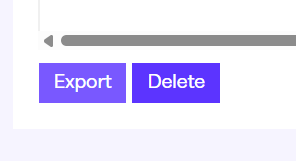
Once your criteria is set and the data that has appeared is what you wish to delete, you can click the ‘delete’ option at the very bottom of the page.
This will prompt a popup to appear to confirm your choice, please select ‘delete’ if you are happy to go ahead with the deletion process. Or ‘cancel’ if you have changed your mind.