
How to use Nexus in the email builder
Nexus can be used as simply as adding a singular snippet to your template and enabling the repeater option, then populating it with your chosen External Data fields.
New capabilities are unlocked using repeaters, this means you can take the manual intervention out of stock/content management; creating a snippet once, and repeating it as many times as needed based on what is available in real-time.
For example, instead of creating an email for each available Ford Fiesta, you could have one email with whatever car matches your Nexus journey criteria at that time! So whatever stock is available and matches what your contact wants to see will appear in the email, repeated as many or as little times as you like.
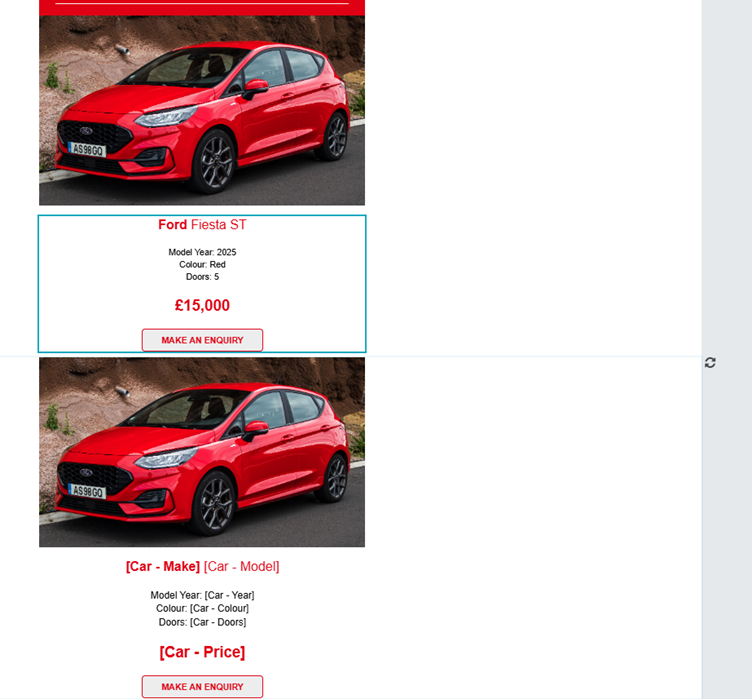
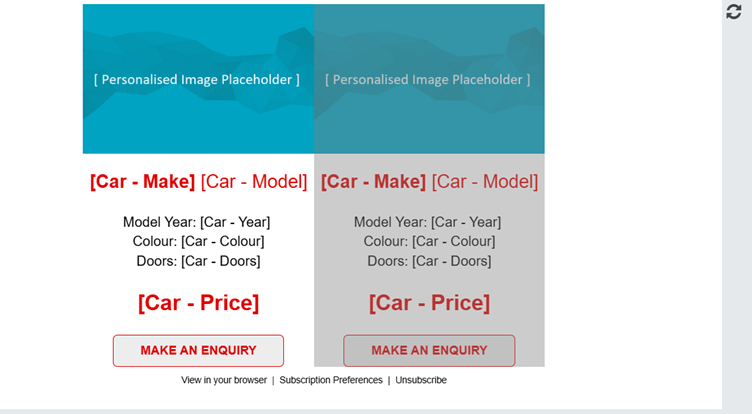
To add external data to your template:
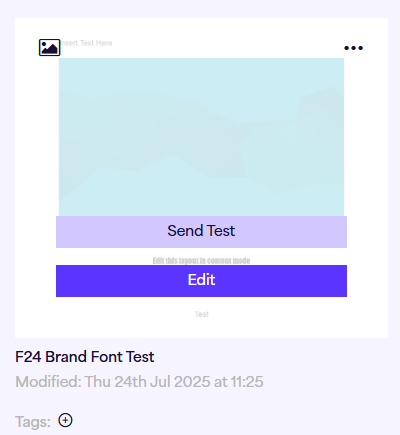
- Navigate to the Email Builder and choose your desired template to add external data to by hovering over the template and pressing ‘edit’ if in ‘draft’ (If selecting from a ‘Templates Library’ template, this will read ‘use’ instead.
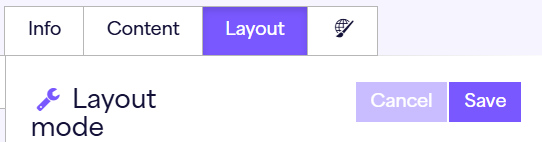
- Navigate to the ‘layout’ section of the email builder
- You will then need to add a new snippet to your template in order to use external data within. The snippets that can be used with repeaters are: Image, Text, Image & Text and Text & Image. It must be a single column snippet as the repeater can add multiple columns when created.
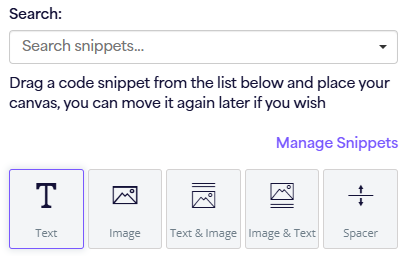
- Once you drag and drop your new snippet into the template, you can then choose the right hand toggle menu option to ‘enable repeaters’
- After selecting this option, you will be required to choose what external data object you would like to connect the snippet to, and input your repeater settings options. This includes things like ‘repeat type’, the order of the repeating, and the number of times it will be repeated.
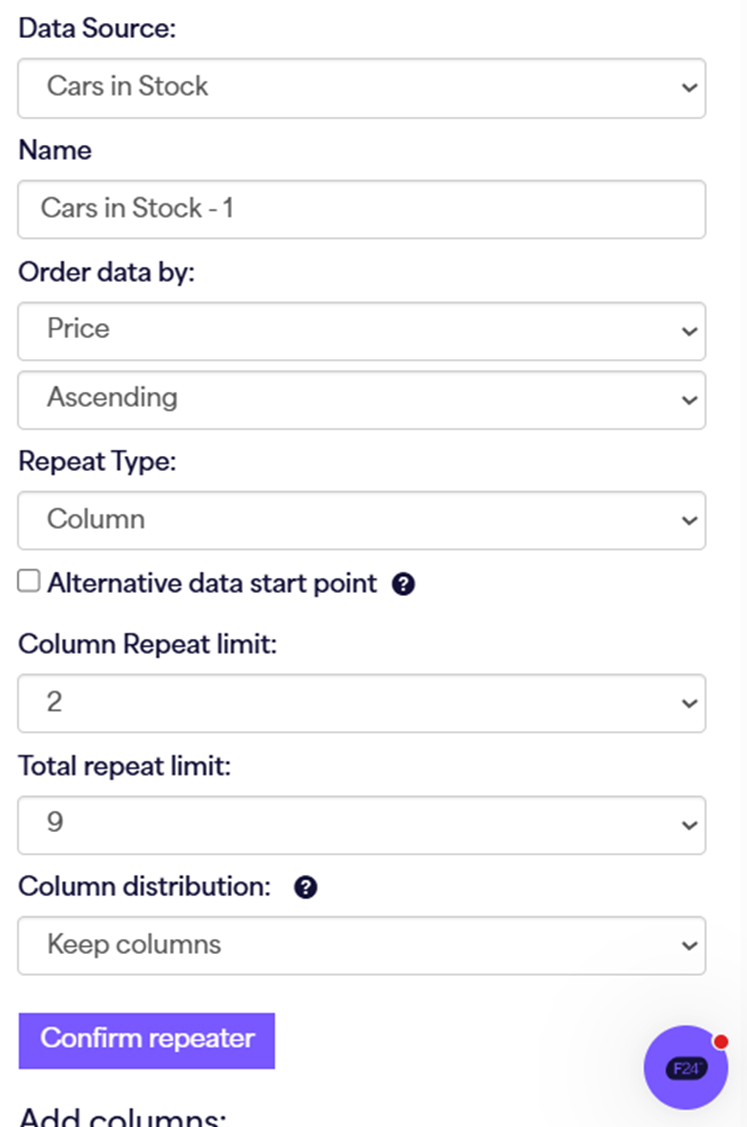
The selection here determines the object instances shown within the email. Order can be controlled by the journey as well as in the email. Changes made within the email will take precedence over email selection. Columns have the capability to be repeated onto multiple lines.
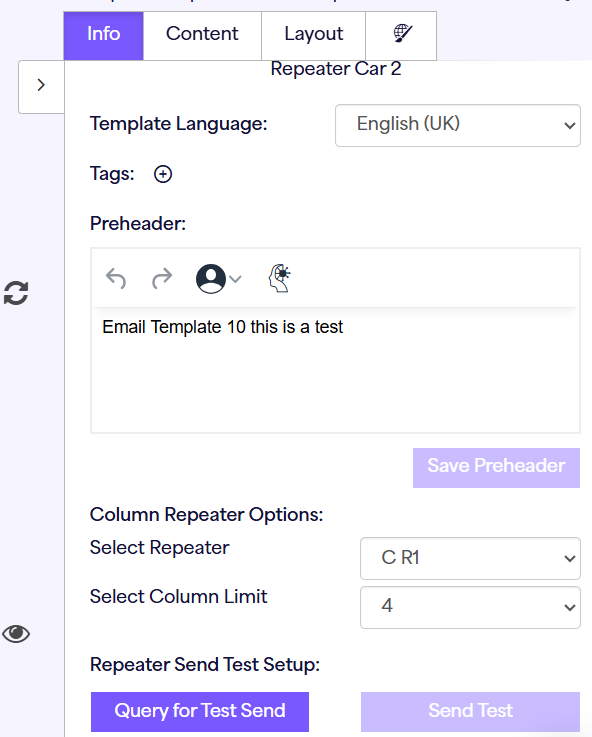
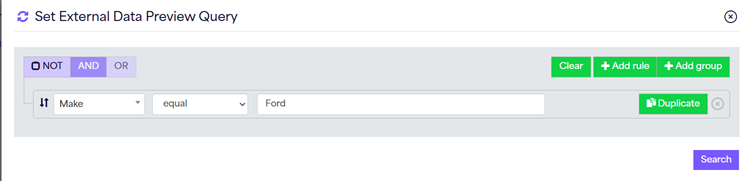
- If you would like to test your email template with repeaters in, you should navigate back to the ‘info’ tab and update your ‘repeater send test setup’ settings. This will allow you to choose what options you would like to appear in your test from your live data set. For example, if you would like to view in the email all cars that have the make set to a ‘Ford’ to appear in the email (with a max of the repeater settings already set in the template), you would populate the query with ‘Make > equal > Ford’. This will then filter all cars who meet the criteria, and appear in the order set in the repeater settings. So if the repeater settings are based on price descending, it will be in that order in the template with a limit of the number set (provided there enough cars meeting the criteria).
Email templates can contain custom objects and External data within them. To do this, simply connect your object to the template and follow the above steps for any external data you would also like to include.
Repeater Settings explained:
Data Source: This option is used to establish which Nexus object you would like to use within the snippet you have created. For example, this might be your cars in stock, MOT or service availability, or travel/holiday options.
Name: The ‘name’ refers to what this content block will be called; this will help later when you would like to apply settings to that repeater block from the journey itself. For example, I might call a block relating to my Newsletters ‘Newsletters’ and the block related to Cars that I have available ‘Cars in Stock’.
Order data by: This option can be changed in journey settings at a later stage, but this setting is so you are able to choose how the data is ordered to the recipient. For example, I might want to show the highest priced cars first.
Repeat Type: The repeat type can be changed depending on whether you would like to have a snippet repeated in columns, or in new rows/snippets. If the first block you create is a multi-column snippet, e.g. Text on the left and an Image on the right, these options may be limited to just snippets to encourage best practice and a better appearance on smaller resolutions.
Alternative data start point: By selecting this option, your next added snippet containing the same order data by settings etc, will start from a different row in your data. E.g. You could have one snippet starting from 1-4 and then a break between your next displayed snippet which shows from 5-8. This is created and defined by you. To use this, you simply add multiple snippets, and on the second or beyond snippet you use, you check this option and populate where you would like the selection to start from.
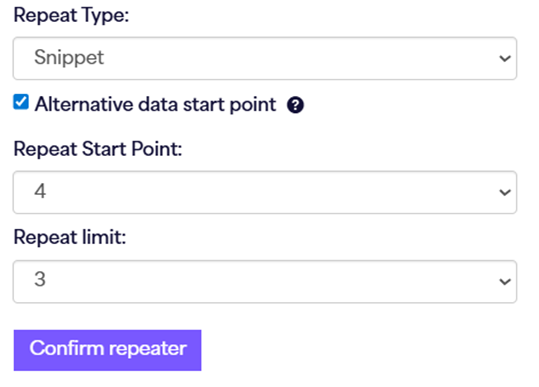
Column Repeat limit: If you select the ‘repeat type’ as ‘column’ you will need to establish how many columns across this should be limited to. For example, Setting the column limit to 4 will mean no matter how many matching items there are, the snippet will not exceed 4. The same logic is applied if there are not enough items that match, for example 3 items match, but the column repeat limit is 4 – this will instead limit the items shown to that number (3) and where no matches are found; the email will not be sent.
Total Repeat limit: This also directly links to column as the repeat type setting. If this is selected, it allows you to choose the maximum number of items from your nexus object that can be shown. For example, if my column repeat limit is 2 and my total repeat limit is 6, it will show 3 rows of 2 (provided all of the matches are available.).
Column Distribution: This is split into three options. Column distribution refers to how the columns will appear over multiple rows if there is not enough Nexus data available and matching to the journey criteria to follow the rules set in total and column repeat limits. ‘Keep columns’ means that it will show all available instances of data, even if the rows will end up differing in the column count. For example, 4 on the first row, and 2 on the second row.
The ‘balanced option’ will instead re-adjust the rules set for a ‘better fit’ if there is not enough data to perform the display options originally set. Meaning if the setting was column repeat limit of 4, and only 6 available instances, it would rebalance the options and show 2 rows, with 3 columns on each.
Finally, ‘No Gaps’, this option will skip any rows that won’t match the column limit. For example, following the above example, if there is a column limit of 4 and only 6 available instances, it will not show the second row of 2, and just show one row of 4.