
Related topics: How to edit Mobile View : Force24 Support
As part of recent changes to our Mobile View editor, you can now modify the order columns appear in if they are set to stack on top of each other in mobile screens.
This might be useful if you have a larger image as part of the snippet, but want to prioritise the text content in mobile screens - all while keeping the same layout in desktop mode.
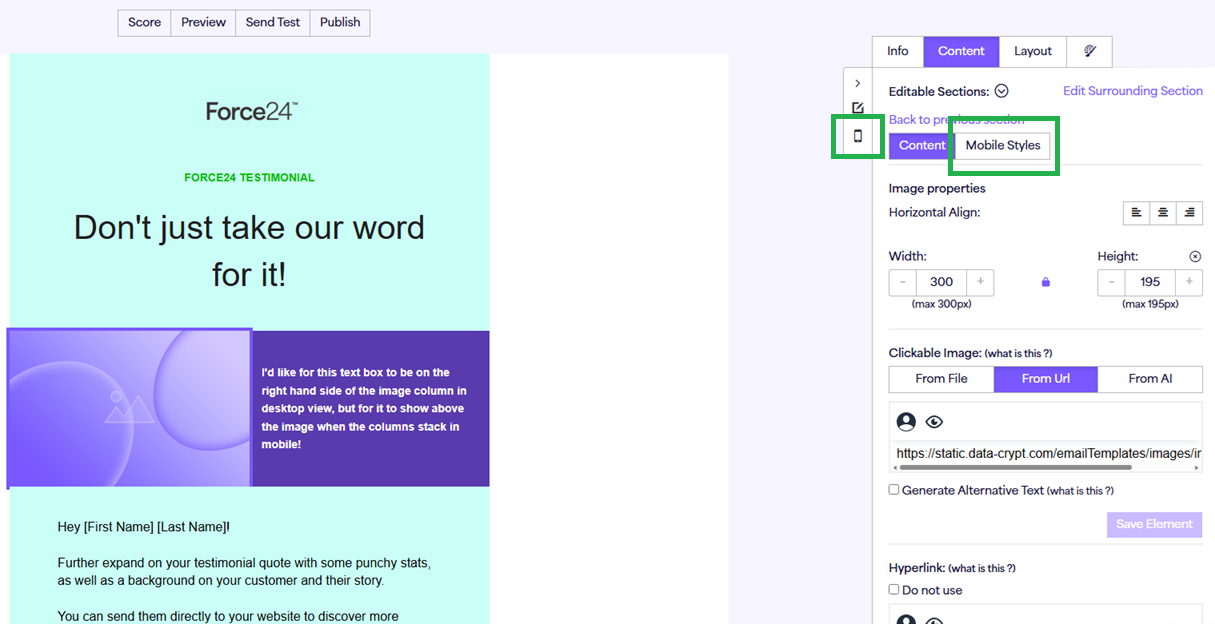
For example, in this two-column snippet we've got the image on the left and the text on the right for desktop screens. If we wanted to prioritise the text element in mobile screens, we can do this by first clicking into either Mobile Styles or Mobile View whilst in Content mode:
This will bring up some options relating to how the columns stack in mobile. For our purposes now, we just need to select "Right First" - this means simply to show the right-hand snippet (as shown in desktop view) above the left-hand snippet in mobile screens, as opposed to the default which would be left on top and right on the bottom.
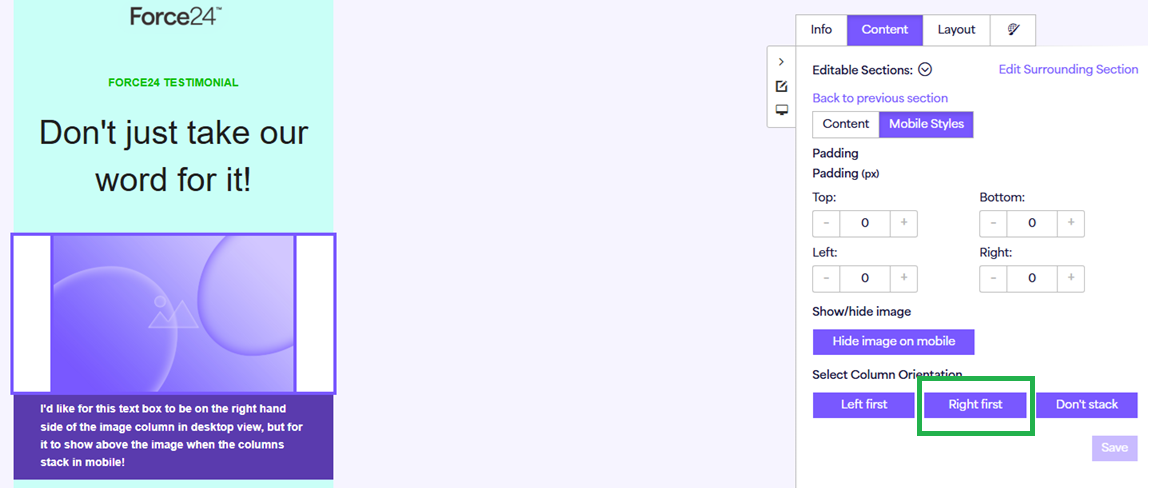
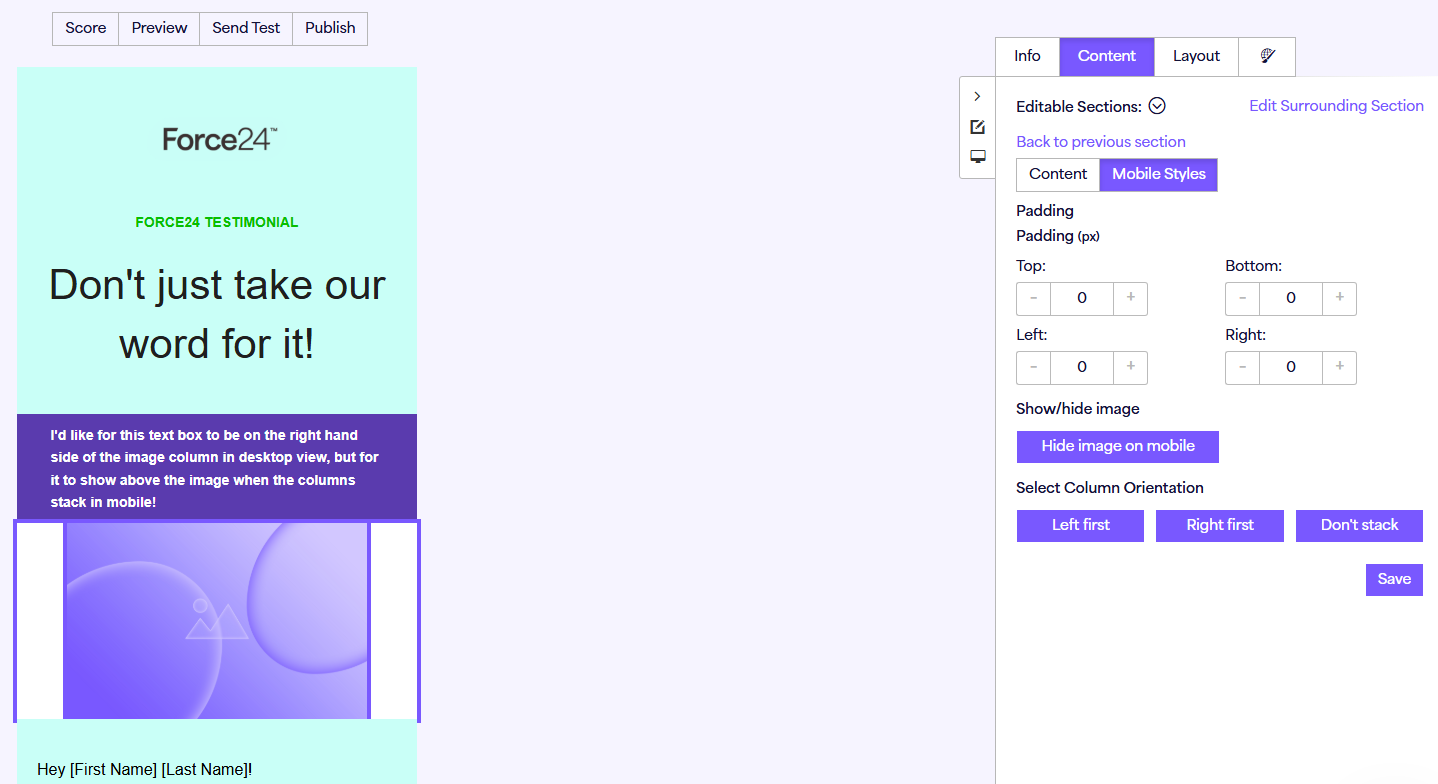
Once clicked, you'll then see the column order change in mobile without impacting the desktop layout:
A great use case for this would be for templates that have a "checkerboard" structure, where there are multiple 2-column snippets that alternate the column order section-to-section e.g.:
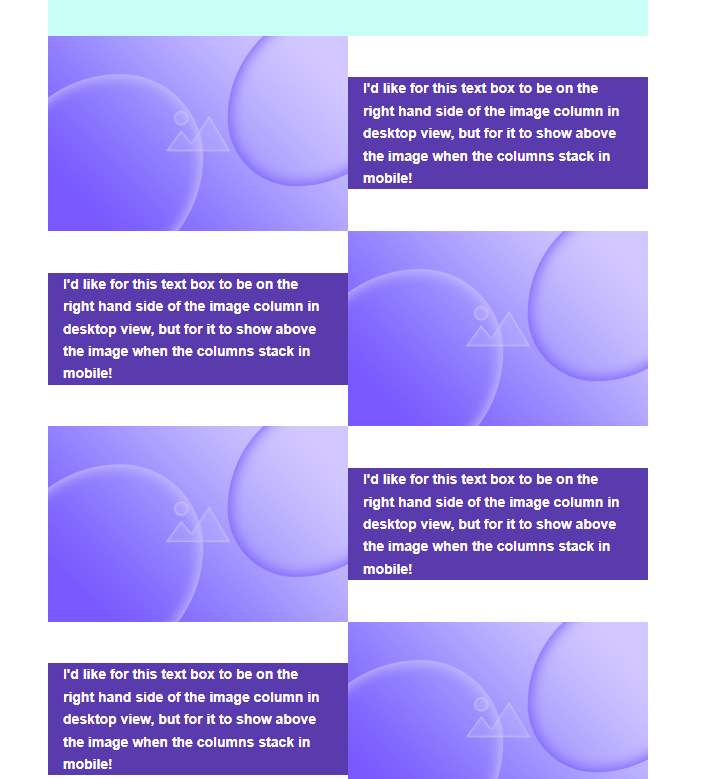
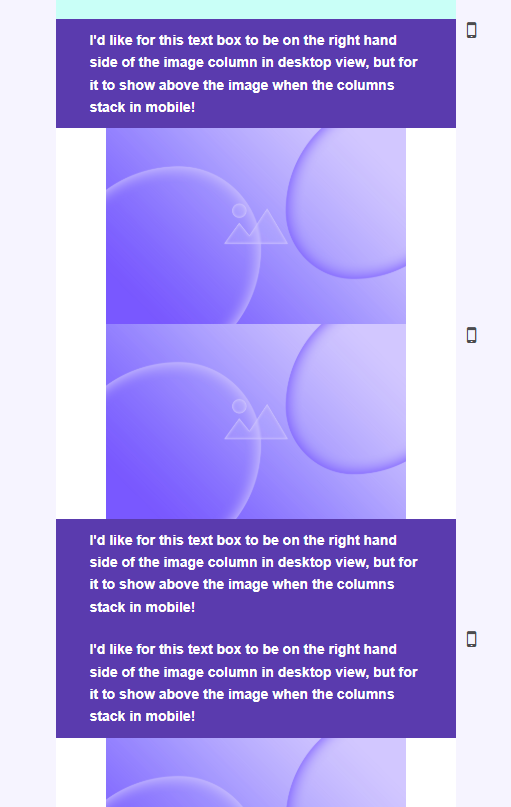
By default, a template like this would read IMAGE/TEXT/TEXT/IMAGE/IMAGE/TEXT etc. in mobile view, throwing off the naturally expected order:
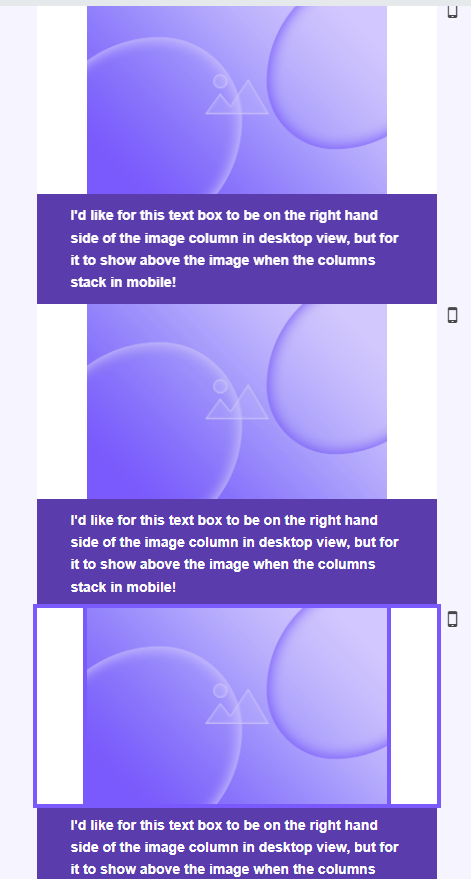
Ideally, this would read IMAGE/TEXT/IMAGE/TEXT... or TEXT/IMAGE/TEXT/IMAGE...
By utilising the "right first/left first" option as explained above, the mobile order can be re-configured to achieve this, all without the need for any coding!
If you do have any more bespoke mobile view requirements, please don't hesitate to reach out to our Product Experts via our live chat and they will be happy to assist!