
How AND, OR and NOT Work
Force24 uses standard Boolean operators (AND, OR and NOT) to decide whether a contact matches your query.
OR broadens your audience
OR means a contact only needs to match one of the conditions.
For example:
OR
├── Opened an email in the last 30 days
└── Visited the website in the last 30 days
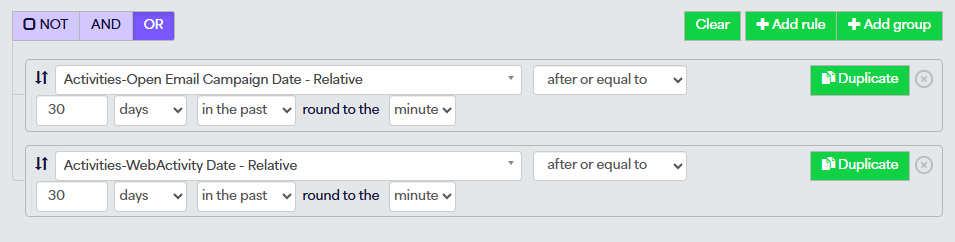
This would return contacts who have done either activity.
AND narrows your audience
AND means a contact must match every condition.
For example:
AND
├── Opened an email in the last 30 days
└── Visited the website in the last 30 days
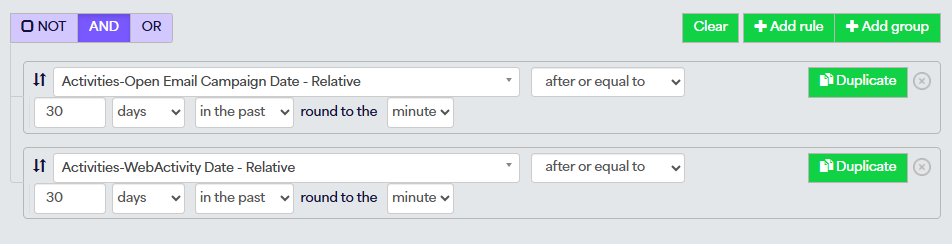
This returns a smaller audience because contacts must satisfy both rules.
NOT excludes contacts
NOT excludes contacts who match the conditions.
For example:
NOT
└── Marketing List | Is | Admin List

This means:
Exclude contacts who are in the Admin List.
NOT is commonly used when building exclusions and suppression criteria.
Why Are AND and OR Sometimes Greyed Out?
AND and OR only exist to compare multiple items (rules, or other groups) within a group.
For example:
OR
├── Rule A
└── Rule B
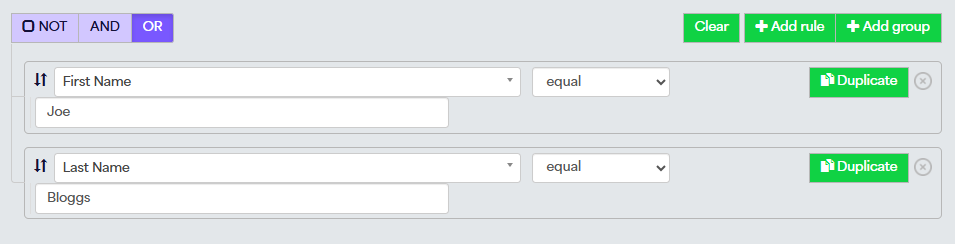
or
AND
├── Rule A
└── Group 1
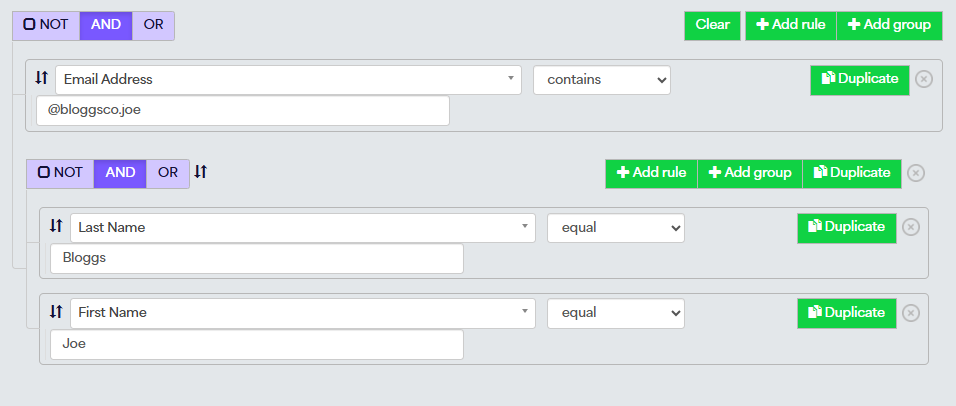
In both cases, Contact Search is evaluating the relationship between multiple items.
However, if a group only contains a single rule:
NOT
└── Marketing List = Admin List

there is nothing to compare.
You can have:
- Rule A AND Rule B
- Rule A OR Rule B
But you cannot meaningfully have:
- Rule A AND nothing
- Rule A OR nothing
Because of this, Force24 disables the AND and OR controls whenever a group contains only a single item. The selected value becomes irrelevant until another rule or subgroup is added.
You'll still see NOT available because NOT can work perfectly well on a single rule or group by itself.
If you want the AND and OR options to become available again, simply add:
- Another rule to the group, or
- Another subgroup inside the group
Once there are multiple items to compare, the AND and OR controls become meaningful and can be selected again.
Why Group Structure Matters
Two queries can contain exactly the same rules but return completely different audiences depending on how the groups are arranged.
For example:
AND
├── OR
│   ├── Marketing List A
│   └── Marketing List B
└── Visited URL X
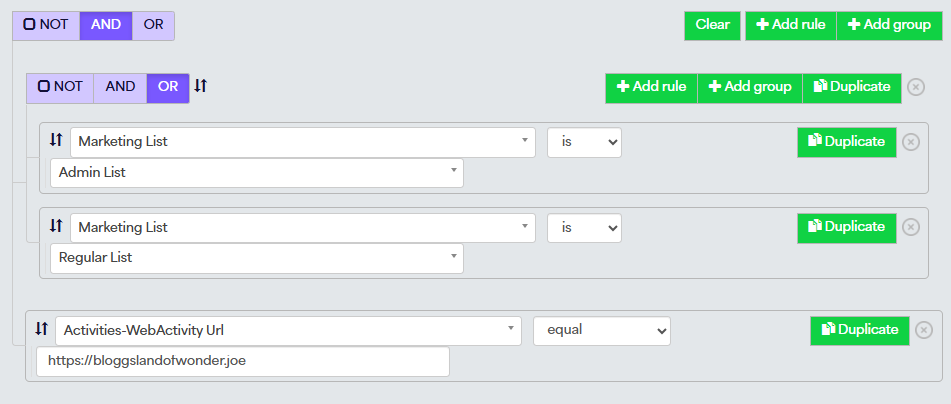
This means:
Return contacts who are either in Marketing List A or Marketing List B, and who have also visited URL X.
Whereas:
OR
├── OR
│   ├── Marketing List A
│   └── Marketing List B
└── Visited URL X
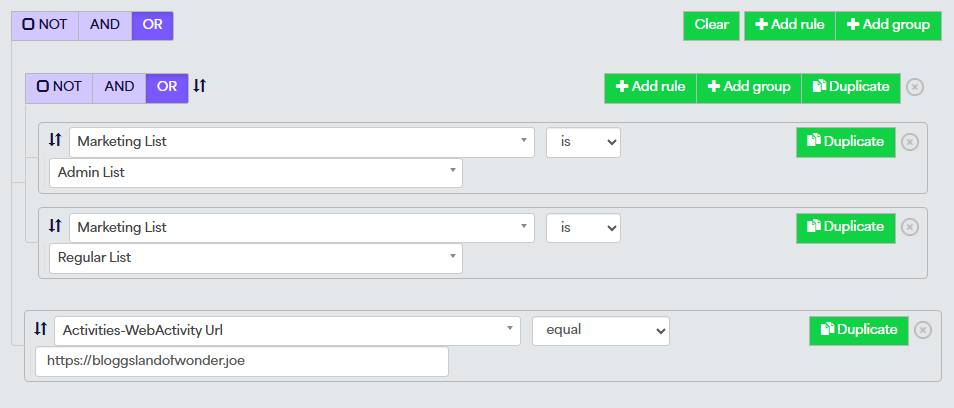
Means:
Return contacts who are in Marketing List A or Marketing List B, or who have visited URL X.
The second query will usually return significantly more contacts.
This is why understanding groups is sometimes more important than understanding the individual rules themselves.
The Master Group
When you open Contact Search, the empty area you're presented with is your master group.
Every rule you add sits inside this master group, and every additional group you create also sits inside it.
For example:
MASTER GROUP AND ├── Rule A ├── Rule B └── Group 1├── Rule C└── Group 2 ├── Rule D └── Rule E
Groups can also contain other groups:
MASTER GROUP AND ├── Rule A ├── Rule B └── Group 1├── Rule C└── Group 2 ├── Rule D └── Rule E
This allows you to build simple or highly sophisticated audience selections by combining rules together in different ways.
The important thing to remember is that Contact Search doesn't just look at the rules themselves - it also looks at how those rules are grouped together.
The screenshots below show why the master group's setting is so important.
In this first example, the master group is set to AND:
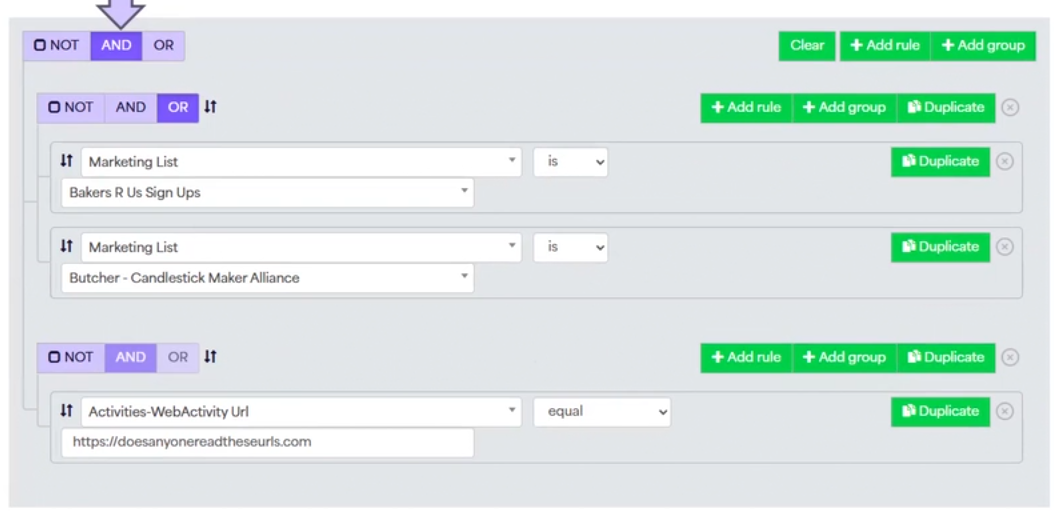
Inside it are two smaller groups:
- A group containing two Marketing List rules joined with OR
- A group containing a URL rule
Because the master group uses AND, the query is asking for contacts who are:
- In either of the Marketing Lists
- And have visited the specified URL.
A contact must satisfy both parts of the query to be included.
In this second example, the rules inside the groups are exactly the same, but the master group is set to OR instead:
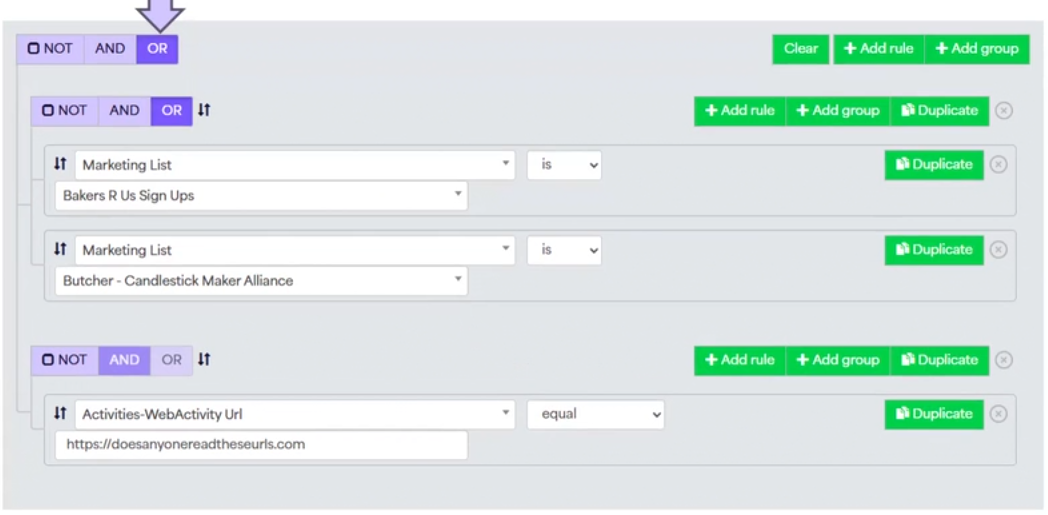
This changes the query to:
- In either of the Marketing Lists
- Or have visited the specified URL.
Because only one condition needs to be true, the audience returned will be much larger.
This demonstrates an important point: changing the master group can completely change the meaning of your query, even when all of the individual rules remain exactly the same.
If you're ever unsure how your groups should be structured, or whether a query will return the audience you expect, feel free to contact our support team via live chat and we'll be happy to help.