
When you go to add a hyperlink in your email template, whether it's linking some text, a CTA or an image, you will see there are 3 optional checkboxes that dictate your hyperlink settings.
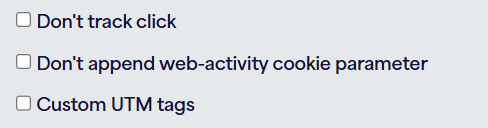
For most standard URLs that you will be linking to these are not required, but in this article we will cover what each of the settings actually means and how it affects the live link, as well as when to utilise each option.
Firstly, we have the "Don't track click" option:
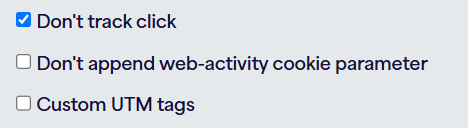
This one simply means that when ticked, any clicks on the hyperlink in question will not be tracked and will not contribute to your campaign reporting. This doesn't impact the click reporting for any other links in your template, just the one where this option is selected.
There are a few reasons you might decide to use this for a particular link, for example it could be used as a way of streamlining your click reporting by only tracking clicks on your most important links.
Next up we have the "Don't append web-activity cookie parameter" checkbox:
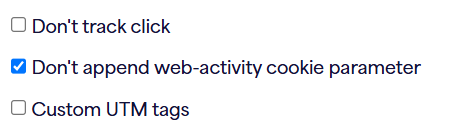
When a standard link is sent via Force24 (i.e. all 3 options are left unticked), there will be some default tracking info applied to the end of the link. This includes an F24 identifier that is used to link any subsequent web-activity back to the same contact that clicked the original link.

Although this part usually disappears once the tracking kicks in, it can occasionally interfere with links that contain custom tracking after a ? symbol, so this checkbox may need to be ticked in those cases.
By ticking this box you are disabling tracking for any web-activity following the link click. The email click itself will be recorded as normal, but the web-activity will not.
Finally, we have the "Custom UTM tags" option:
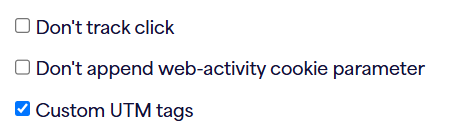
This is similar to the previous checkbox, in that it prevents some additional UTM tags from being applied to the link.
UTM tags are essentially tracking information that gets appended to the end of your link, typically starting from a ? symbol and following a format such as:
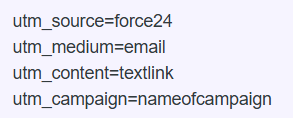
Find more info on UTM tags here: What are UTM codes and how to create them : Force24 Support
For standard hyperlinks the default/campaign-related UTM tags will be applied to the end of the link, however some specific types of URL may already have UTM tags applied i.e. custom ones. If this is the case, leaving the Custom UTM tags option unticked can lead to issues with how the link is interpreted, as the system will still try to apply the default UTM tags.
So if you have UTM tags already in your chosen hyperlink URL, you need to make sure this option is ticked (sometimes in combination with the "Don't append web-activity cookie parameter" box).
A common example of a link that already contains UTM tags and would need the Custom UTM tags box ticked in order to function as expected, is an extended mailto link, of the kind generated by our mailto tool. Everything in bold in the example mailto link below is technically custom UTMs:
mailto:test@force24.co.uk?cc=test2@force24.co.uk&subject=Test%20Subject%20Line%20For%20Mailto%20Link&body=Hello%20and%20thank%20you%20for%20clicking%20my%20mailto%20link%20%3A)
If you are struggling to get your hyperlink to load correctly in tests, double check the information provided above and make sure you have ticked any boxes relevant to your chosen URL. If you still need help or have any further queries, please don't hesitate to reach out to our team on the live chat!