
If a page isn't loading or behaving the way it should, we might ask you to clear your cache. Your browser's cache is a stored copy of the pages you visit, which helps them load faster.
Sometimes that copy goes out of date, so you can end up looking at an old version of the page, or seeing data that doesn't match what's actually in your account. Clearing the cache makes your browser fetch a fresh copy.
Here's how to do it in your browser:
Google Chrome, Microsoft Edge, Brave, and other Chrome-Based Browsers
Right click anywhere on the page and click Inspect
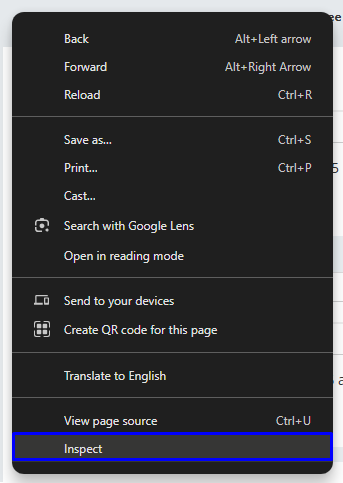
A panel will open on the right - you can ignore this
Right click on the refresh button next to the address bar
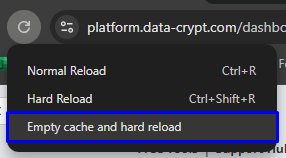
Select Empty cache and hard reload/refresh
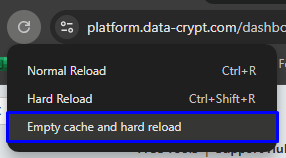
You can now close the code panel using the ‘x’ in the top right
Firefox
Click the padlock icon to the left of the URL bar
Choose Clear Cookies and Site Data at the bottom of the menu
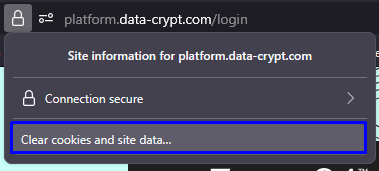
Make sure only your site is selected
Click Remove
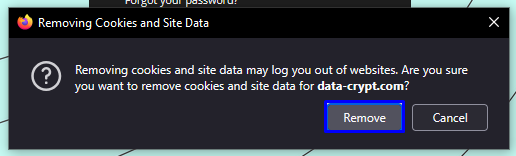
Refresh the website. You may need to log in again
Safari
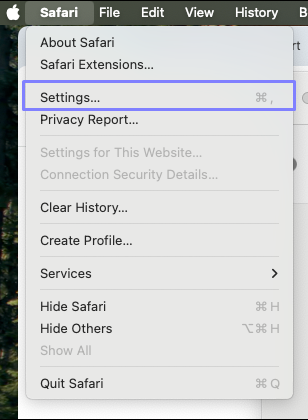
Click Safari in the top menu
Select Settings
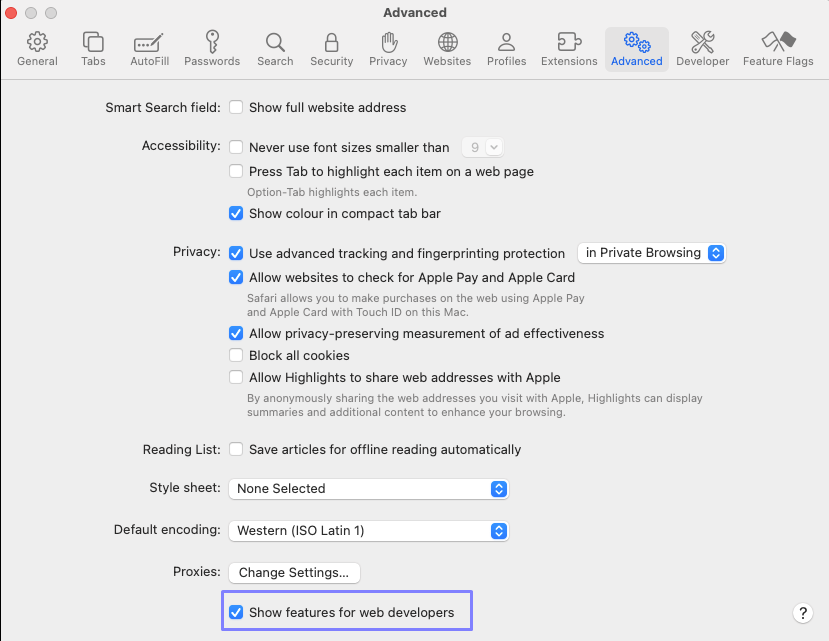
Go to the Advanced tab
Tick Show features for web developers
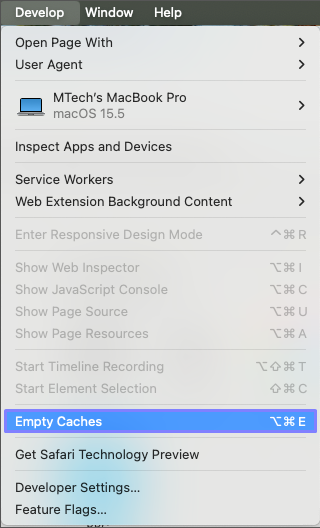
From the top menu, click Develop and choose Empty Caches
Reload the page