
This article shows you how to export your contacts from Force24 as a CSV file, so you can choose exactly which contacts you want to include.
How do I export my contacts?
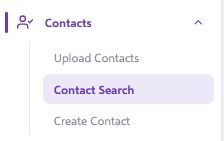
- Expand the Contacts area in the left-hand navigation and go to Contact Search.
- Choose which contacts to export. For example, you could filter by contacts in a certain marketing list, or contacts above a certain lead score.
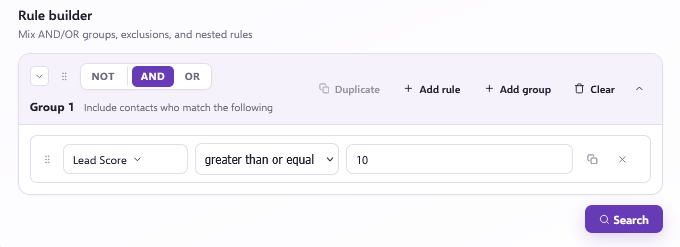
- Click Search. All the contacts that match your criteria will be shown below.
- If you are happy with the number of contacts shown, click Export above the list. This downloads a CSV file of those contacts. You can choose to export all results or only the page that's open.

Can't see the Export button?
You may not have the required user permissions. Ask the master user on your account to update your permissions through User Management in the account settings page. For more detail, see How to manage the permissions of users article.
Still need help?
If you have any questions, get in touch through the live chat in the bottom right corner of your Force24 platform. Our team will be happy to help.