
This article shows you how to upload new data to Force24 using the data upload tool. The tool lets you upload any data you need, and you can save data maps for file types you import regularly.
Please note
We have made significant improvements to the speed of data uploads, but please allow 15 to 20 minutes. During this time we carry out detailed checks on your data to give it the best possible chance of uploading successfully.
How do I start a data upload?
- Expand the Contacts area in the left hand navigation and select Upload Contacts.
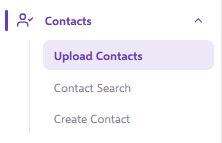
- This takes you to the list of uploads in your account. Click the Upload Contacts button in the top right corner.

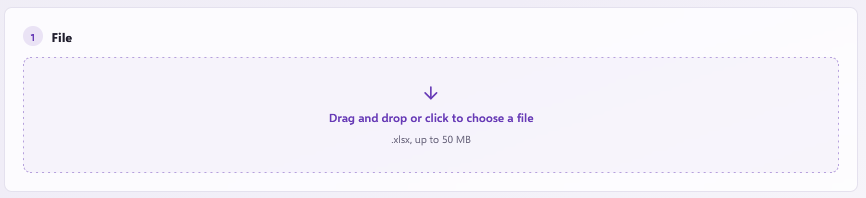
- You will arrive at a page with a target for your file. Drag and drop your file onto the target, or double click inside the box to open your file finder. Your file must be an XLSX or XLS file.
What options do I get once I've dropped the file in?
Once your file is in our staging area, you can choose to:
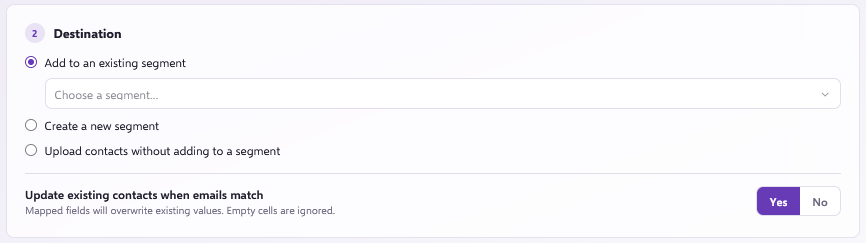
- Select an existing segment, create one, or upload without one. Your contacts will be added to any selected or created segment once the upload is complete. Segments are groupings of contacts used to send to data and report on them. If you choose not to use a segment, the contacts will only go into your overall Force24 database which you can explore in Contact Search.
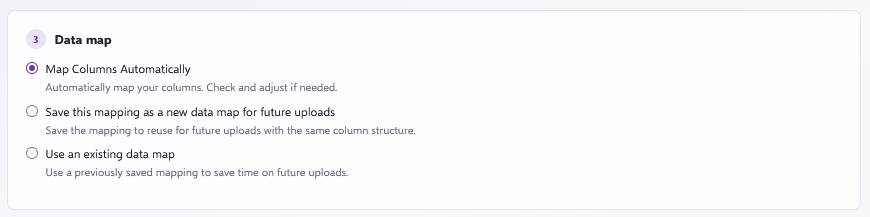
- Map columns automatically, create a new data map or use an existing data map. Force24 automatically looks through your existing data maps to see if any of them match the file you are uploading. If a match is found, Force24 selects that data map and maps all the fields for you.Otherwise, it will read the columns and map up your column headings to the fields in Force24. You can also choose one manually. It remaps the fields to match the data map you choose. Leave this blank unless you have a saved data map that matches your new file.
- Decide the import rules. Choose Yes to add new contacts and update any matching contacts already in Force24 with the data in your new file. Choose No to create new contacts and leave any matching contacts as they are.

Good to know
Choosing Yes to update existing contacts will not change their opt in permissions.
How do I map my fields?
In the right hand panel you will see two columns. The left column lists all the fields in your uploaded file. The right column shows the matching field in Force24.
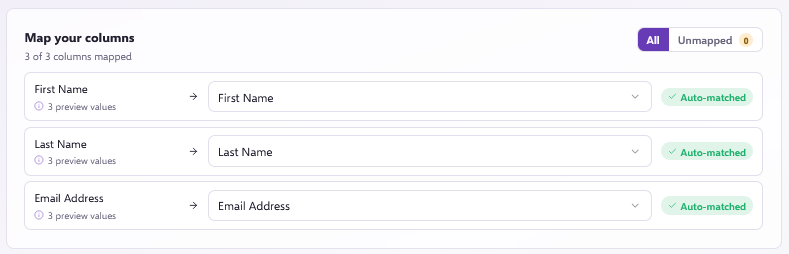
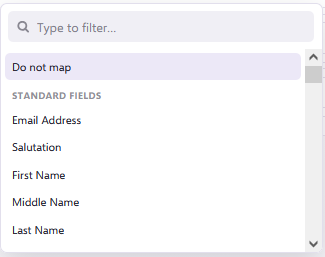
You can change the Force24 field for any column to another field that has not been mapped yet. It is not possible to map two columns to the same Force24 field.
If you do not want to use a particular field, choose Do not map. Force24 will ignore that field and will not import the data in it.
How do I finish the upload?
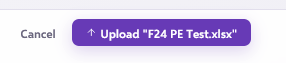
When you are happy with your mapping and options, click the Upload button at the bottom right:
What if the Upload button is greyed out?
Under the button, there will be red text letting you know what is still left to be done to allow the upload.

Remember
Force24 performs detailed checks on every contact you upload, so it can take up to 3 hours for your data to be inserted. Please be patient, and make sure you upload in plenty of time.
Still need help?
If you have any problems, use the live chat in the bottom right corner of your Force24 platform.