
This article will explain the meanings and functions of the different editing options available in the form builder.
Settings
The Settings tab relates to the form as a whole. You can access the form's settings by viewing the column on the right hand side of the Form Builder page: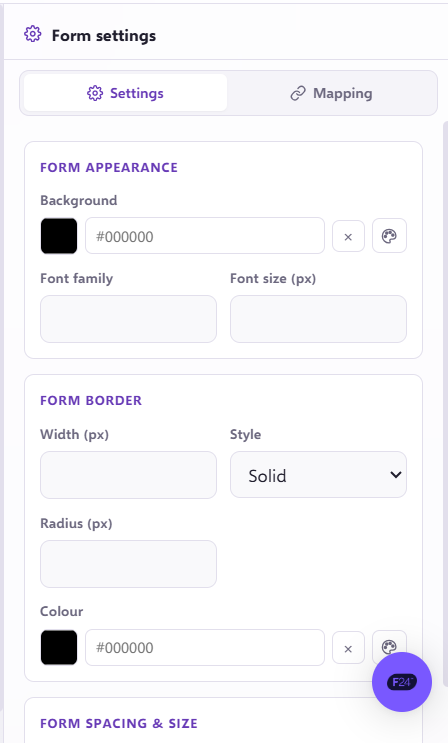
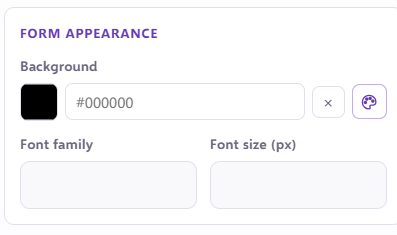
Form Appearance
This contains the name of the background colour of the Form. By default it's set to #000000, but you can change this as you wish:
Form Builder
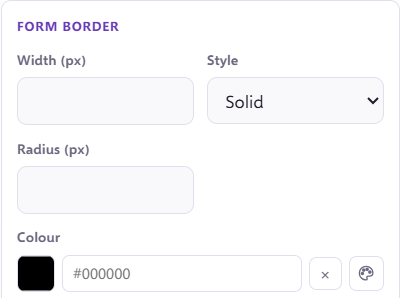
This is where you can set the border you would like your form to have, as well as the colour, style, radius and width.
Form Spacing & Size
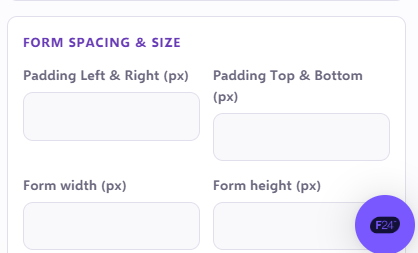
Max Width: You can specify a maximum width in px. The absolute maximum for a Landing page is 1200px.
Padding (px): You can specify the padding of your form in px.
Form Height (px): You can specify a maximum form height in px.
Field Settings
Font, Size, Border and Background follow the same definitions as above, they just apply to the selected fields rather than the form as a whole when you've clicked the Field to edit.
But the Basic section of the settings looks slightly different when you are editing a field:
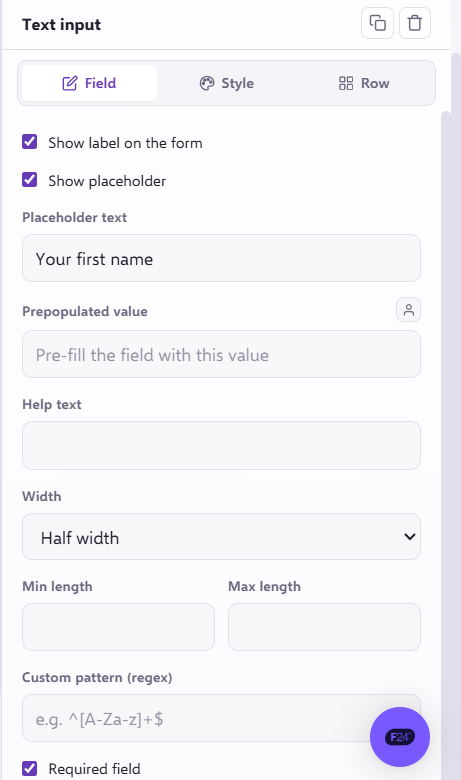
Label Text: This is where you can name the field e.g. 'Your Name' or 'First Name' - you can choose whatever name you give it here. This appears above the text box, indicating to your contact what data you require them to fill here. Or, you can click the plus icon to pre-populate the field with data in a specific data field.
Placeholder Text: If the data doesn't exist in the portal, this is where you choose what text you'd like to show instead. Or, if you're not pre-populating the field - this acts in the same way as the Label Text if you're choosing not to show the label option (please see the note below).
Pre-populated Value: This is the data field in Force24 you're pulling the pre-populated data from, this can also be used to populate an actual value for use with Hidden Fields.
Please note: You can choose whether to show/hide both the label and placeholder options, so you're not obliged to show both. You can either have a label and no placeholder, or vice versa.
Form Mapping Settings
This is where you can map your fields to the relevant Force24 fields. This will ensure your submissions are correctly mapped and stored correctly.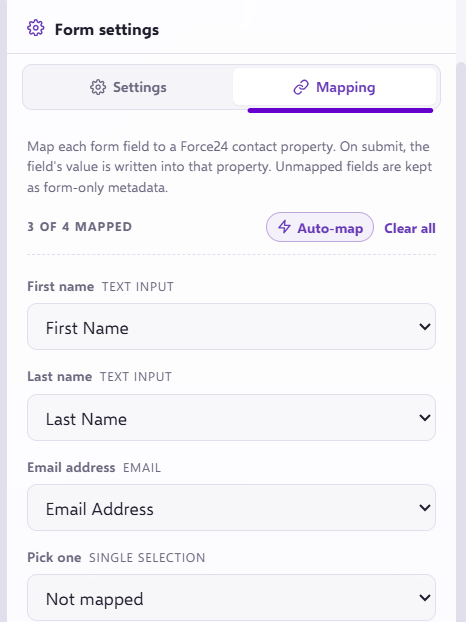
You Hidden Fields
You will see this option available under the form template. This allows you to create fields that are hidden to the user, but allow you to assign fields to certain data fields in Force24 e.g.

If you have any questions, feel free to reach out to us through the live chat function available bottom right in your Force24 Platform. Our team is ready to assist you and provide support whenever you need it!