
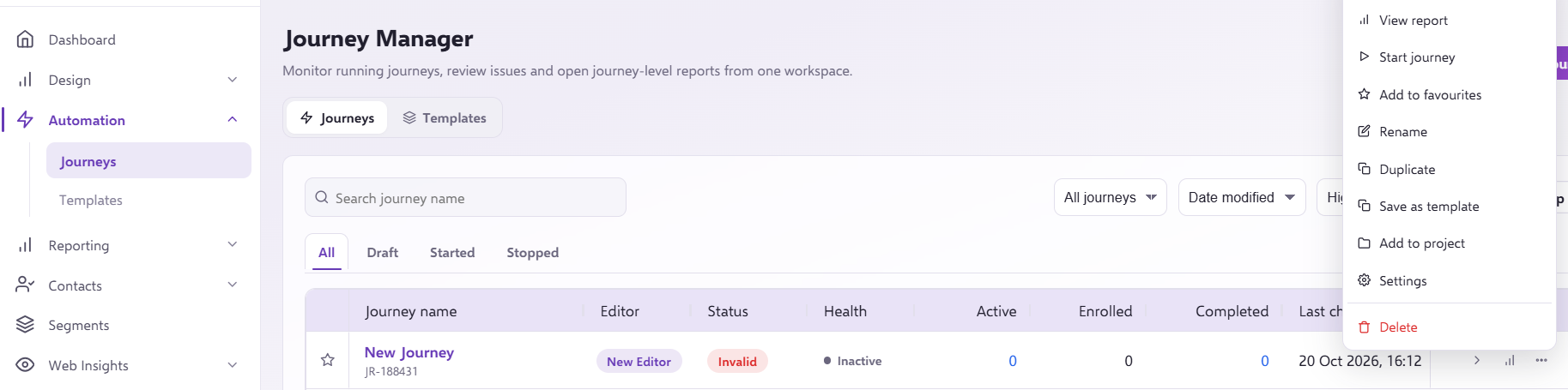
To duplicate an existing journey, you need to go to 'Journeys' and find the journey to wish to copy. Click on the 3 dots (...) next to the journey, and select 'Duplicate':
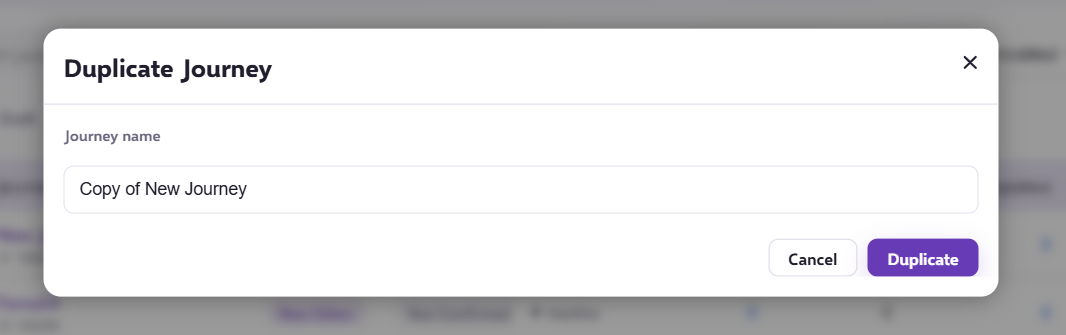
The new journey will then appear at the top of your 'Journey Manager Menu' with the status as 'Not Confirmed'.

This is prompting you to confirm all of the components within the new, duplicated journey to make sure you are altering the necessary components (e.g. change the Start Audience/Delay Times/Make Decision etc.) To confirm, you need to click the journey to open up the editable components.
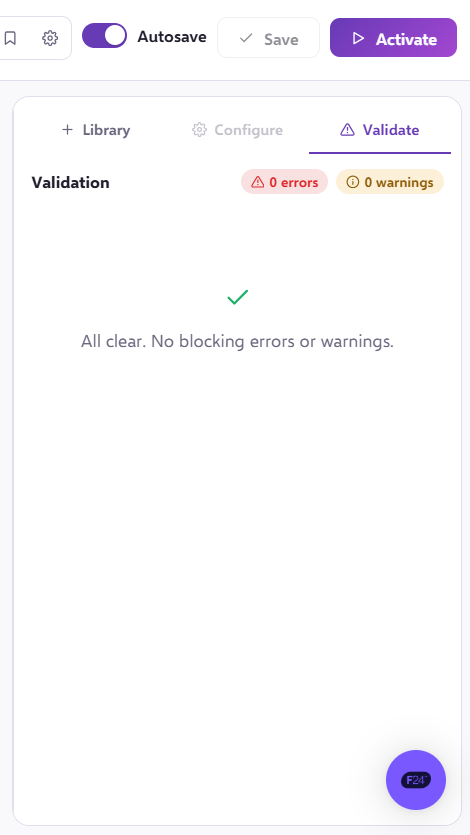
This will open up the editing screen, each component requiring your attention will be listed under 'Validate' on the option menu on the right:
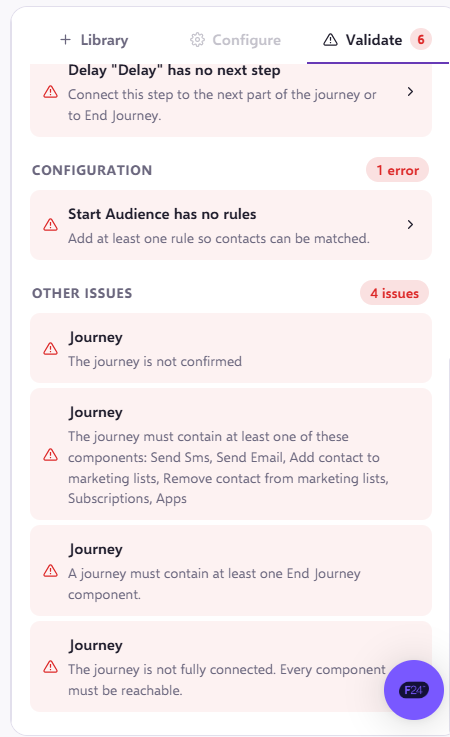
To confirm the components, you need go into each one, make the relevant amends then click 'Confirm settings'.
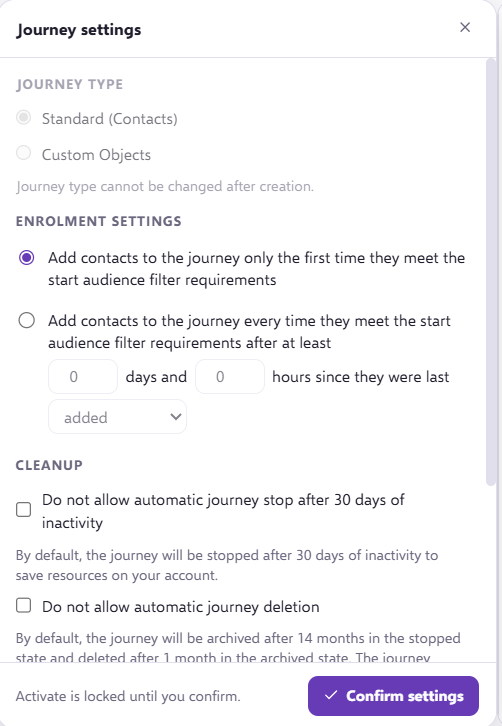
Once you've amended each of the necessary components, you can then activate the journey.
If you have any questions, feel free to reach out to us through the live chat function available bottom right in your Force24 Platform. Our team is ready to assist you and provide support whenever you need it.