
If you can't use 'Snippets' to edit your template, and know a little bit of HTML - you may directly edit the code.
PLEASE NOTE: This is an advanced option. In this mode you have complete control of the email and its rendering, if you elect to remove the 'unsubscribe' token, invisible pre-header or materially affect the design and layout you are doing so at your own risk.
PLEASE NOTE: HTML for email must be written using inline styles only. Email does not support CSS. Please make sure you use the email preview and send test function.
For the more advanced user you may begin to edit little parts of the code to achieve ultimate customisation.
Don't worry if you make a mess, you can roll back to previous versions to get you out of trouble!
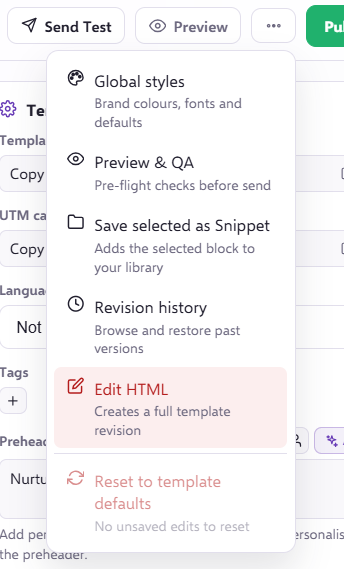
To start, simply find the template you wish to edit, and open up the campaign in the email editor. To find the HTML editor you want to click three dots in the top right hand side of the screen;

To edit the HTML code you must then select the 'Edit HTML' option:
Once you select to 'Edit HTML', the editor will open:
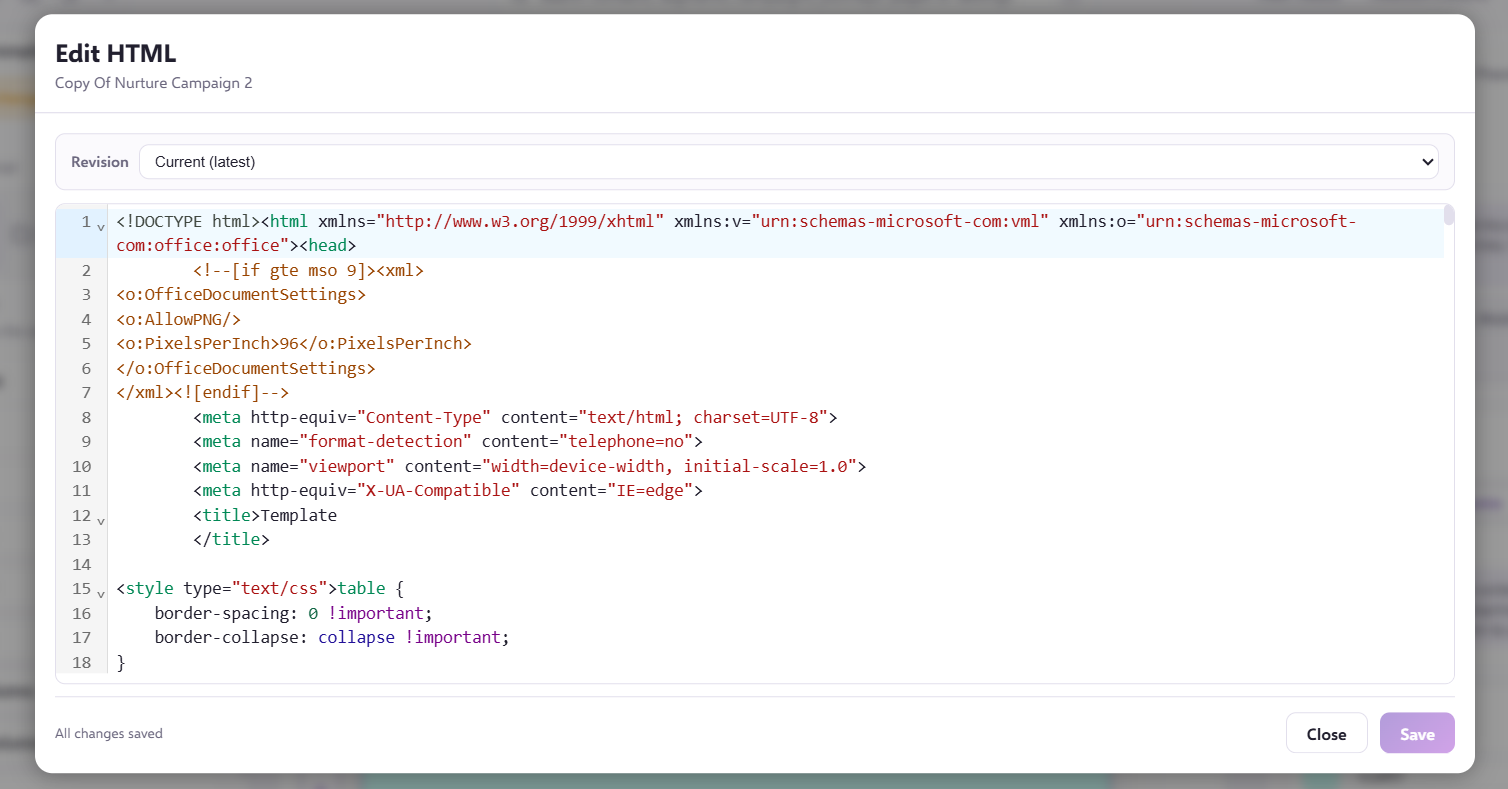
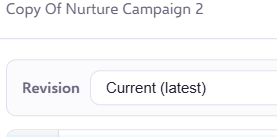
When you first open the window, you will see that the system will specify the revision 'Current (latest)'.
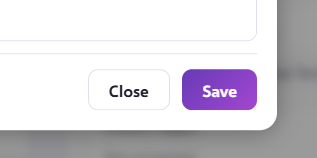
If changes have been made or saved previously and you're revisiting the 'Edit HTML' page, you will notice you cannot use the 'Save' button because no further changes have been made to save.
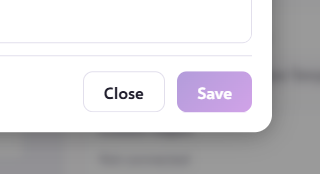
As soon as you make a further change to the HTML code, the 'Save' button will become available.
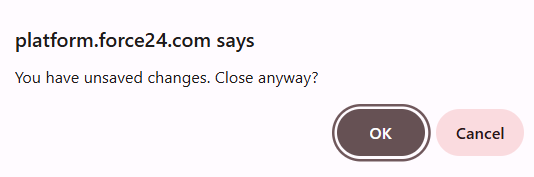
If you select to close the Editor after making changes but not saving, you will be asked to confirm your actions. If you do, the system will ignore all changes and revert the email back to its original state.
You may wish to save your work at varying stages and reference why you are saving at this point, should you wish to roll back to a previous version at a later date.
To do this simply click 'Save', and you will be presented with the box below. The system will automatically create a 'Revision Name' as the date and time. You may wish to change this.
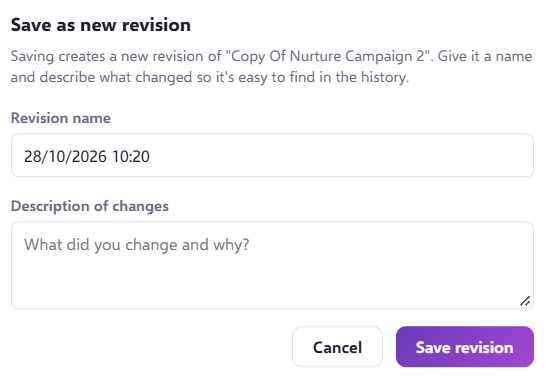
You may enter a short description within the 'Description of Changes' as to what is in the Save.
If you wish to leave, you may click the 'Close' button in the bottom right of your screen.

Please Note: The 'Close' will not auto-save your work.
If you have any questions or need any help, please feel free to contact your Force24 Account Manager.