You can now view all contacts submitting their data using your Force24 forms.
If you are using the Force24 forms the process is easy, if you would like to report on your own website forms in the same way, please ask you account manager to identify if your forms are compatible.
To access form reports simply navigate to Forms underneath the Design tab on the left hand navigation.
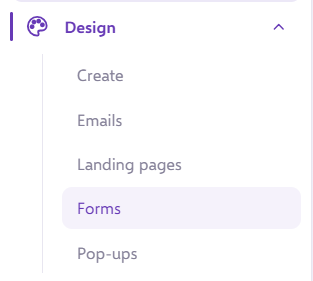
The Forms page will list all of your active forms. If you do not have any forms you can create a new one by following the steps outlined in the article available by clicking the button below.
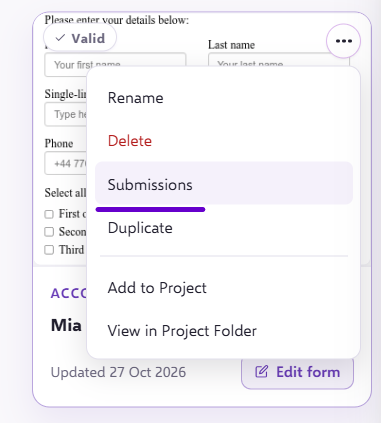
If you roll your mouse over the form you wish to see the reports for, you will see a button Submissions
Once you click Submissions you will be taken to the Submissions report page:
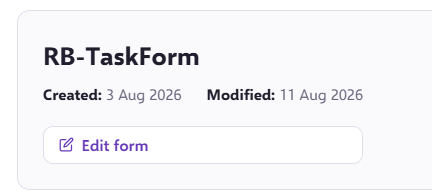
In the top left you will see basic information about the Form. Such as its name, created on date and most recent modified on date You can also navigate directly to the edit page of the form by hitting Edit
REMEMBER: FORMS MAY BE USED IN MANY PLACES ON MANY WEBSITES, SO FILTERING IS NECESSARY TO SEE WHICH CONTACTS HAVE COME FROM WHICH.
Reporting
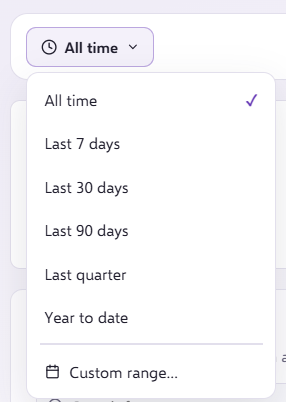
In the top left of the page you will see the All time button, this filter will enable you to select the filter used to display the contacts in the grid view below.
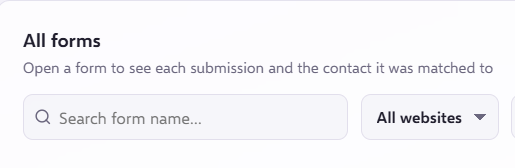
Website will allow you to select the name of the website or landing page that the form appears in. As you will see in this example we have used this particular form in three of our Force24 landing pages. By default if none are selected we will allow searching in ALL.
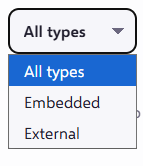
As you may build either Embedded or External forms, you can choose which types of forms that show in your reports.
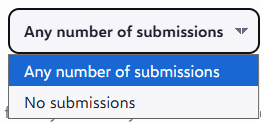
You can also order the report in whether they have received submissions or not by selecting either of the below:
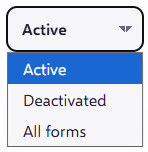
Filter the report to look for active or deactivated forms:
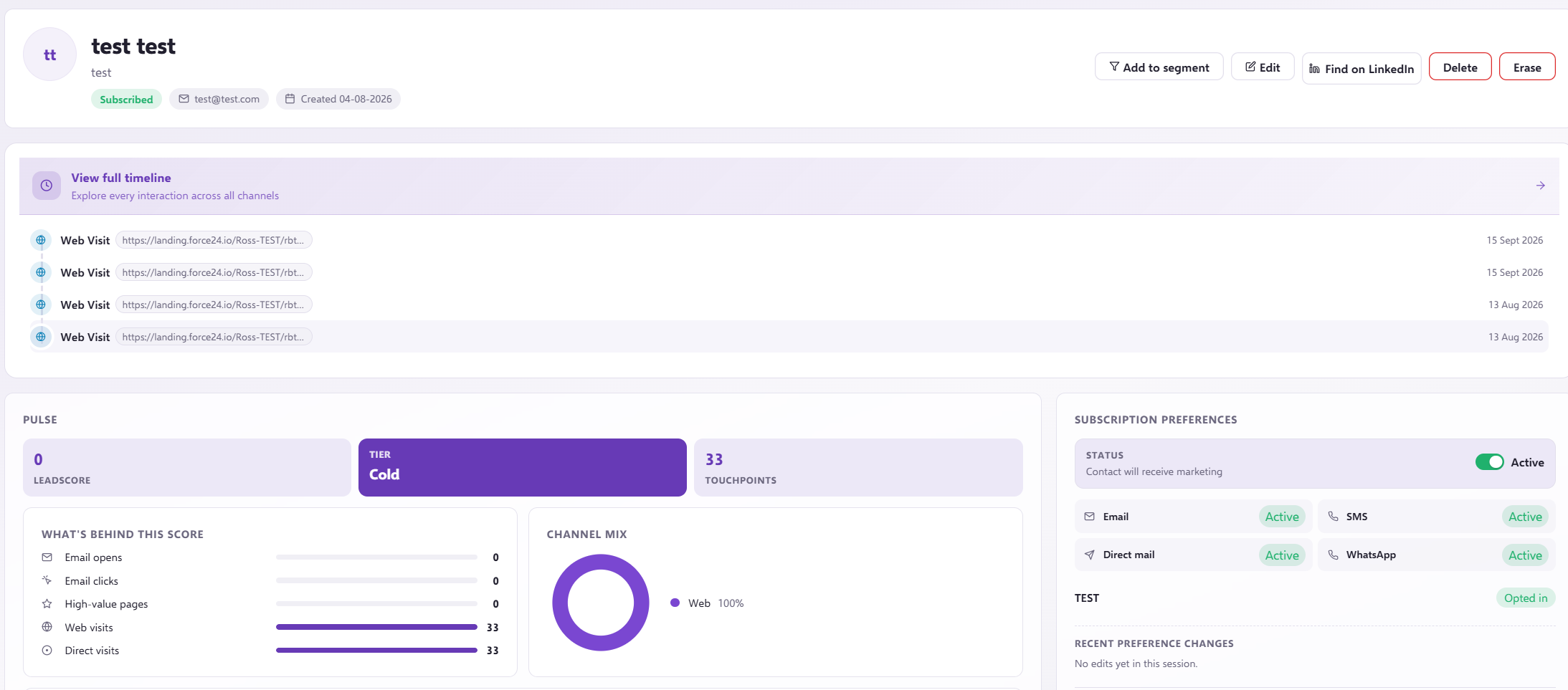
To see a single contact in more detail, at any stage in either view you may select the arrow to open the contacts detail page:
You may also wish to Export the form submission data. This function will export the form submissions rather than the mapped data. In other words it will export the RAW form submission data as entered by the user on the website.