
How to change the colour of your text in Force24
Once you have built your email using the snippets in Force24, you can go on to amend the colour of your text.
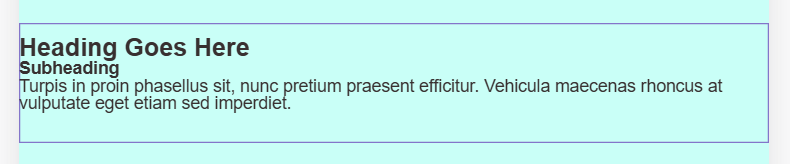
When in the email builder, you can click on the snippet you want to edit, which will have a purple border as shown below:
When you click into the section you will get options along the top to edit the text within the snippet;

The text colour editor button is this one here
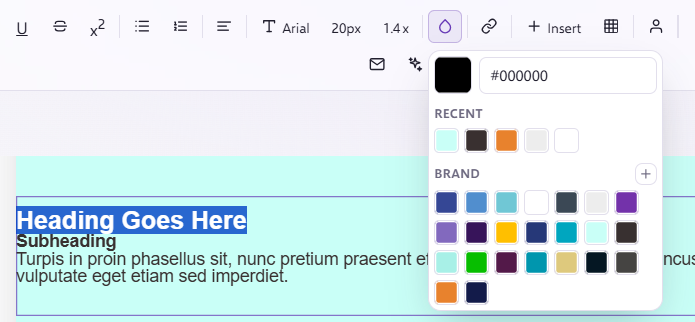
If you highlight the section of text you want to change the colour for and then click the text colour button, your branded colours palette will appear, from there you can select the colour you want the text to be:
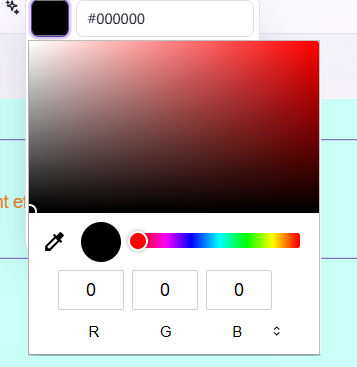
If you select the top colour here it will bring up the option to select further colours from the colour picker;
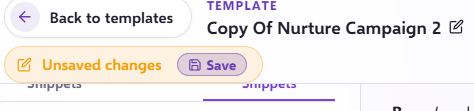
Don't forget to click the save button in the top left after making an changes;
If you have any further questions on how to do this, please pop up on the live chat and one of the team will provide more detail.