
To test emails in Force24, you can create a Test Segment with email addresses you'd like to receive test emails to. The following guide will help you to set that up.
Step 1: Make sure you have created a contact
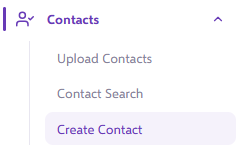
The first step is to add or find your contact using the Create Contact shortcut in the left side navigation.
The Add New Contact pop up will appear.
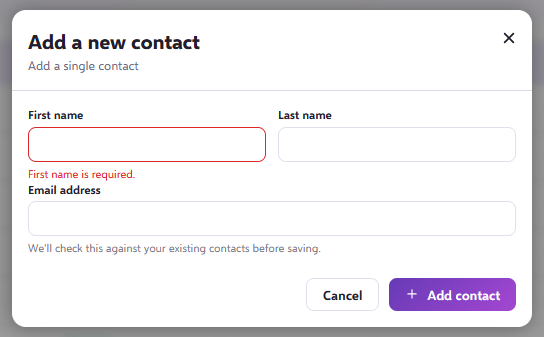
Before you continue, make sure you provide an email address. The system will check whether the contact you intend to add already exists.
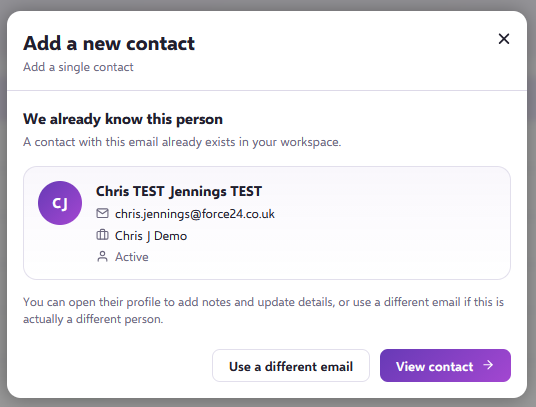
If the contact already exists, the system will prompt you to decide whether you would like to edit the existing entry. Duplicate entries are not permitted, as the email address is the unique identifier.
Step 2: Add the contact to a test Segment
After entering all the necessary contact information, you can add the contact to a Segment.
To do this, click the plus icon next to the Active Segment. If you have already created a Segment that you want to add the contact to, start typing its name in the Segment input field.

You can choose whether you want to add to an existing segment or a new segment.
You can then choose the existing segment or write in a new segment name and click Add to segment.
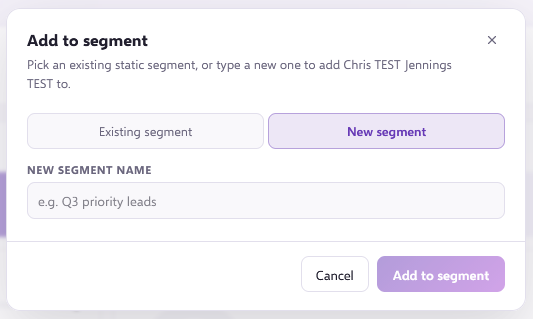
The contact will now be added to that Segment.
Step 3: Turn the Segment into a Test Segment
You should now see the Segment showing as an active Segment for this contact.
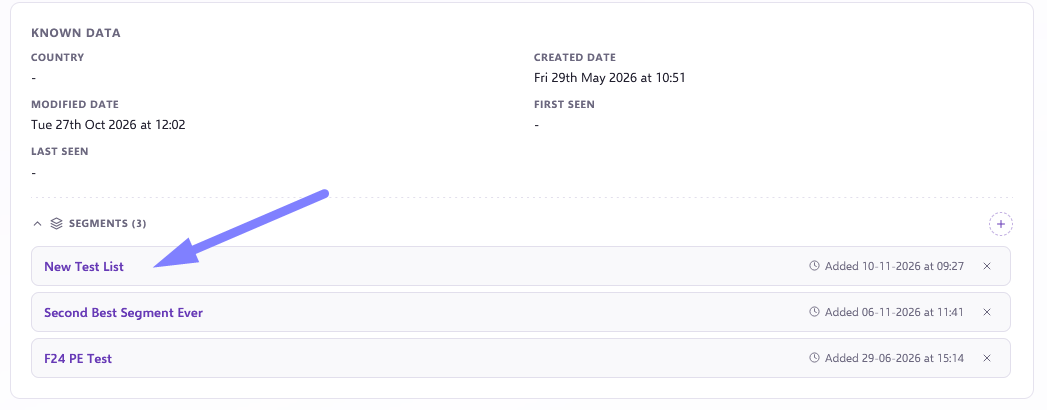
Click the highlighted name of the Segment. This opens the Segment, where you will find a toggle that switches it from a live Segment to a test Segment. Switch the toggle to the test position.
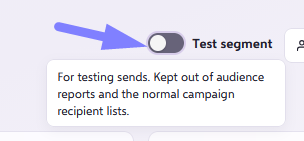
This Segment will now be visible when you select Send test within the platform, so you can test your email with ease.
How do I add more internal contacts?
If you want to add other internal contacts to this Segment, follow the same process. When adding to the Active Segment, start typing and the Segment name should appear for you to select.
Good to know
We highly recommend testing your email with different Email Service Providers to make sure it renders as intended. This helps you get the best email performance across different platforms.
Still need help?
If you have any questions, get in touch through the live chat in the bottom right corner of your Force24 platform. Our team will be happy to help.