
This guide explains what custom objects are, how to set them up, and how to use them in Journeys and email templates.
What are Custom Objects?
Custom objects are extra data tables that let you link more information to a single contact.
Instead of storing everything against one contact by adding more and more fields, custom objects allow one contact to have many related records.
For example, one person might make several enquiries. Each enquiry is stored as its own record, all linked to the same contact.
This makes it easier to send emails, create audiences and personalise messages using all the linked records.
How do I set up Custom Objects?
- If you want to use the Custom Objects feature, you will first need to contact your Force24 Account Manager to discuss it and get it added to your package (if it isn't already included).
- Once it has been activated on your account, go to settings and select Add custom object.
- Give the custom object a name.
- Add the fields you need, making sure each one has the right type (text, date, integer and so on).
- Publish the custom object.
Which API endpoints can I use?
API endpoints have been set up so you can create objects and object fields, and create and update custom object records. Below are links to the Swagger page, where the details for each call can be found:
- Create new objects
https://api.data-crypt.com/index.html#/Schema/post_api_v1_3_schemas_contact_objects - Create new fields
https://api.data-crypt.com/index.html#/Schema/post_api_v1_3_schemas_contact_objects__objectId__fields - Create or update object records for a specific contact
https://api.data-crypt.com/index.html#/Contacts/put_api_v1_3_contacts__id__objects__objectId___externalId - Create object records for a specific contact
https://api.data-crypt.com/index.html#/Contacts/post_api_v1_3_contacts__id__objects__objectId_ - Update object records for a specific contact
https://api.data-crypt.com/index.html#/Contacts/patch_api_v1_3_contacts__id__objects__objectId___externalId_
Helpful API tips
- Use the put request for all calls to update or create, as this means additional calls don't need to be made to check if the record already exists.
- Each request is limited to one call, but you can run 4 in parallel, which is the optimal number. If you have 12 records, you would make 3 separate program calls to the same endpoint.
- Make sure duplicates are all handled before calling the API.
- Use separate endpoints for create and update if you need to log creations and updates. The put request for both will only show that it was successful, and won't show whether the record was created or updated.
Where can I see Custom Object data?
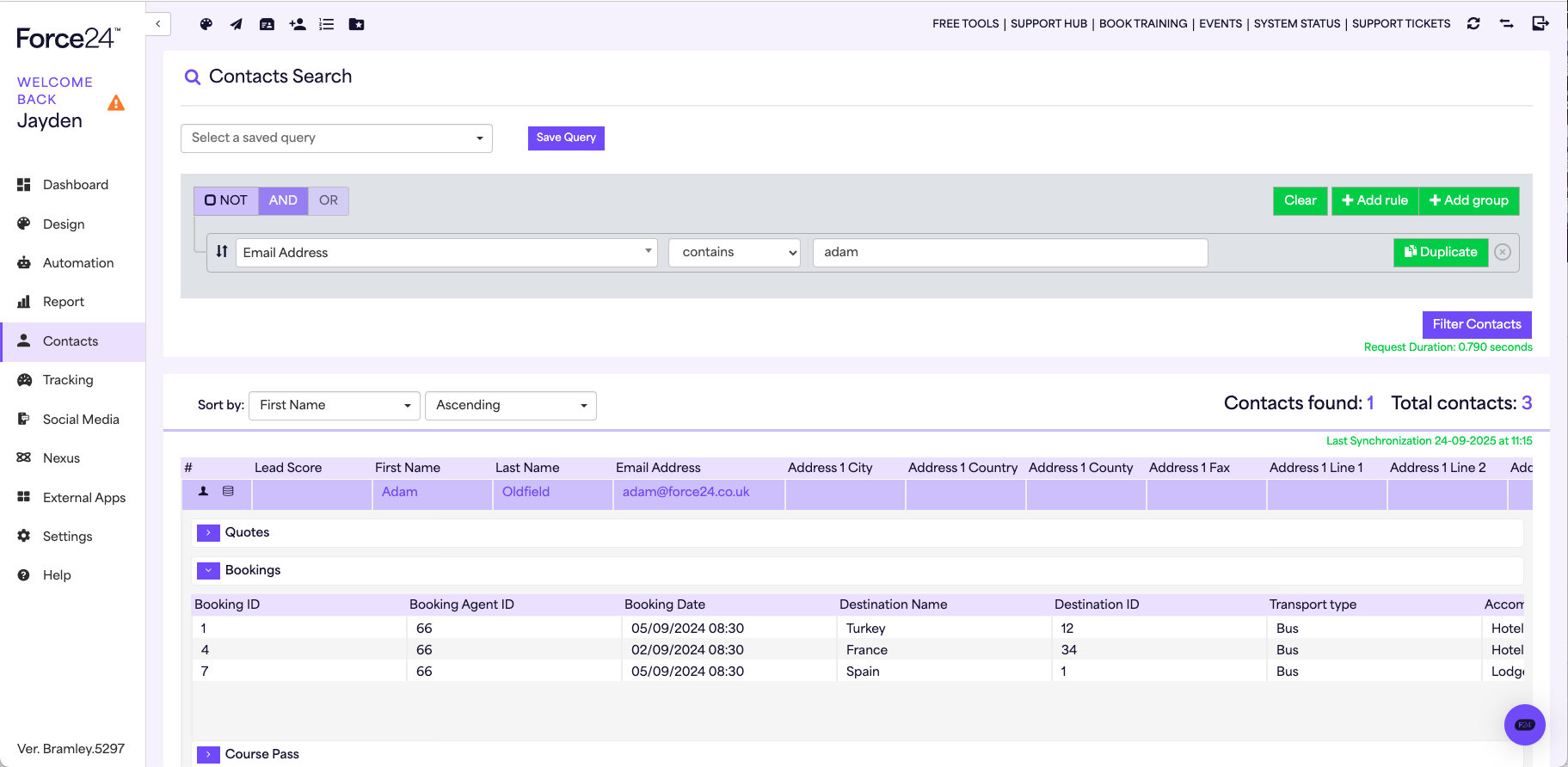
You can find custom object data in Contact Search, as a clickable button in the first column.
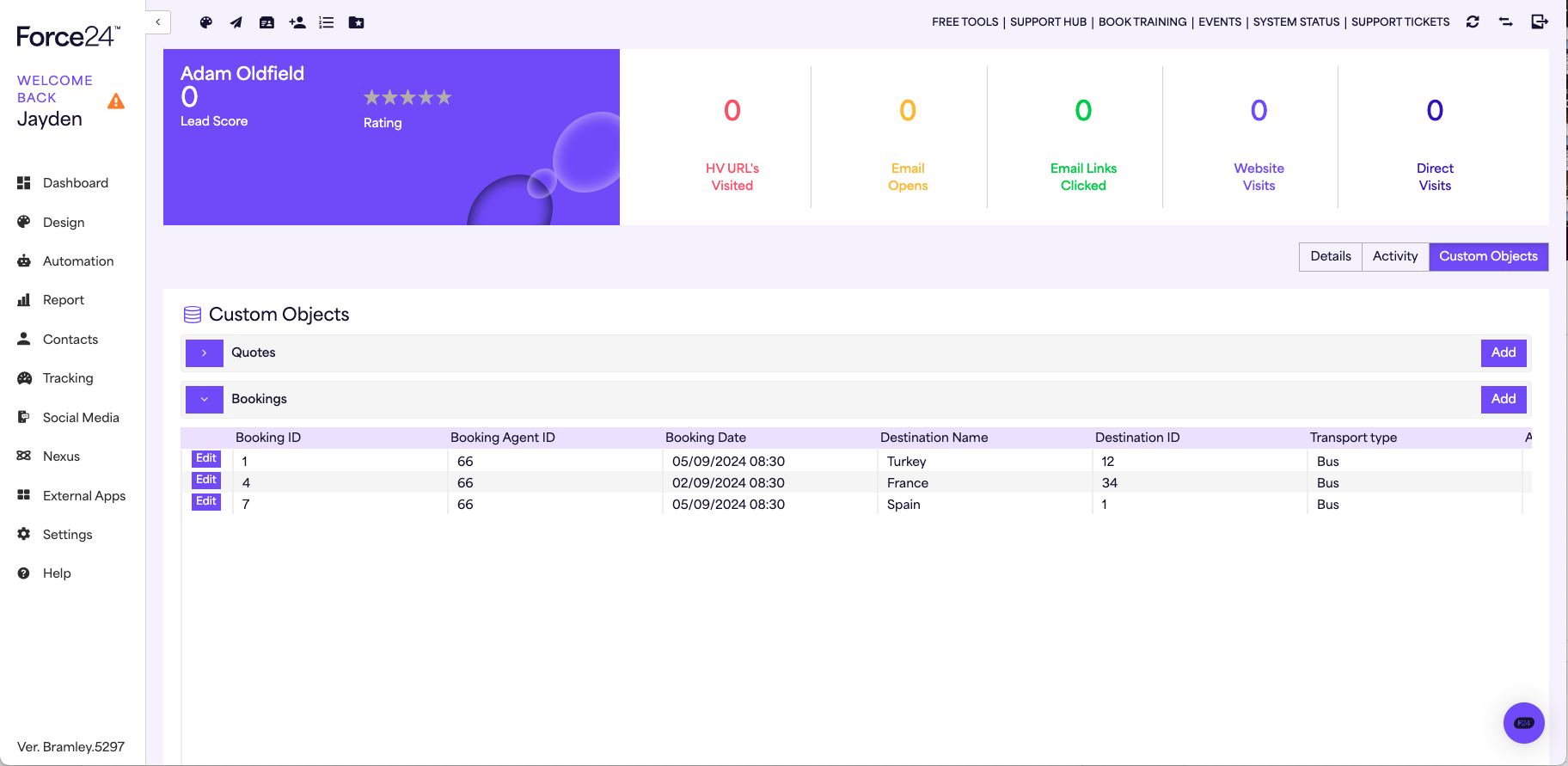
You can also find it in the Custom Objects tab when viewing a contact (next to the Activity tab).
Please note
Custom object data cannot be exported.
How do I use Custom Objects in Journeys?
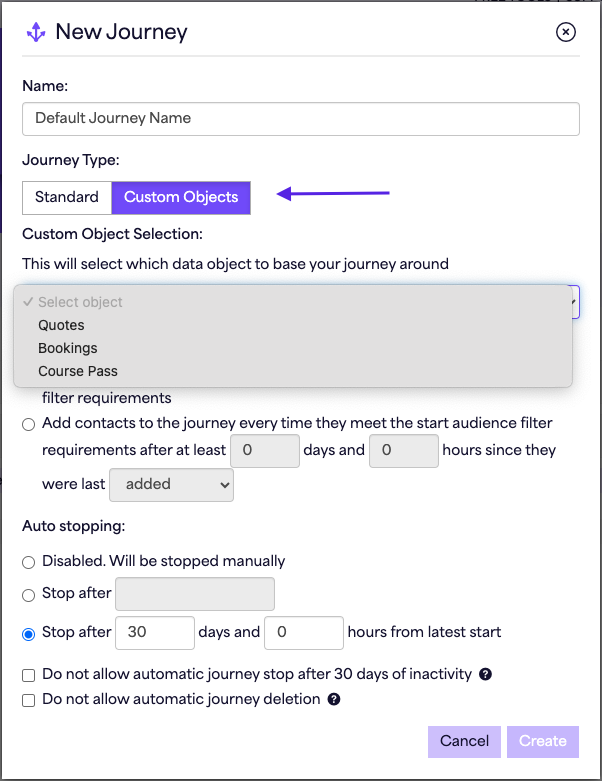
When creating a Journey, select the Custom Object tab under Journey type. Choose the custom object you want to use (only one per Journey).
What filters does the Start Audience have?
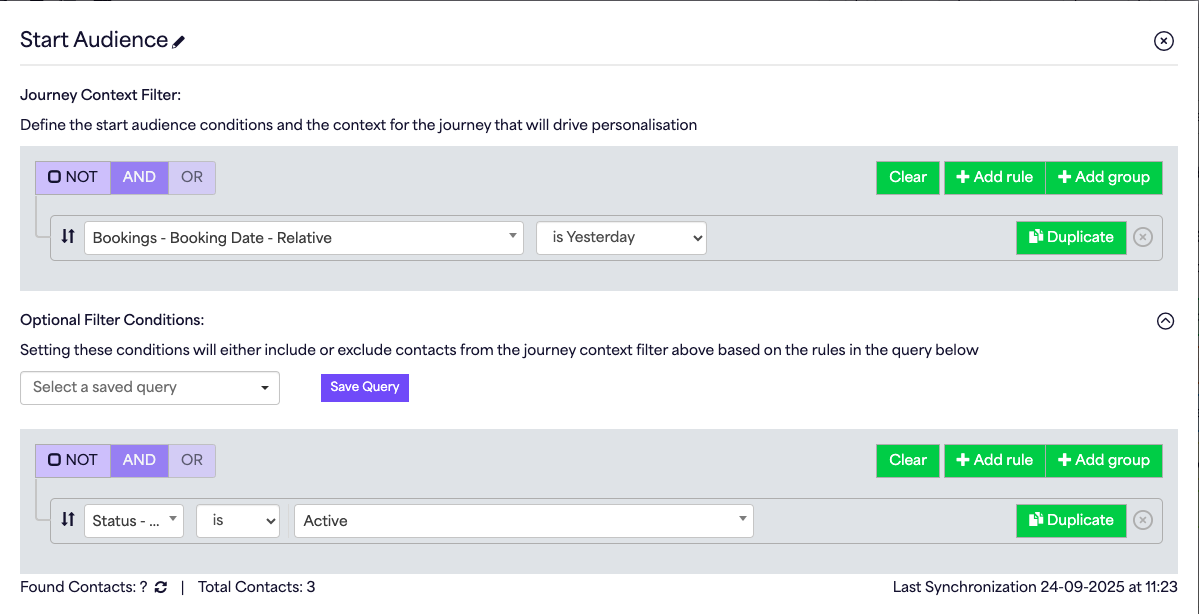
The Start Audience has two filters:
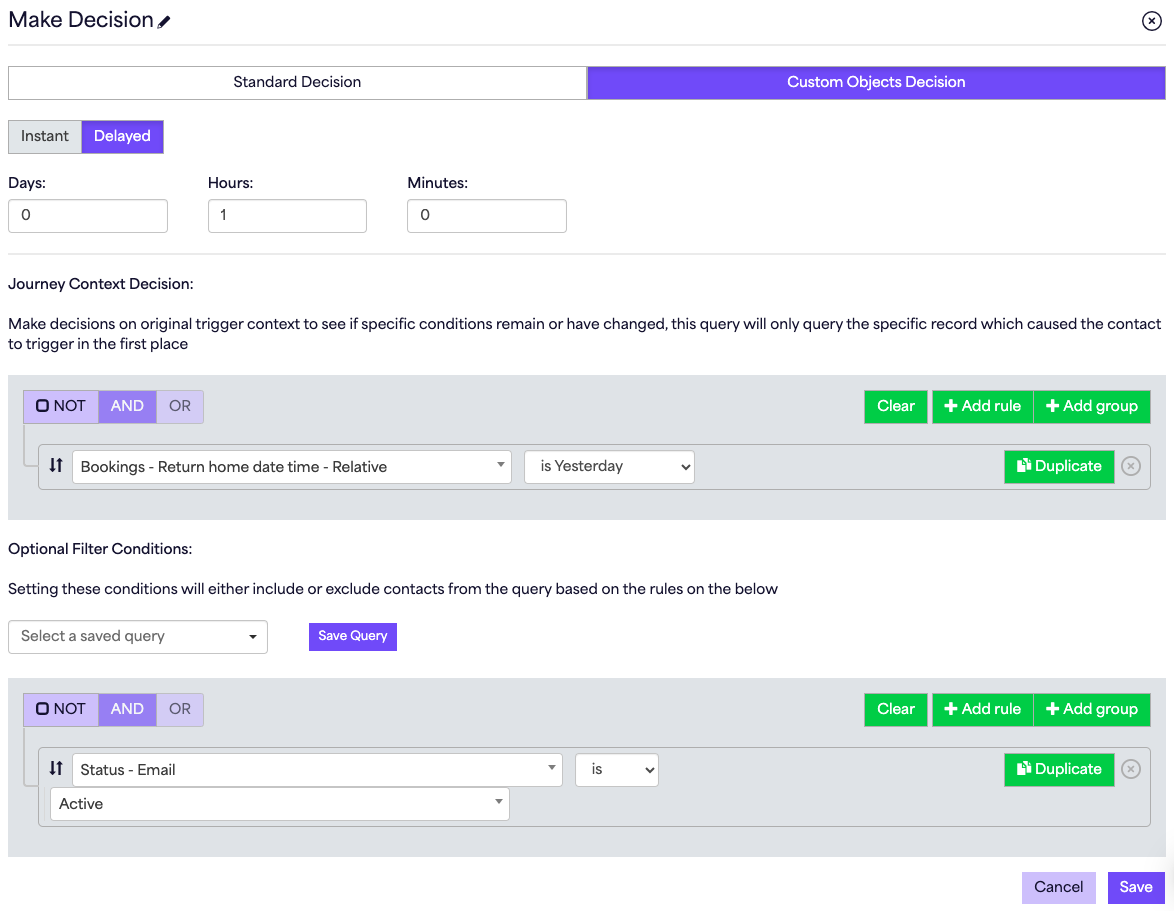
- Journey Context Filter: chooses which custom object record triggers the Journey. For example, if a contact has two enquiries, both can enter separately.
- Optional Filter Conditions: filters the contact record instead of the object record. For example, only include contacts with an active email address.
What decision options are there?
Decisions have two different options:
- Standard Decision: looks at the contact record (or all object records).
- Custom Object Decision: only checks the specific record that started the Journey. For example, if an enquiry changes from Active to Lost, the Journey will pick that up.
How do I use Custom Objects in email templates?
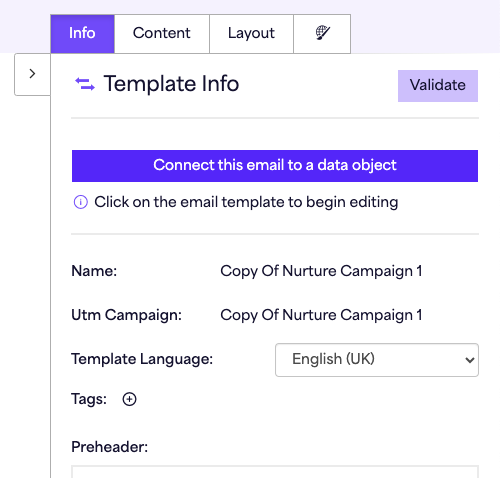
- When creating a template, link it to a custom object by first selecting the Connect this email to a data object button.
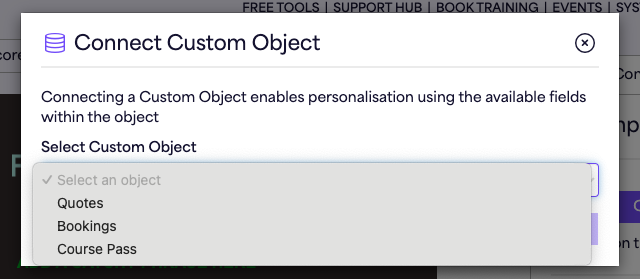
- In the pop up that appears, select the object from the drop down.
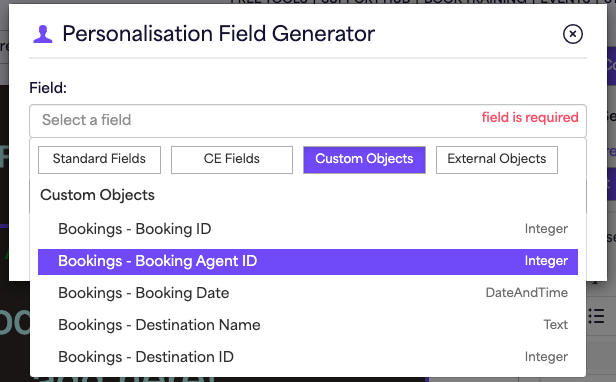
This lets you personalise emails using:
- Custom object fields
- Standard contact fields
- Contact extension fields
The personalisation comes from the specific record chosen in the Journey Context Filter.
Glossary
- Custom Object: a table storing related data for one contact.
- Custom Object Record: a single entry inside the custom object (for example, one enquiry).
- Custom Object Fields: details inside a record (for example, date, status or product name).
- Journey Context Filter: rules that pick the specific record to trigger a Journey.
- Optional Filter Conditions: extra filters based on contact data.
- Custom Object Decision: a choice in a Journey that looks only at the specific object record.
- Standard Decision: a choice in a Journey that looks at the contact or all records.
- Relational Database: a way of storing data where one contact can be linked to many records.
Still need help?
If you have any questions, get in touch through the live chat in the bottom right corner of your Force24 platform. Our team will be happy to help.