
It's recommended practice to use Dynamic Segments for engagement to help target your most engaged contacts, helping to aid conversion and deliverability.
A common strategy for this is having tiered engagement Segments to capture contacts that last engaged within defined windows of time, for example engaged in the last 30 days, engaged 30-60 days ago, or engaged 60+ days ago (unengaged). It's crucial when setting up Segments like this that your criteria are set correctly, to make sure data is segmented properly and to prevent any overlap between Segments.
This article will explain how best to formulate your queries when building these engagement Segments.
New to Dynamic Segments?
If you've never created a Dynamic Segment before, it might be best to start with this article: Dynamic Segments.
What will the examples use?
For the examples below, we will be looking for contacts that have either clicked or had web activity as signs of engagement, but you can use any combination of the available rules, including email opens, if you wish. For the specific time frames we will be using 30 day increments, but you can replicate this using different lengths of time depending on your industry, audience, buying cycle and so on.
How do I build each engagement Segment?
Engaged last 30 days
This criteria is nice and simple. We are just looking for anyone who has clicked or had web activity in the last 30 days, using the date relative activity rules: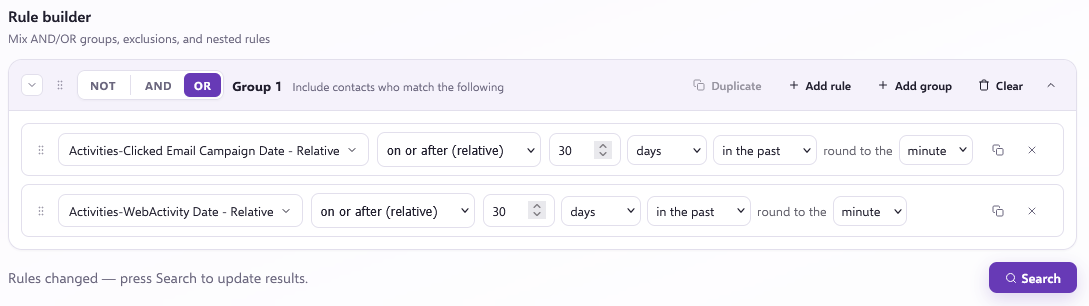
Depending on how contacts are created in your Force24 account, you may want to include new contacts that haven't had a chance to engage in this initial Segment, before pushing them into the different tiers. To do this you can simply add an extra rule to also look for anyone created in the last 30 days, regardless of engagement. This means you can prioritise new contacts alongside your actively engaged ones: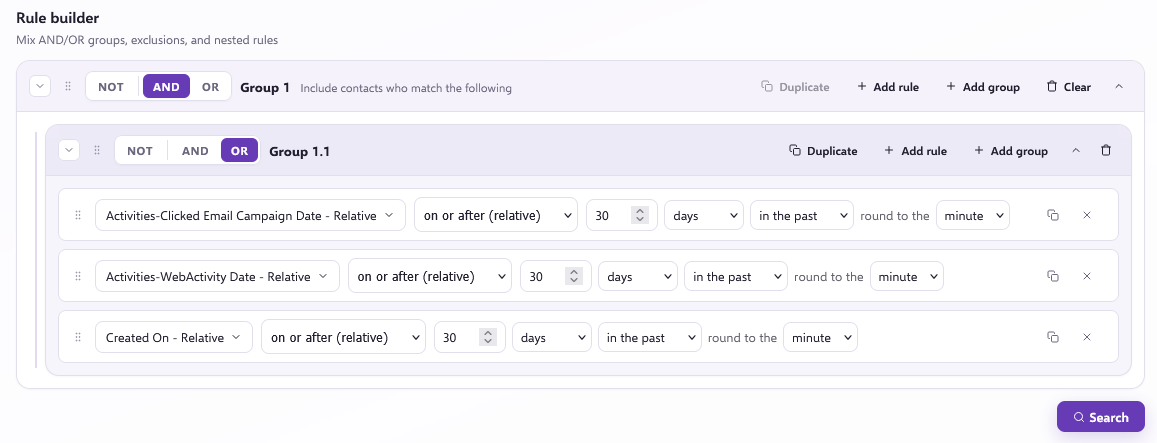
Engaged 30-60 days
For this Segment, we need to be a bit more careful. Firstly, what we don't want to do is look for contacts that have simply engaged 'between 30 and 60 days ago', as this does not exclude contacts in the Engaged last 30 days Segment. Ideally your Segments should be mutually exclusive.
The best way of writing this query is to look for contacts that have engaged in the last 60 days but NOT in the last 30 days, which excludes the 30 day engagement Segment correctly: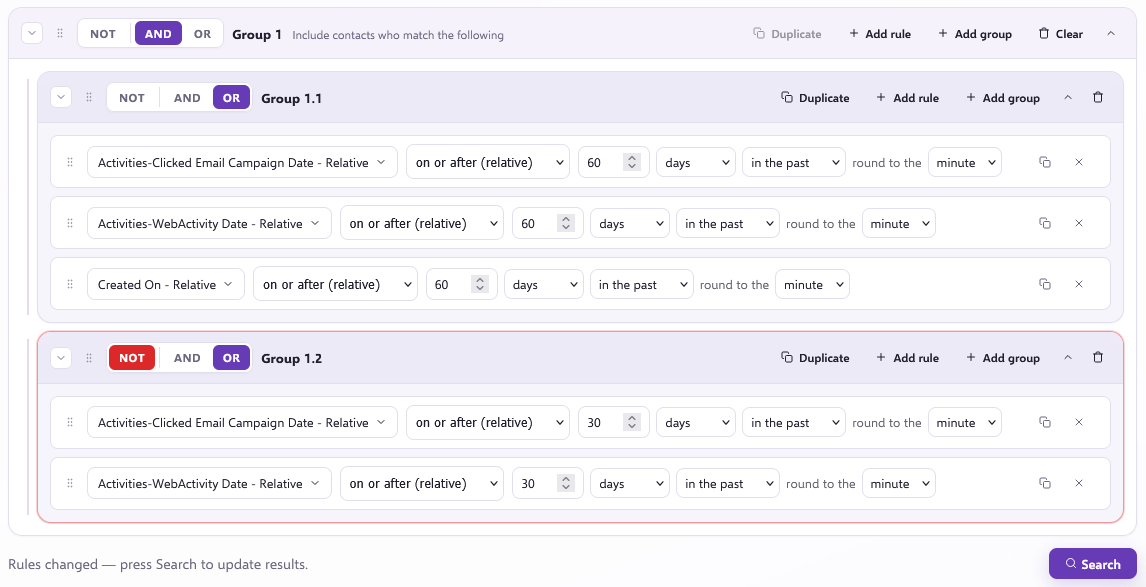
You can then repeat this same structure if you want further engagement tiers, for example Engaged 60-90 days and Engaged 90-120 days, until you have your final unengaged Segment.
Unengaged / Not engaged last 120 days
Here we can do a simpler query like the first Segment, but using the NOT option to look for anyone who has not engaged at all in the last 120 days: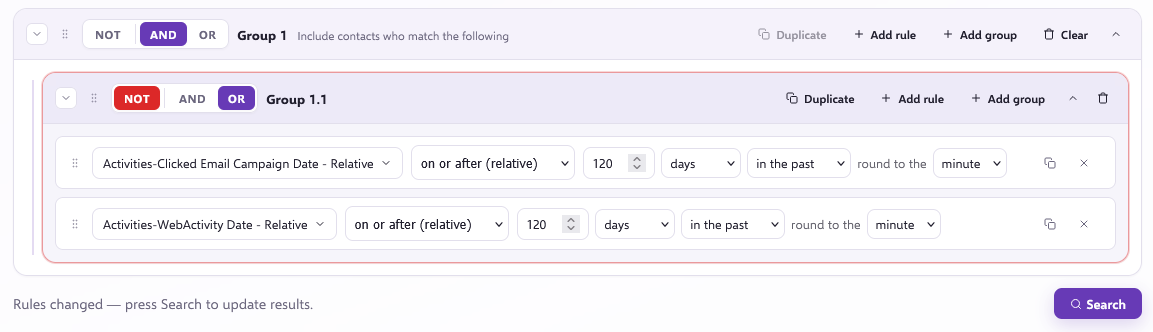
If you have opted to add the Created on - Relative rule in your first Segment, you would also need to make sure those contacts are excluded from this final Segment. For example: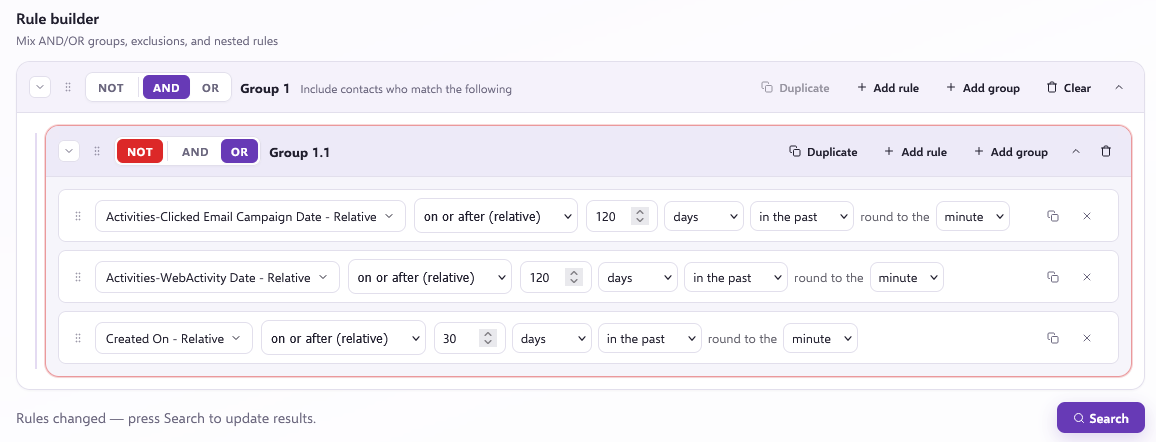
You can use these queries as guides when creating your own engagement Segments, combining them with your own additional criteria if needed.
Still need help?
If you require any further assistance building out your engagement Segment rules, please don't hesitate to reach out to support via our live chat or 1-1 training.