
To add a new image or GIF into an email template you will need to first drag and drop a plain image snippet into your template.
Make sure you are in the 'Add block' section on the left hand side of the email builder:
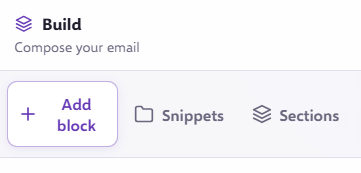
Then drag and drop a plain image snippet into your template:
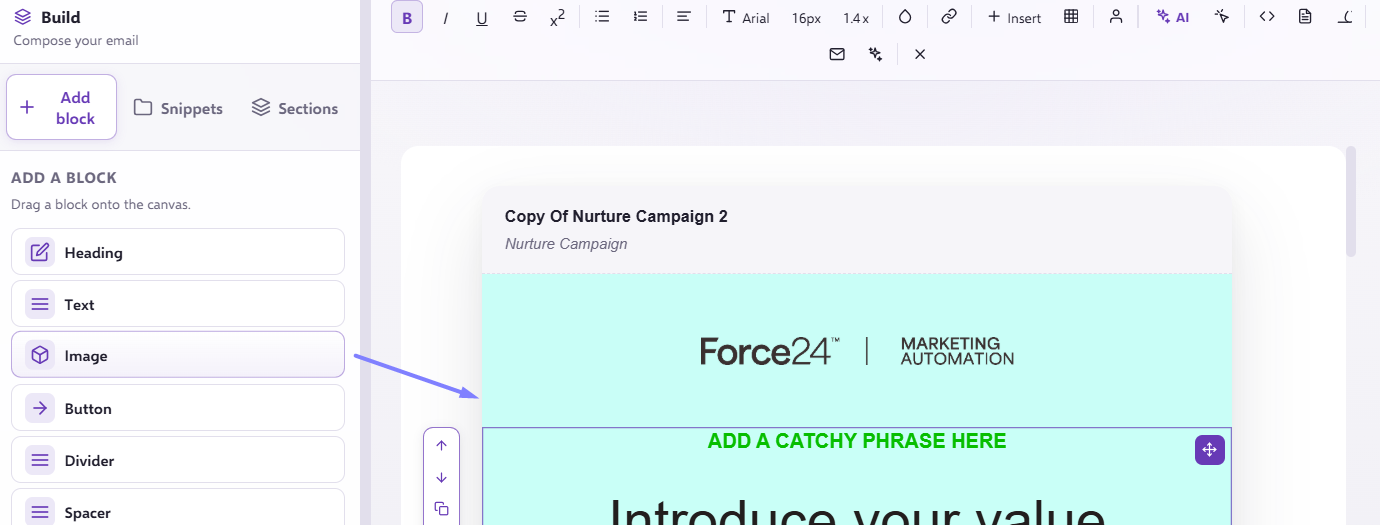
Then you will need to click on the placeholder image and this will bring up the option to 'Replace image' on the right hand side:
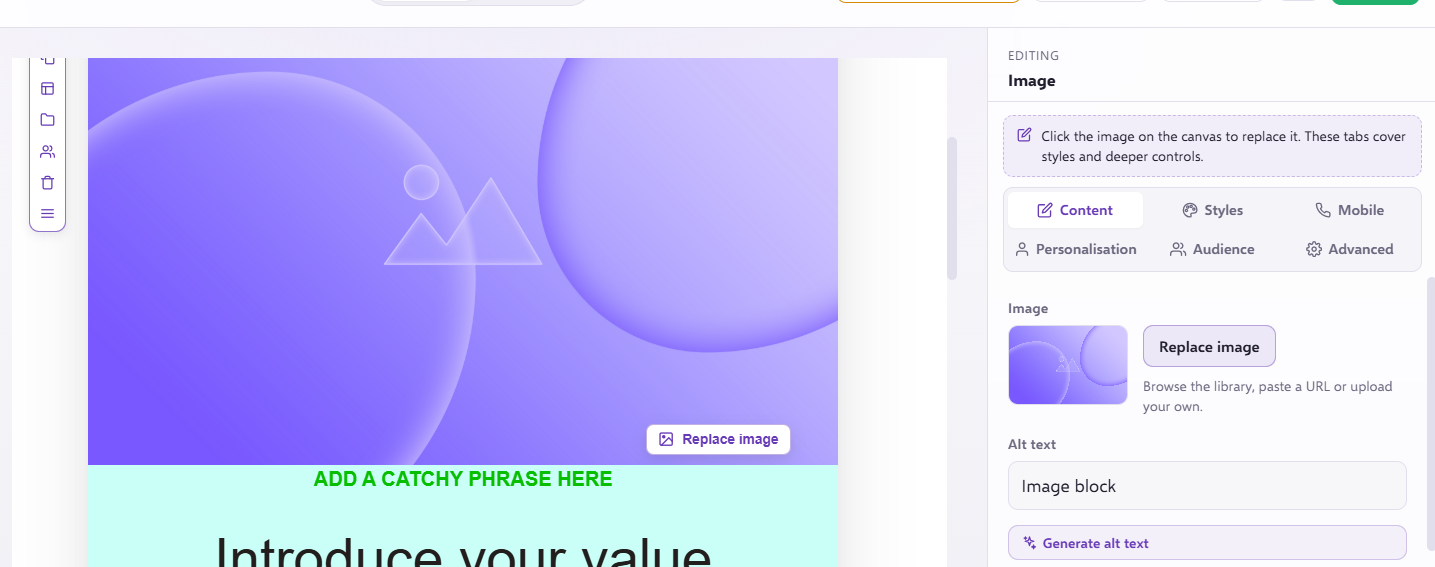
Once you have clicked on 'Replace image' you will get the option to amend/change the image.
You can add the new image from a File, from a URL, AI image generator or any recent images used;
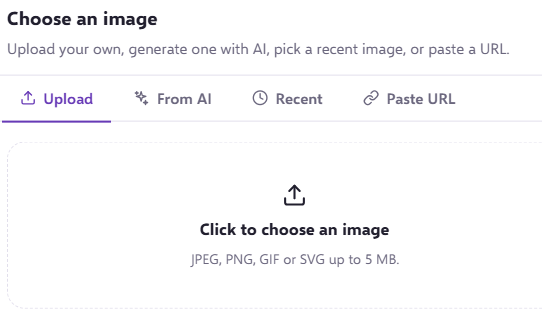
If you want to add a different image in, the best way to do this is by using the upload option and uploading the image directly from your files

Once you open the image you will be asked if you want to Crop, Choose another or Use this image.
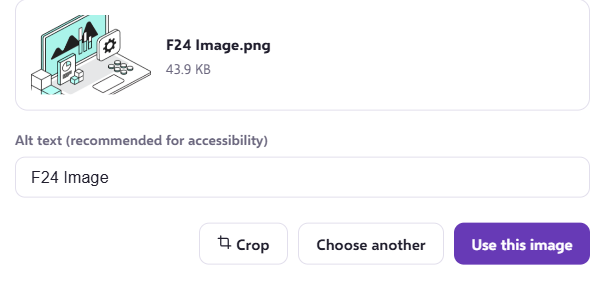
When you click 'Use this image', you will be redirected to this screen where you can then edit the image and select your output size:
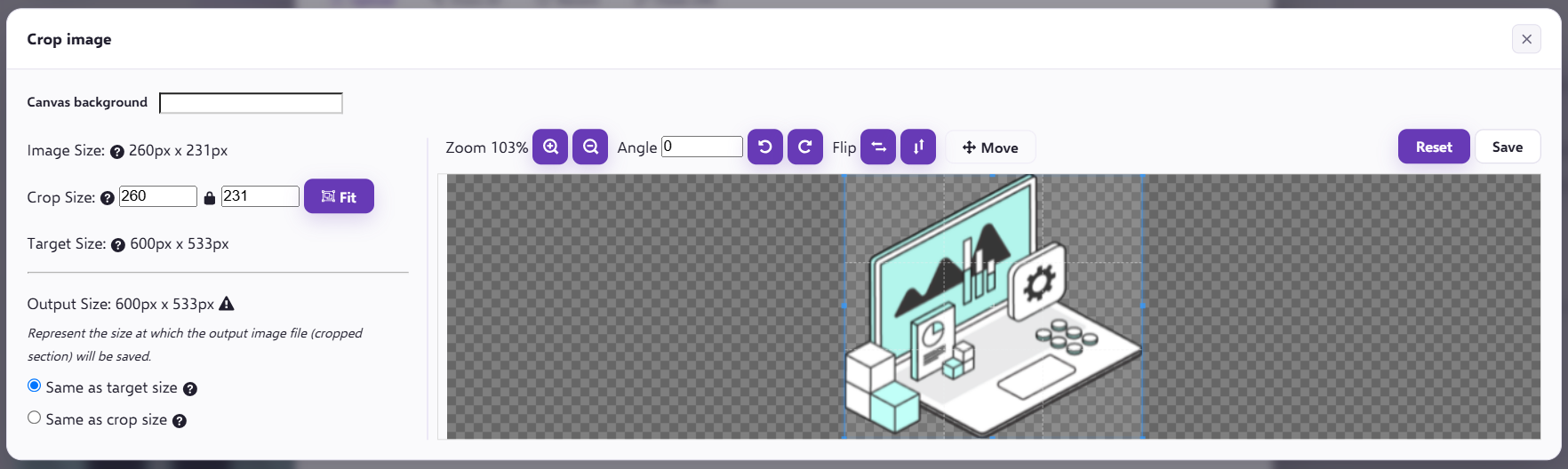
On the left hand side of this screen, the size of the image will be displayed:
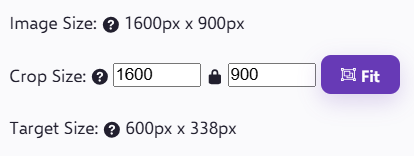
In this case, the image is 1600px, but the target size of the image is 600px wide. This is because the space in which you are inputting the image is 600px so it would automatically match that criteria when outputted.
Altering your output size can often effect deliverability based on the file size that has been inputted. The larger a file size is the more likely it is to be flagged as spam (based on an email template with multiple images of larger output value). So we have added the option to choose your image output size in line with the template.
These options are: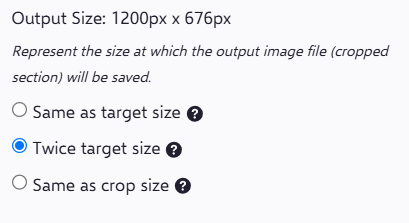 Same as target size: The new image will have the same dimensions as the one rendered in the template and the same aspect ratio. For example, with the image shown above, it would have an output of 600px x 338px. Be aware that when this is used on an image smaller than the target size, the image could become blurred as it is being stretched to fit the space.
Twice Target size: This option is the industry standard, and optimum for image quality and deliverability. It is best for high density display. It can result in a blurry image when crop size is smaller than half of the target size.
Same as crop size: The new image will have the same dimensions as the crop size. For example, as shown below, the output would be 1600px x 900px. The aspect ratio may be different compared to the image rendered in the template depending on the output space area. This option may cause the image to become stretched as a result.
If you have any questions, please reach out to our helpful support team!