
In this article, we will go through how to build and publish your first Landing Page.
Firstly, you will need to head to the 'Design' tab on the left-hand column of your platform and select 'Landing Pages'
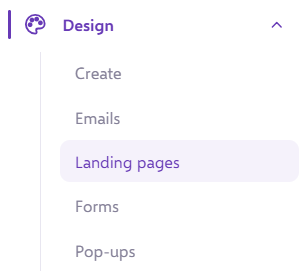
Once selected, you will be taken to your Landing page library:
To create a new landing page, select + New Collection

Here, you can name your landing page: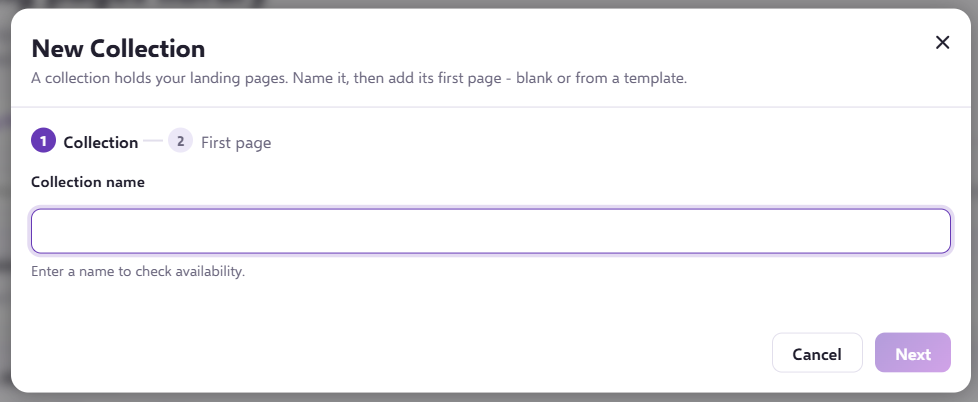
Then, you can name your first page of your landing page: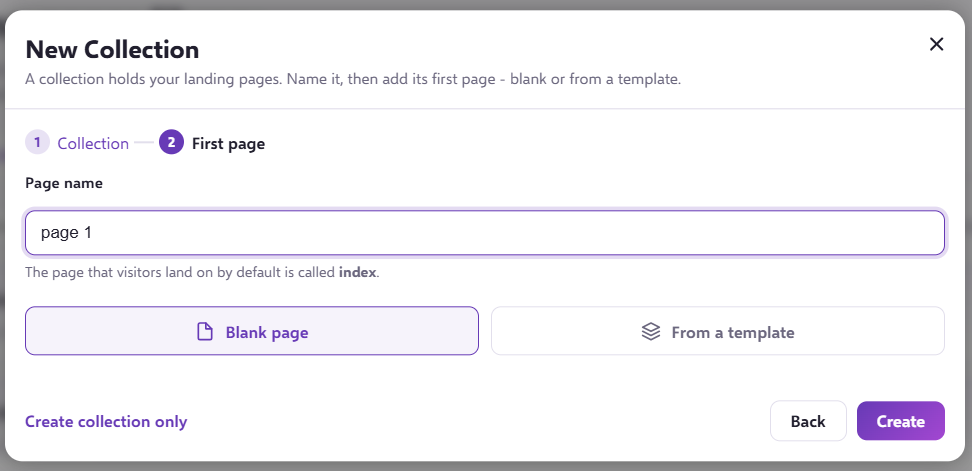
You can also choose whether your page is from a template or a blank page.
This will present you with the Landing page builder: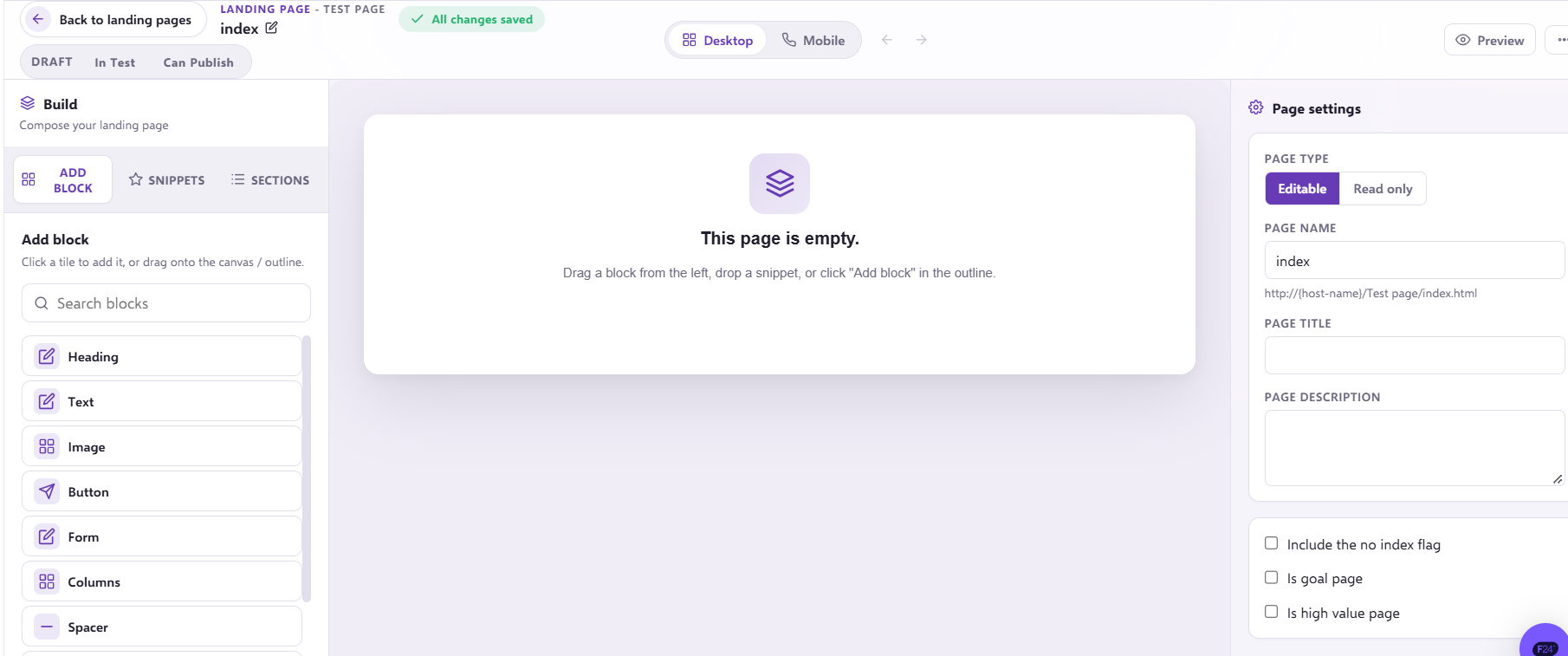
Firstly, we will need to add a 'block'
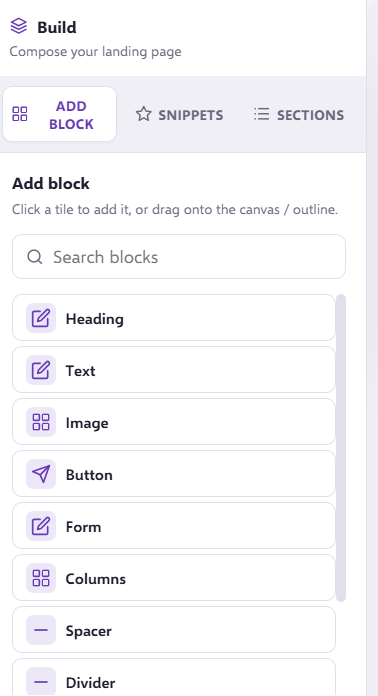
In this example, I have added a text block:
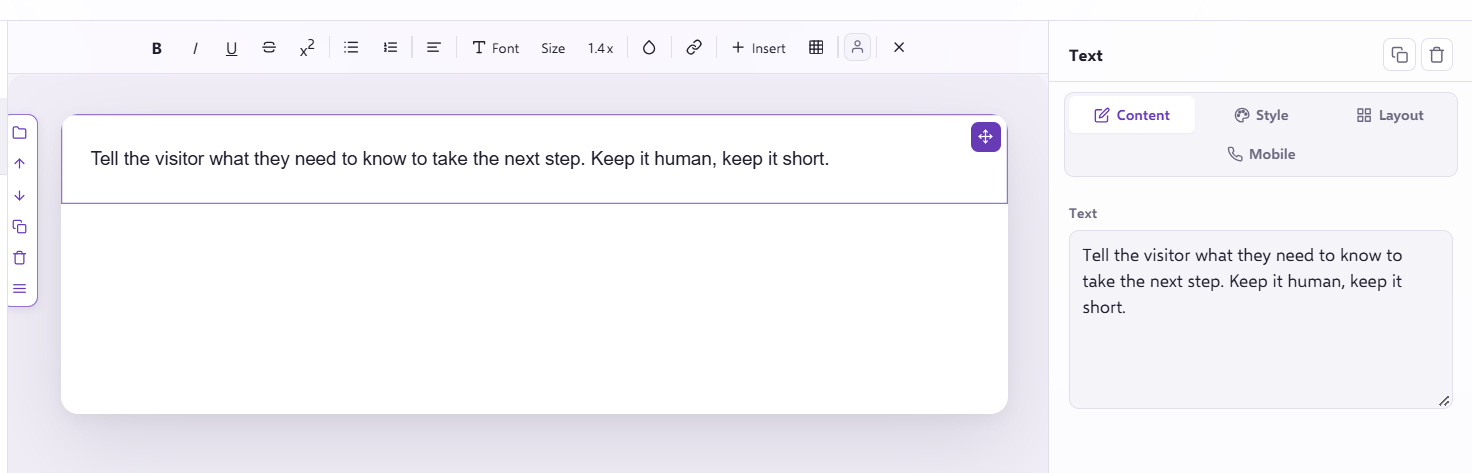
You are able to edit this directly onto your landing page or, by using the column on the right-hand side.
You can also add an image block if you wanted.
For more detail on how to add an image to your landing page click here
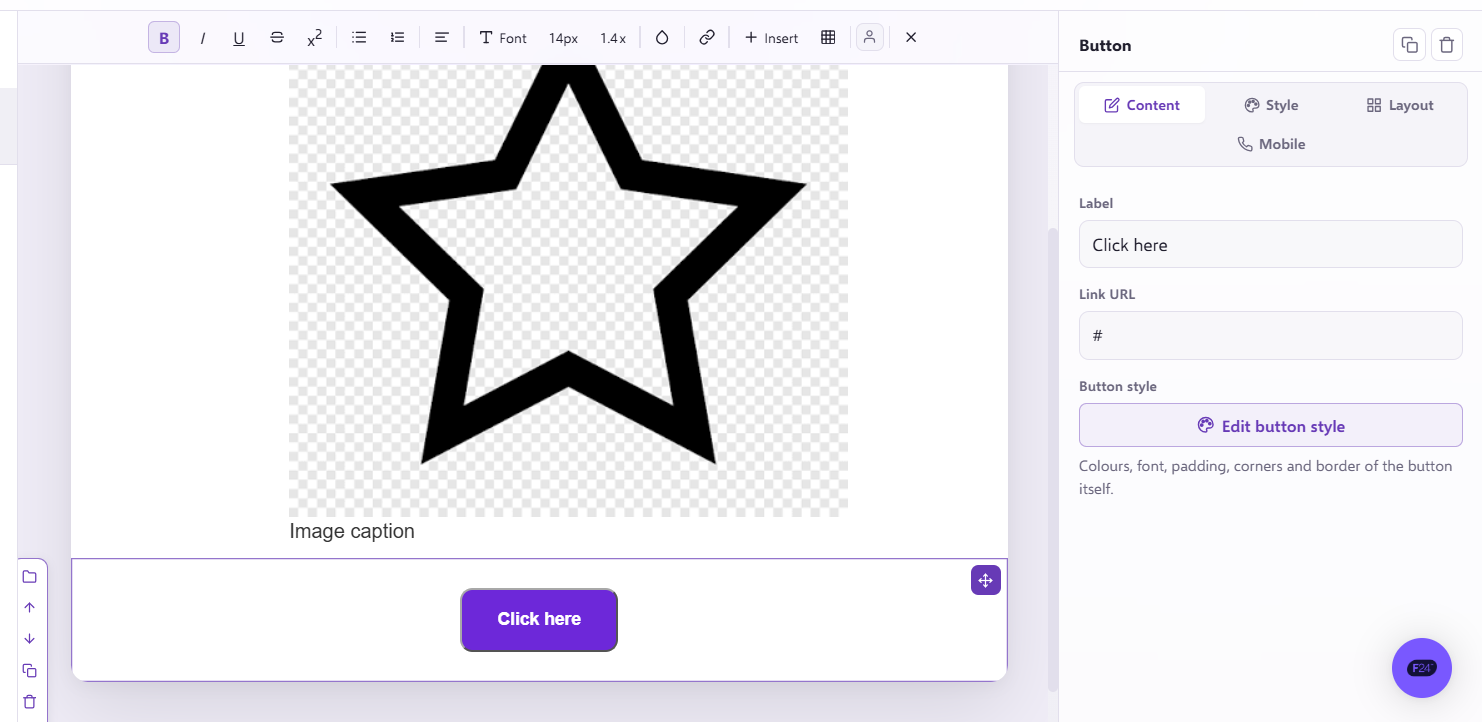
You can even add CTA buttons, here I have edited the button style to be purple.
Additionally, you can drag and drop ready made snippets. 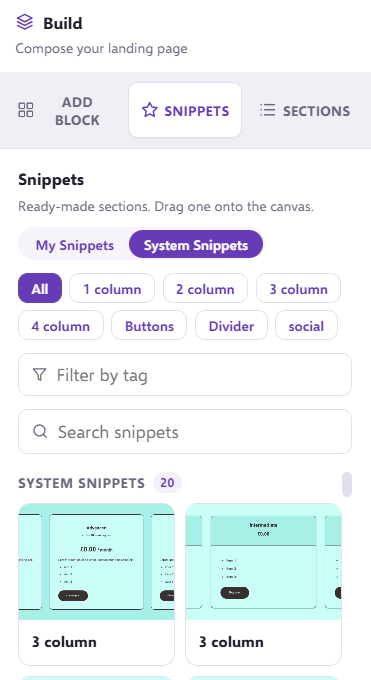
Once you are happy with your landing page, make sure to click save 
Click 'preview' to ensure the formatting is displayed correctly on mobile and desktop
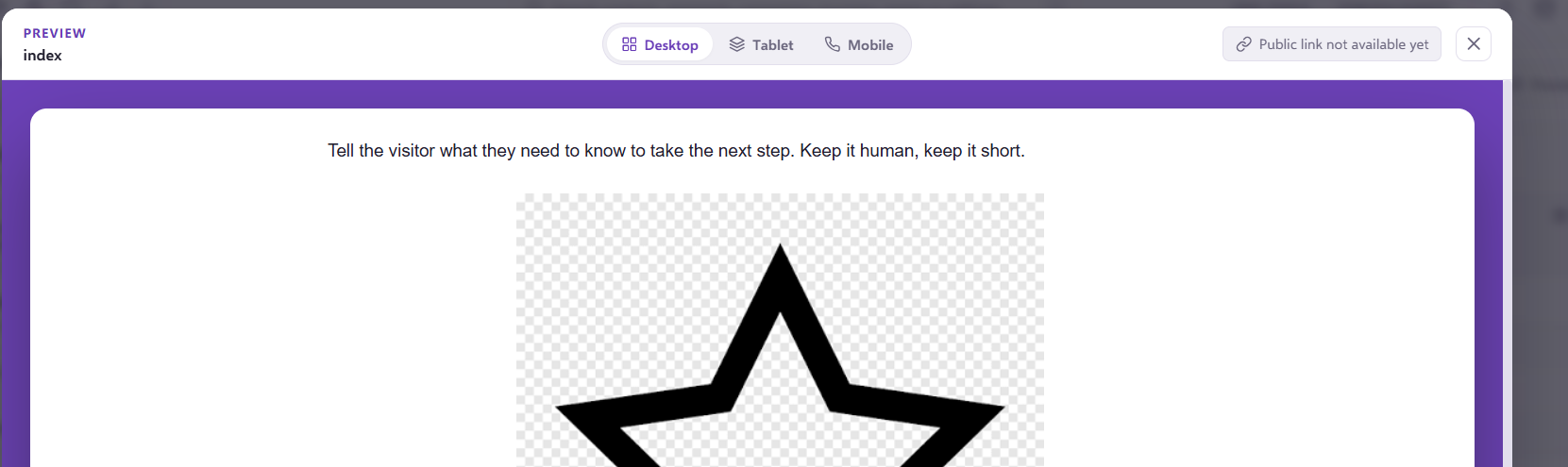
Finally, go back to the landing pages library and click 'publish'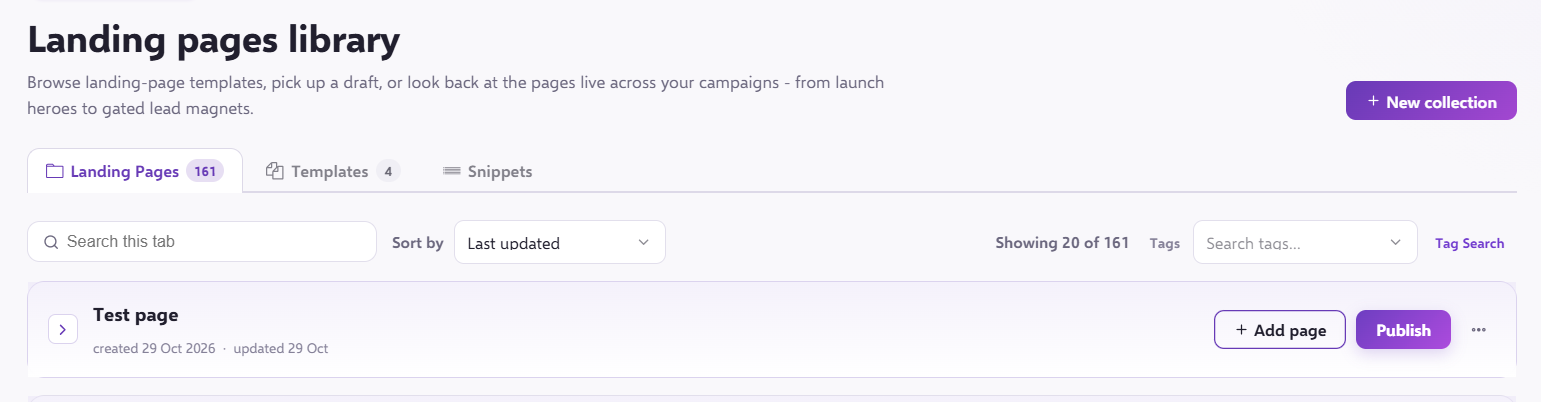

And that's it! You have built and published your Landing page!