
This guide walks you through how to manually unsubscribe a contact from email, direct mail, or SMS communications in Force24.
How to unsubscribe a contact
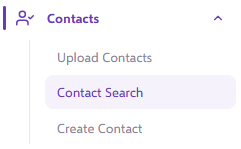
- Expand the Contacts area on the left-hand navigation sidebar and select Contact Search.
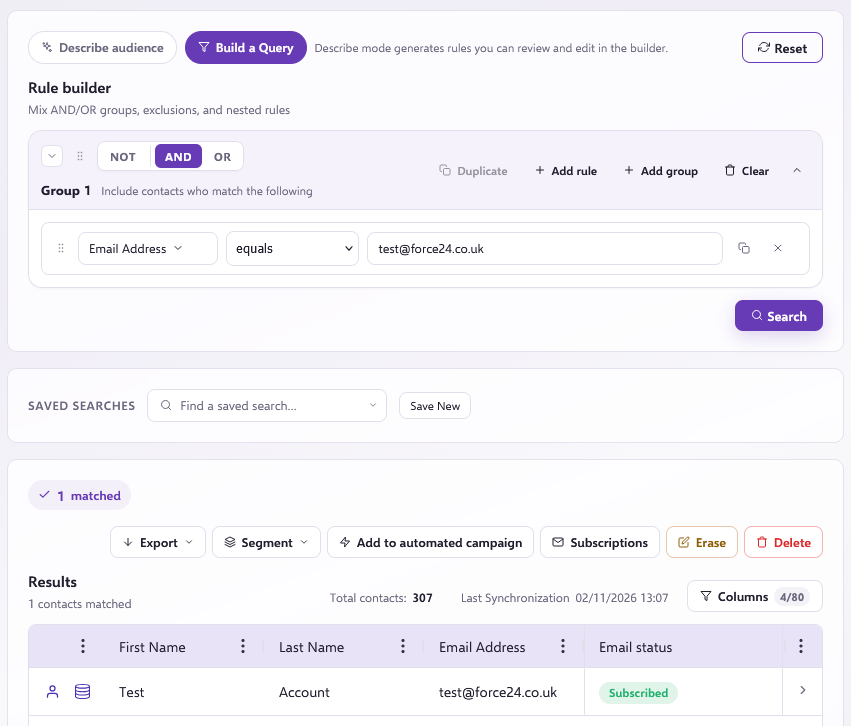
- Start building a query, and in the left filter drop-down, select Email Address. Leave the middle operator set to equals, enter the contact's exact email address in the search box, and click Search.
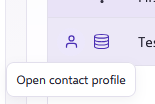
- Click the contact icon to the left of the contact's name to open their profile record.
- In the Subscription Preferences panel, click on the green "Active" button and select Unsubscribed for each channel you want to stop sending to (Email, Direct mail, WhatsApp or SMS).
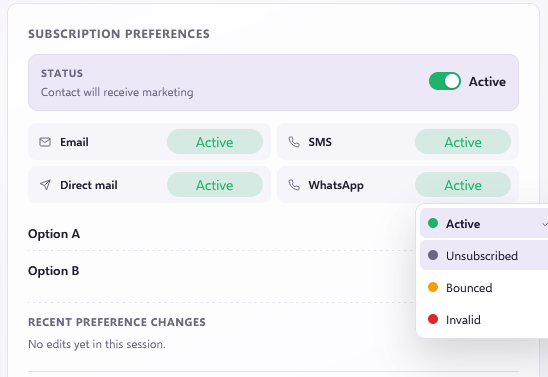
If the contact wishes to, for example, opt out of all communications across Email, Direct Mail, and SMS, make sure you toggle all three options to Unsubscribed. Once updated, the contact will no longer receive communications via the selected channels. If you want to completely deactivate the contact, click the overall Status switch at the top to change it to inactive. This is reversible should you need to change it again.

Unsubscribing vs Erasing
Unsubscribing a contact keeps their profile data intact for reporting while preventing future marketing communications. If a contact requests full data deletion under UK GDPR, see our How to erase a contact article.