
In the journey builder the decision components allows you to ask questions within your journey. Depending on your decision selection, that may be a series of possible answers, or a simple 'Yes' or 'No'.
To separate these two differing outcomes, we have two options available for use. 'Simple Decision' and 'Multi Decision' under the 'Logic' drop down, as shown below.
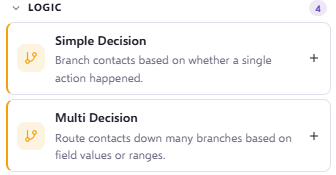
Simple Decision
A simple make decision allows you to query a field within the platform, resulting in a 'Yes' or 'No' answer. For example, in the screenshot attached below we would be asking whether a contact within the journey has an email that contains @force24.co.uk.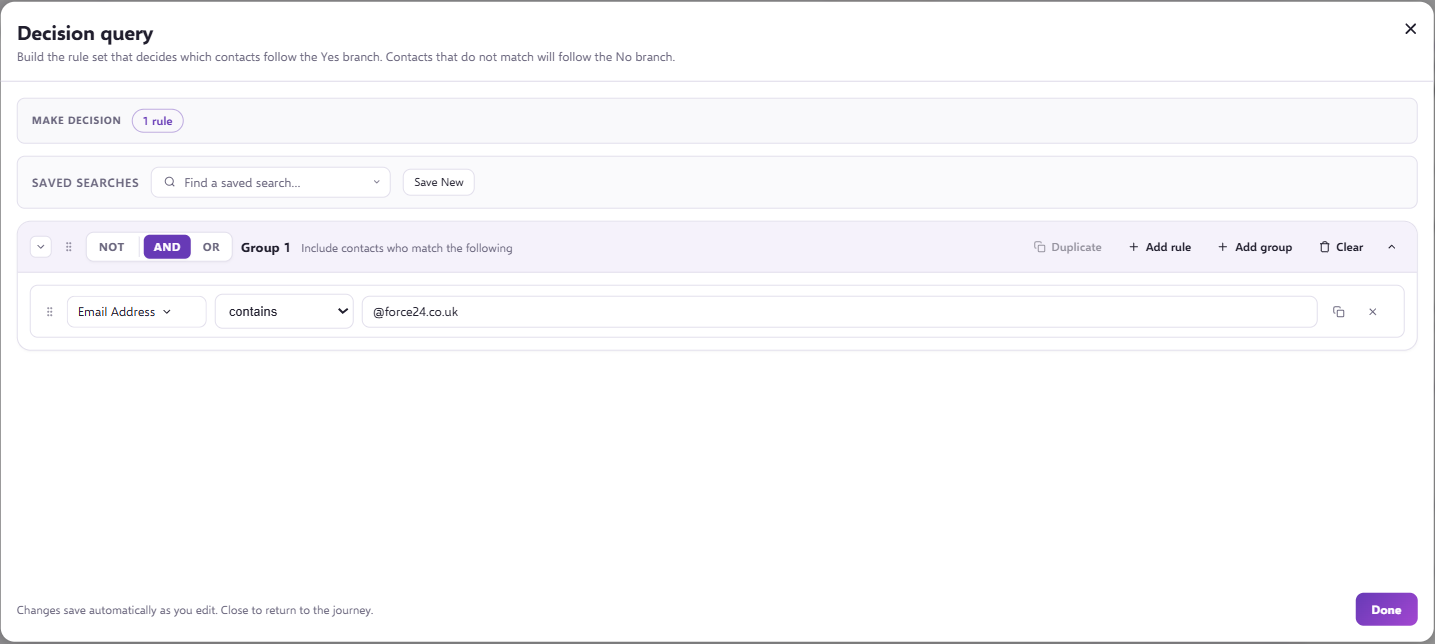
This make decision type would then allow you to say 'Yes' or 'No' i.e. does their email contain @force24.co.uk (YES), or do they not (NO), and lead the two options down different routes depending on this.
Multi Decision
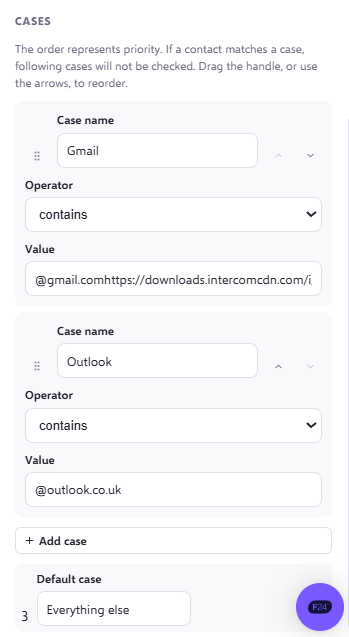
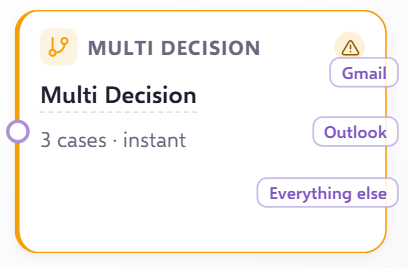
The multi-decision component varies slightly from the simple decision, allowing contacts to meet different set criteria and go into different routes based on this. For example, as shown below this query would look at what email address the contact has. The values that have been input would then be the different options for each route a contact can be triggered into; enabling you to send communications for different email addresses via one journey and segmented into different paths. The final part of this section is the 'Default case' which provides it's own decision which allows contacts that meet none of the criteria to go through their own journey as well.
You can include a number of different options for the fields depending on the data type and the desired outcome of the query. You can find out more about query building and operators via this article.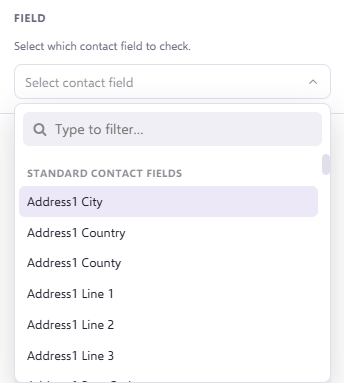
Once you are happy with the selection created, you can press save and view your new component below. The options within the list can then be connected to different routes, whether that is email, SMS, delay or even an end to their journey.
Delays within Decision components:
When using a decision in a journey, you will get the option to add a delay to the decision, like the below example which has a 5 day delay:
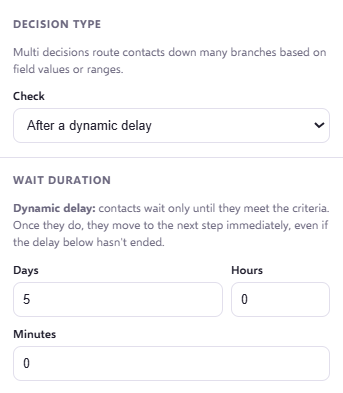
This decision is asking whether contacts have certain email providers. And the delay in this make decision differs from a normal delay component delay, as the minute contacts meet this criteria, they will advance through the 'YES' in the make decision and onto whatever stage is linked after the 'YES' in the make decision. Contacts will only be held in this delay for the full 5 days if they do not meet the criteria in this make decision, which in this case is whether they have one of the email providers listed.
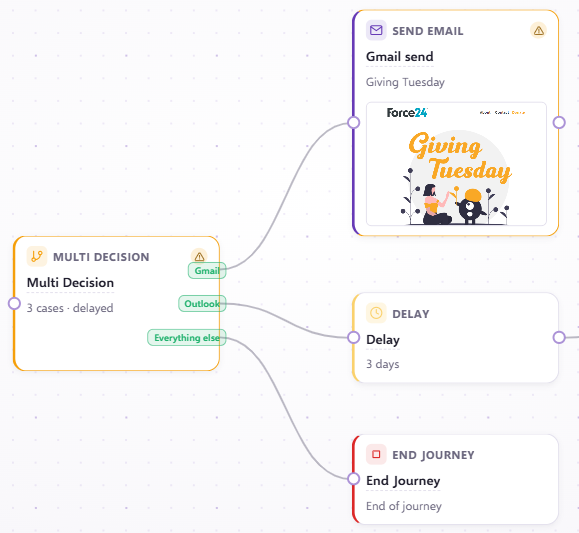
So if you want to send another email to the contacts who do meet the criteria in your decision, but don't want to do this as soon as they meet the criteria, then it would be worth adding an extra delay after the decision, like the Outlook option below:
If you have any questions, feel free to reach out to us through the live chat function available bottom right in your Force24 Platform. Our team is ready to assist you and provide support whenever you need it.