
You can save any search you build in Force24, which makes it quicker and easier to reuse across different areas of the platform. This includes Contact Search, automated Segments, journey start audiences, and decision components.
How to save a search
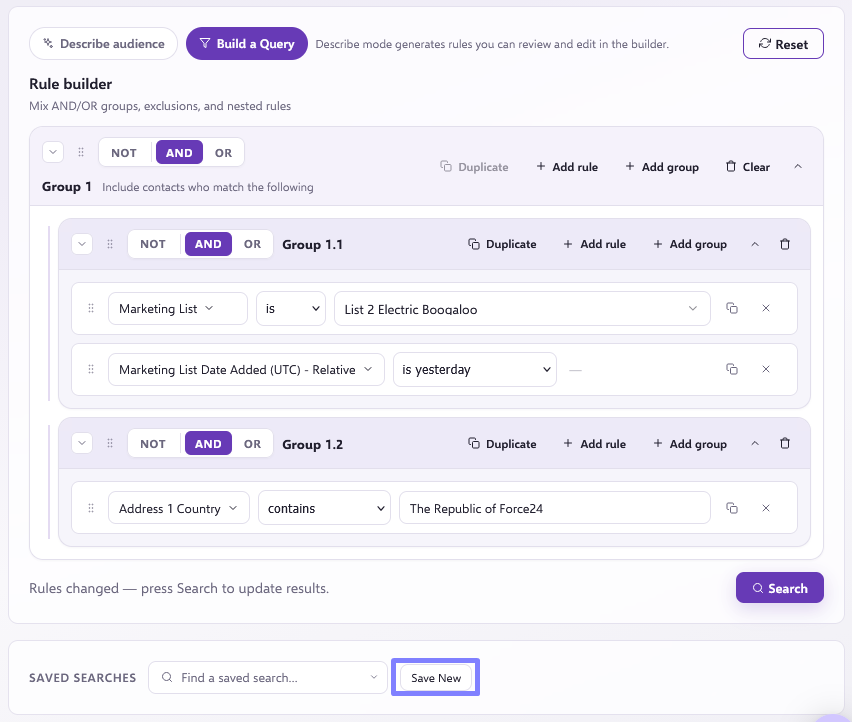
- Once you have added your rules, click Save New (you will find this option below your rule set):
- Enter a name for your search:
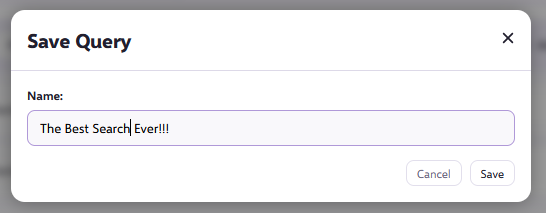
- Your saved search will now appear in the Saved Searches dropdown.
How to reuse a saved search
When you are working in Contact Search, a Segment, or a journey audience:
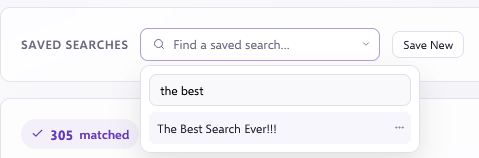
- Click the dropdown and select your saved search (you can also search for it):
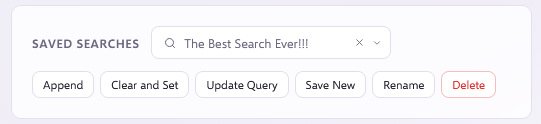
- Choose from the following options:
- Clear and Set: Replaces your current rules with the saved ones.
- Append: Adds the saved rules to whatever you are already working with.
This is a great way to avoid having to repeat the same or similar setups.
Best practice: Build and test in Contact Search
When building out your audience using criteria, we recommend starting in Contact Search. It is a great space to test and refine your logic before applying it in a start audience, decision component, or Segment.
By building your search in Contact Search first, you can spot-check a few contacts that match your criteria and confirm everything is working as expected. This is especially useful when your logic is more complex, as it ensures all conditions are behaving as intended.
Top tip
Validating your audience this way gives you confidence that the right contacts will be picked up in your journeys, decisions, and list rules. It is a quick step that can save time and help you avoid surprises later on.
Related article
For more best practices, learn more in our Query tips, tricks and best practices article.