
Once you have added your video into your landing page, you may need to edit it. This article will explain how!
First of all, you will need to head to the landing page tab of the platform. Open the page you wish to edit the video on, click the video you wish to edit and you will be presented with the video settings:
.
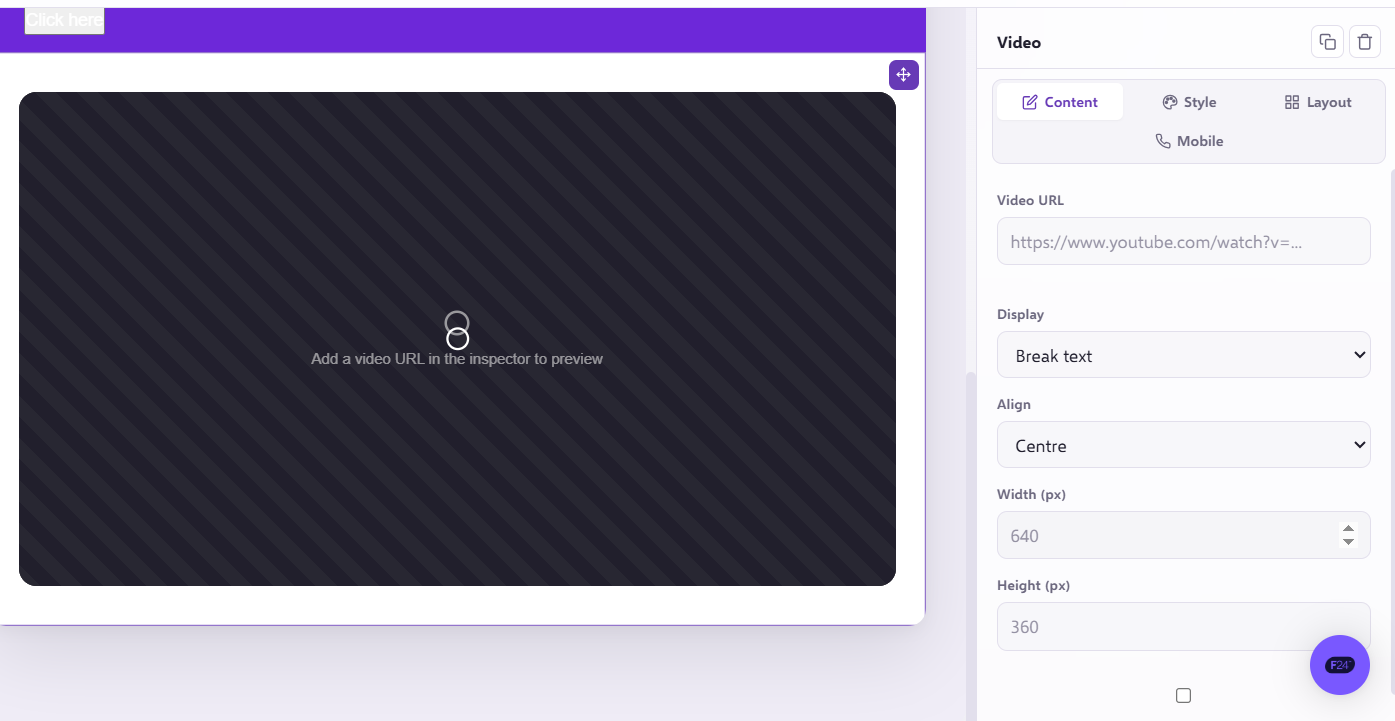
The Video settings contains options including; ‘Content’, ‘Style’, 'Layout', and ‘Mobile’.
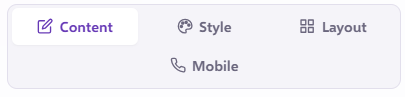
The Content tab
This includes settings such as; ‘Video URL’, ‘Display’, ‘Align’, 'Height' and ‘Width’.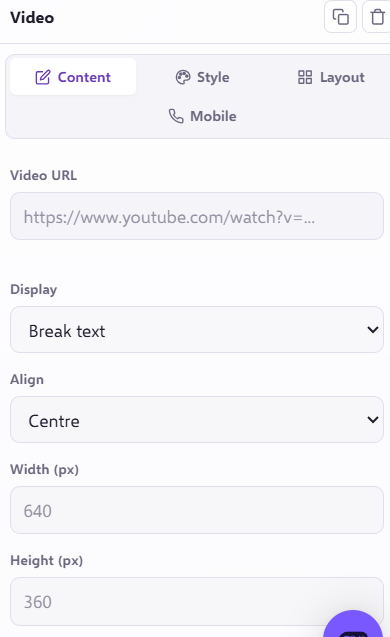
'Video URL’ - Here is where the selected videos URL will be placed.
‘Display’ - This gives you the option to either place your video inline or break text.
‘Align’ - This gives you the option to align your video either left, right or centre.
'Height' - The maximum height of your video.
‘Width’ - The maximum width of your video.
The Style tab
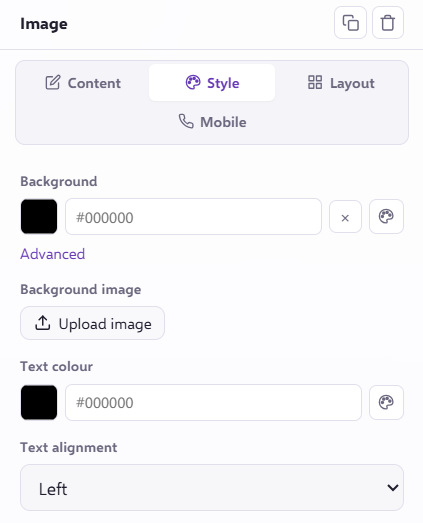
The Image setting column, contains options including; 'Background', 'Upload Image', 'Text Colour', and 'Text Alignment'
'Background' - This controls the colour of the background. You will notice that there is also an 'advanced' option, this is where you can add any additional CSS code to your background.
'Upload Image' - This is where you can add an image to your background.
'Text Colour' - This controls the colour of your text.
'Text Alignment' - This is where you can choose whether your text is left-aligned, centred, or right-aligned.
The Layout tab
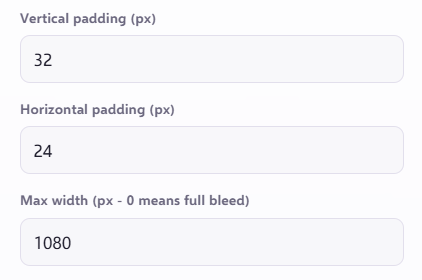
This includes settings such as; ‘Vertical padding’, ‘Horizontal padding’, and ‘Max Width’.
‘Vertical padding’ - Here you can specify the maximum vertical padding of the video.
‘Horizontal padding’ - Here you can specify the maximum horizontal padding of the video.
‘Max Width’ - Here you can specify the maximum width of the video.
The Mobile tab
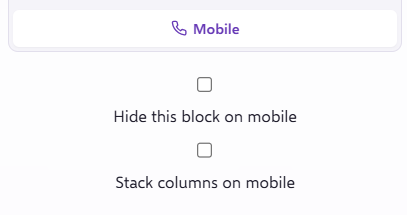
This setting allows you to choose the option of hiding the video in mobile view or stacking the video, if there are more than one.
If you have any questions, feel free to reach out to us through the live chat function available bottom right in your Force24 Platform. Our team is ready to assist you and provide support whenever you need it!