
If you would like to use a colour that is not currently showing in your Branded Sysselection, you have two options: use a Custom Colour, or add the colour to your Branded Colours selection.
Option 1: Use a Custom Colour
This is the best option for one-off or infrequent use of a certain colour.
If you know the Hex code (#******), you can enter it directly into the Custom Colour box:
Alternatively, click the colour wheel on the right and pick a colour by sight or use the dropper if the colour is already on the screen: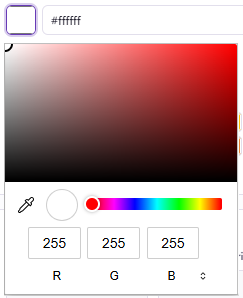
Option 2: Add to your Branded Colours selection
If you regularly use a colour that is not currently in your selection, you may want to add it so it appears as an option in your Branded Colours selection.
Step 1: Open Account Settings
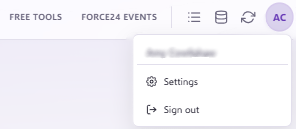
Click Settings in the top right corner:
Step 2: Navigate to the correct section
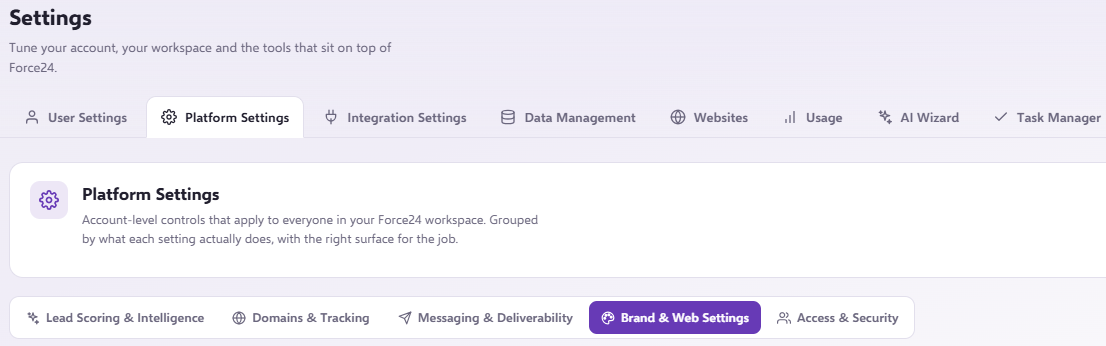
Settings > Platform Settings > Brand & Web Settings and scroll down to find 'Brand System Colours'.
Step 3: Add a new colour
Select the '+ Add colour' icon on the right hand side: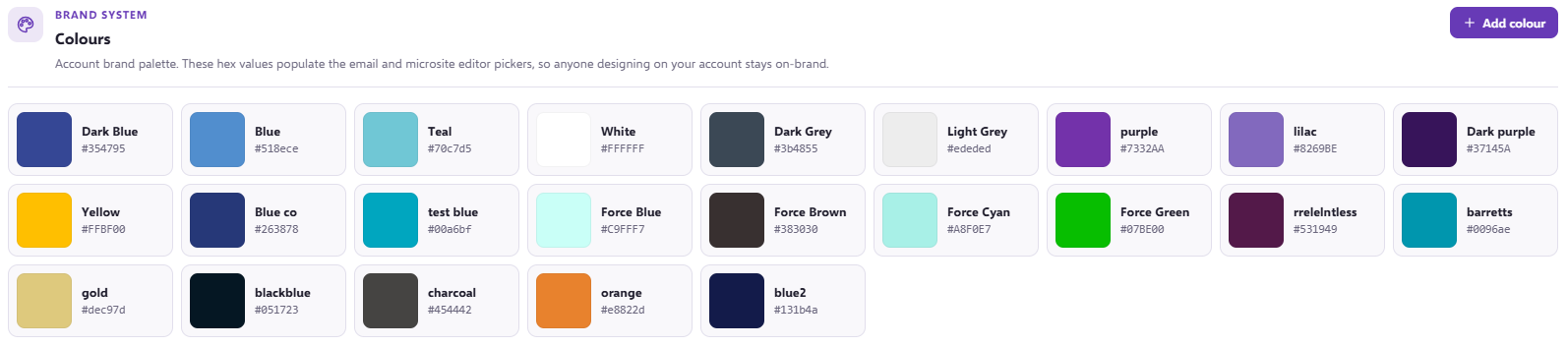
Step 3: Name your colour
You will be prompted to name your colour and choose it using either the Hex code or the colour wheel selector:
Step 4: Save it
Finally, click Save and your new colour will be added to your branded palette. It will now appear as an option when you change backgrounds in snippets.
Adding branded colours in the Email Builder
You can also add your branded colours directly in the Email Builder.
If you click to edit the background colour of a snippet in content mode, your brand colours will appear as normal: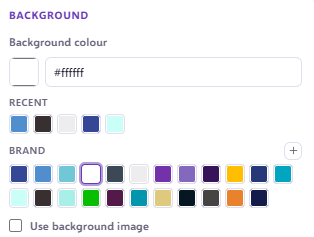
If you click the + icon, you can add a new branded colour without leaving the Email Builder.
Need a hand?
If you have any questions, reach out to us on live chat using the chat bubble in the bottom right of the Force24 platform. Our team is ready to help whenever you need it.