
When 2FA is enabled on your account, you need a verification code from your Authenticator app as well as your username and password. Here is how to log in.
Step 1: Open the login page
Start by going to the portal at the usual login URL: https://platform.data-crypt.com
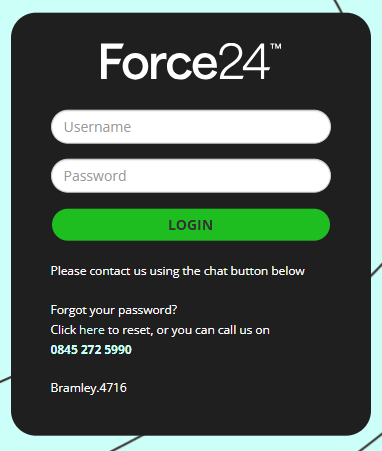
You will see the normal user login screen:
Step 2: Enter your login details
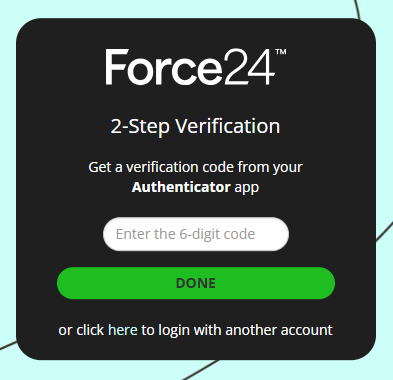
Enter your Username and Password as prompted. Once you have done this, you will be taken to the 2FA screen:
Step 3: Find your verification code
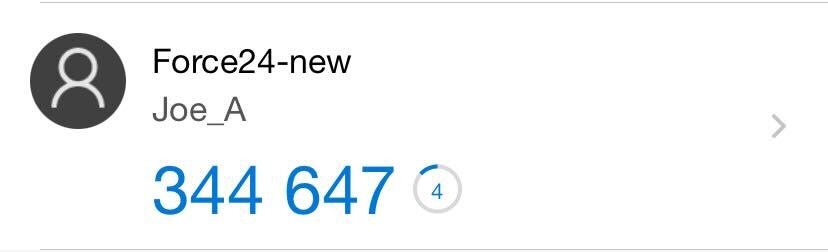
At this point, open your Authenticator app and find the Force24 entry:
Tip
If the numbers are red (or the timer is running out), the time window for the current verification code is about to expire. It may be worth waiting until the numbers refresh and/or turn blue.
Step 4: Enter the code
Enter the verification code into the 2FA input on the Force24 login screen, and you will be taken to the normal dashboard page.
Need a hand?
If you have any problems logging in, reach out to us on live chat using the chat bubble in the bottom right of the Force24 platform. Our team is ready to help whenever you need it.