
How to edit the background colour of any part of a snippet
Once you have built your email using snippets, you can easily change the background colour of your snippets to alter the appearance of your email.
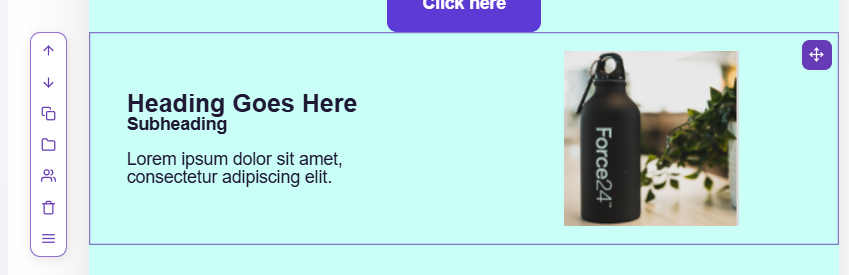
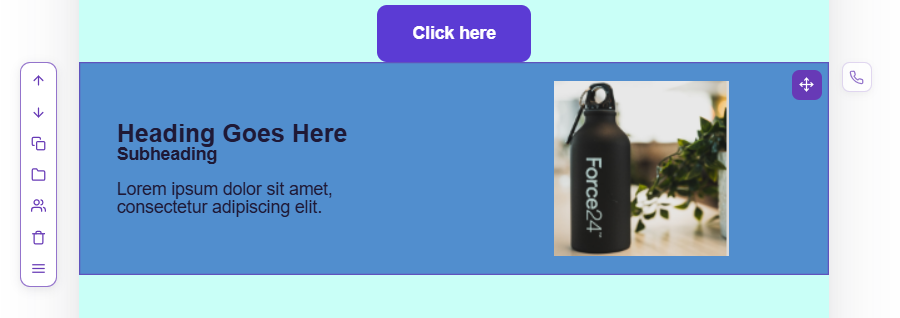
You can add colour to any part of a snippet simply by clicking on the section you would like to amend. You will be able to identify which section you will be editing, as a blue border will appear around the selected section, as shown below:
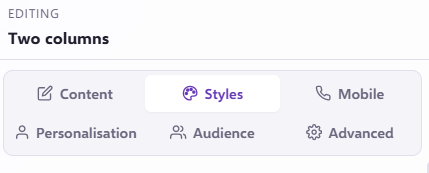
Selecting a section to edit, will then open the 'Editing' menu on the right-hand side, you will then want to select the 'Styles' tab;
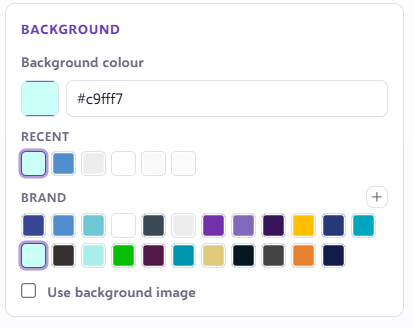
From there you will see the section that says 'Background Colours' in here it will show the current background colour as well as your branded colours.
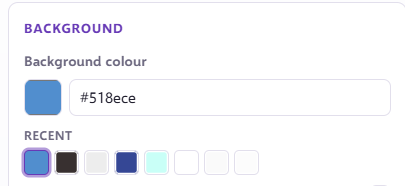
Selecting one of these colours will change the background colour in the selected snippet of the email to your new colour choice:
If you have any questions, feel free to reach out to us through the live chat function available bottom right in your Force24 Platform. Our team is ready to assist you and provide support whenever you need it.