
This article shows you how to find a contact in Force24 and see how they are engaging with your campaigns. It also explains how to manually unsubscribe a contact.
How do I find a contact and see their engagement?
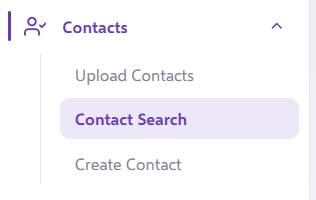
- Log in as normal and go to the Contacts tab in the side navigation.
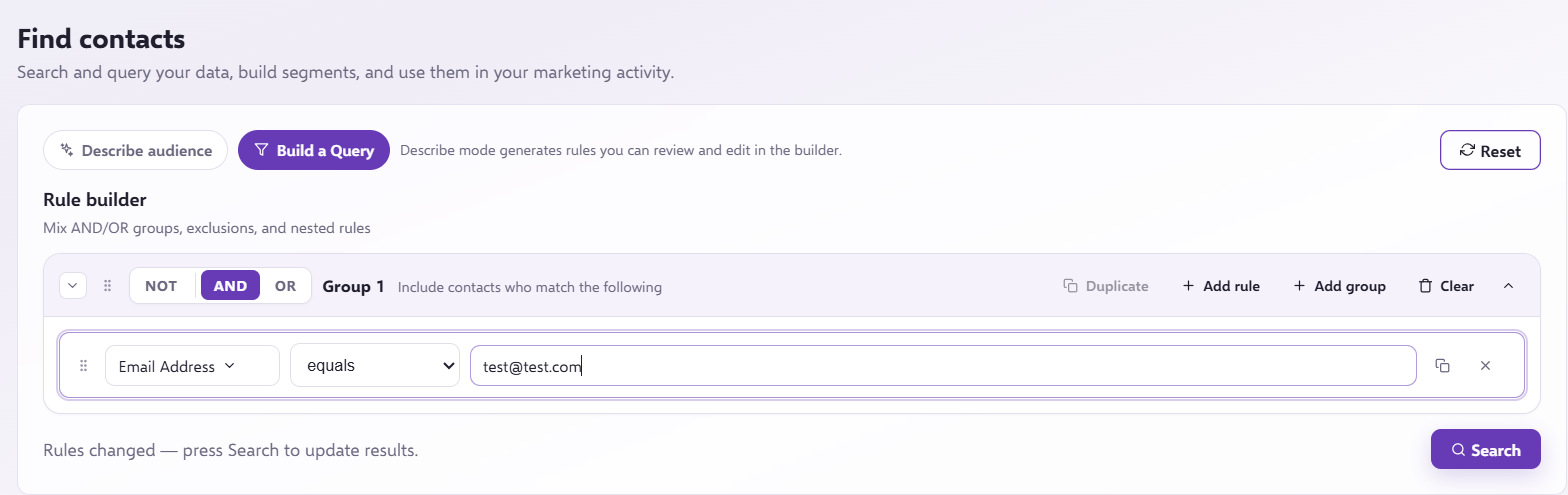
- Use the drop-down on the left-hand side to select Email Address.
- In the next drop-down, choose the option that suits what you know about the contact:
- equals if you know the full email address of the contact you are searching for.
- contains if you only know part of the email address.
- Enter the full email address, or the part you know, into the far right field, then click Filter Contacts. This should bring up the contact you are searching for.
- Click the person icon on the far left.
 This opens the full contact details. You can see information such as emails opened and emails clicked, which Segments the contact belongs to, and much more.
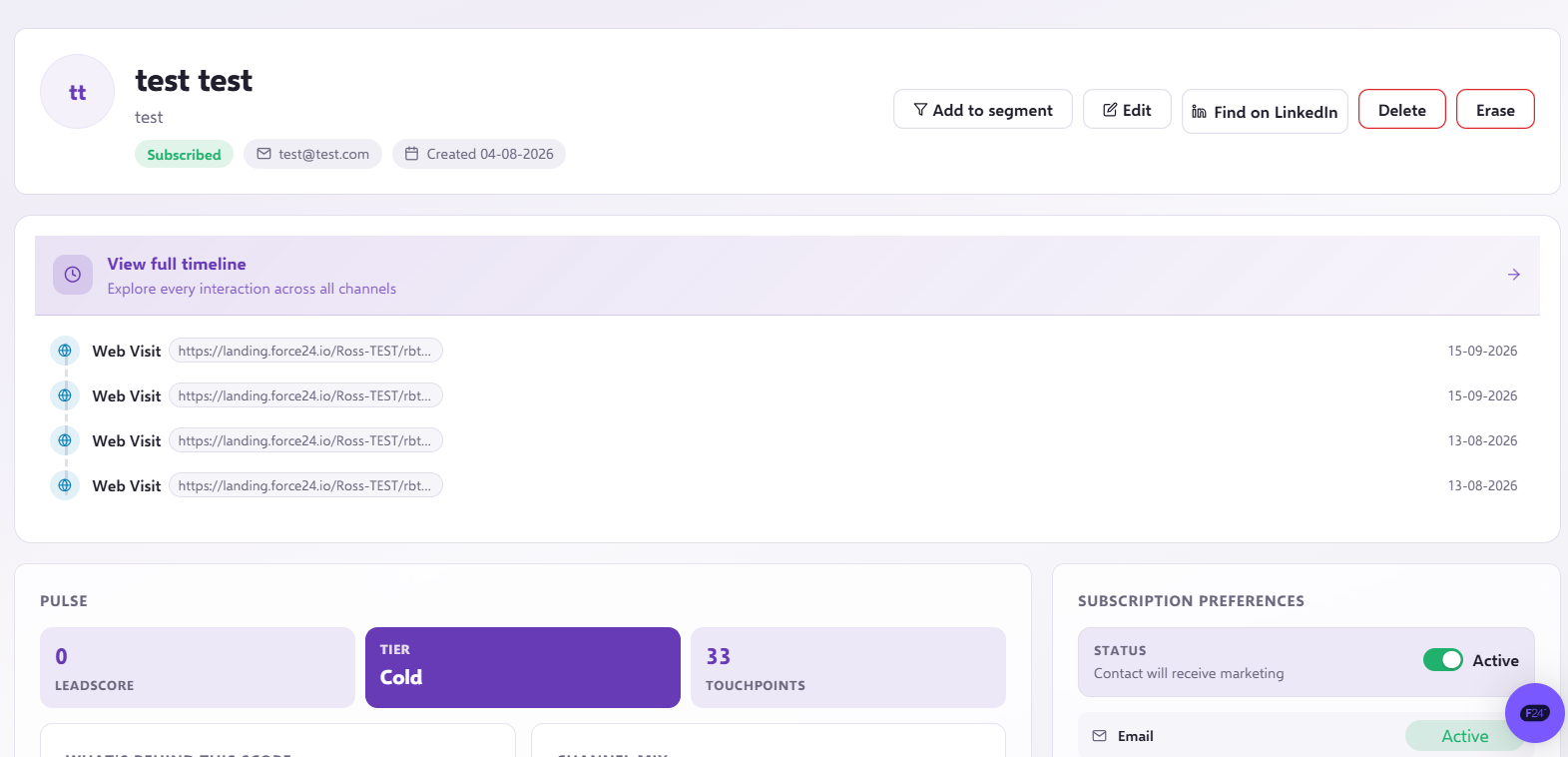
- Click the View full timeline tab on the right. This shows the contact's full activity, including every email they have received, whether it was automated or part of a batch campaign.

All the information for that contact is in one place.
Want to search by more than email address?
If you want to build more detailed searches, learn more in our Contact Search (Make Decision Query Glossary) article.
How do I manually unsubscribe a contact?
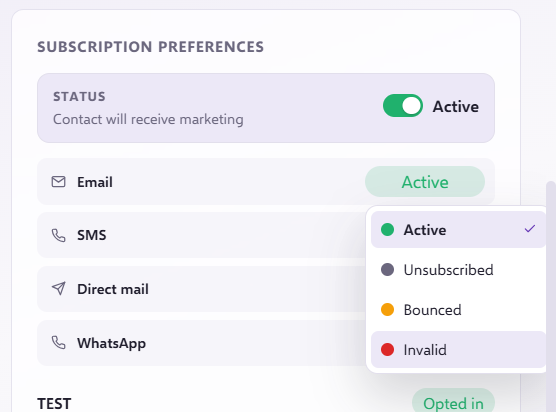
You can also manually unsubscribe a contact from the same place. Select the Subscription Preferences tab. On either Email, DM or SMS click the Unsubscribed tab to make sure they no longer receive those communications.
Need a hand?
If you have any questions, reach out to us on live chat using the chat bubble at the bottom right of your Force24 platform. Our team is happy to help.