
When building journeys in Force24, you will need to make sure these are showing as "valid" in the platform before they can be started and set live. If a journey is not valid at any stage it will show any Validation Errors on the right hand panel. These will need to rectified before the journey can be started, so in this article we will help you to understand what the various errors mean and how to resolve them.
Validation errors will show throughout the journey building process, but you only need to pay attention to these errors if you believe the journey is complete and ready to send.
When you create a brand new journey from scratch there will be some initial validation errors that show straight away, before any components have been added - we will now explain what all of the possible errors mean, starting from here.
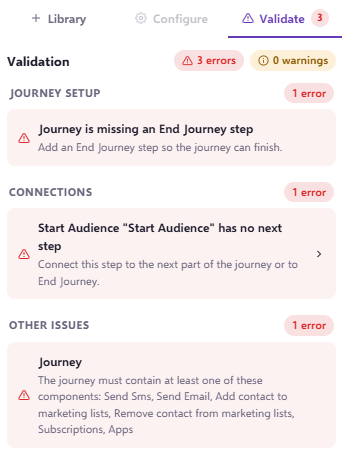
Journey is missing an End Journey step
This error is fairly self-explanatory, the journey must contain and End Journey to become valid.
Start Audience "Start Audience" has no next step
Similar to the error above, this is saying that your journey must attach at least one component to the Start Audience.
"The journey must contain at least one of these components: Send Sms, Send Email, Add contact to marketing lists, Remove contact from marketing lists, Subscriptions, Apps"
Again, similar to the above your journey needs to have at least one of the following components for it to be valid: Send SMS, Send Email, Action (Add/Remove contact from marketing lists), Subscriptions, Apps
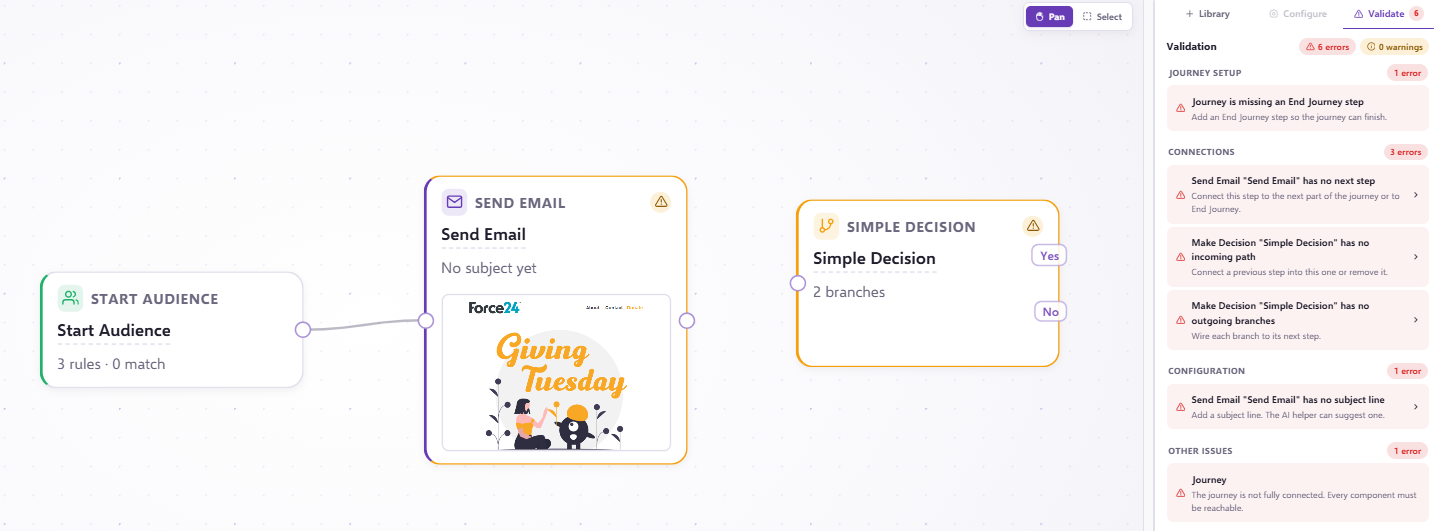
Send Email "Send Email" has no next step
This means that the Send Email component is not connected to another component for the contact to progress onto after the email has been sent. This error will appear for any mid-journey components that don't have an arrow connecting them to the next stage in the journey.
Make Decision 'Simple Decision' has no incoming path/ Make Decision 'Simple Decision' has no outgoing branches
These are essentially the same as the previous error, but for Make Decision components there are two routes that need connecting to the next stages of the journey - one from the Yes and one from the No - and one into the component.
Send Email 'Send Email' has no subject line
This means that the Send Email component is missing the subject line for sending. This will appear until this is editing within the component.
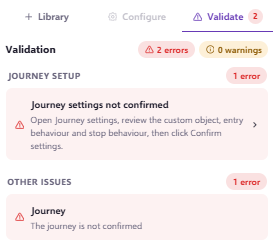
Journey settings not confirmed
You will see these validation errors if you have duplicated from another journey. The system will prompt you to check journey settings. You can resolve this by clicking the error and "Confirm settings".
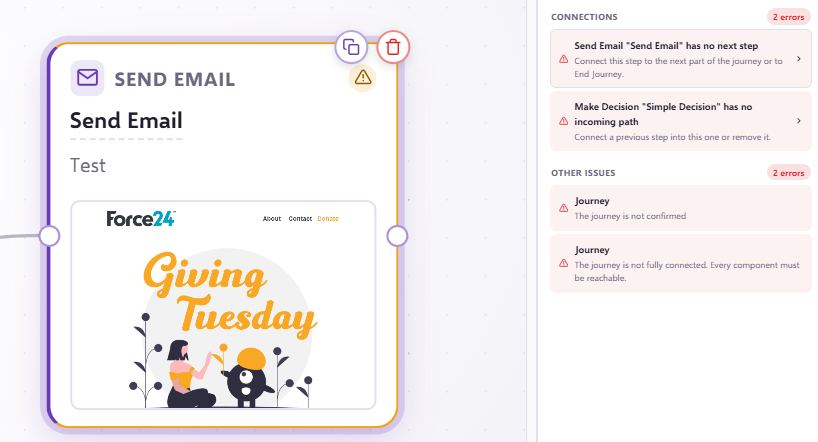
Top Tip: If you're ever unsure which component a validation error is referring to you can click on the error message and it will centre and highlight the problem component, as shown below.
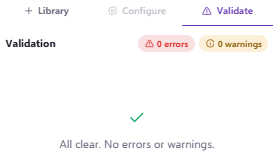
Once you have analysed and resolved any validation errors in your journey, we should see the lovely message below, and your journey will be ready to start!
Aside from the validation errors, you may want to double check other factors before starting your journey - take a look through the article below to make sure your journey is ready to go from a logical standpoint as well:
Journey Checklist: Make sure your journey is ready to go! : Force24 Support
And as always, if you have any questions or need help checking your journey logic, please don't hesitate to reach out to the team on our live chat!