
It is important to manage your snippets in order to build your emails easier and more effectively. This article will cover tagging snippets, saving, duplicating, adding to favourites and deleting them.
Saving & Tagging
This is a really important feature in the platform. You should continually be expanding your snippets library and you can do this by saving any new snippets you create.
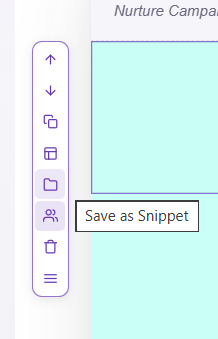
To save a snippet, you need to click on the snippet you want to save, and press the 'Save as Snippet' button. This will save it into your snippets library where you can access it for future use in any of your other emails.
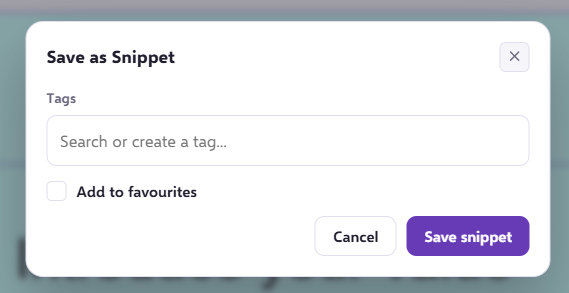
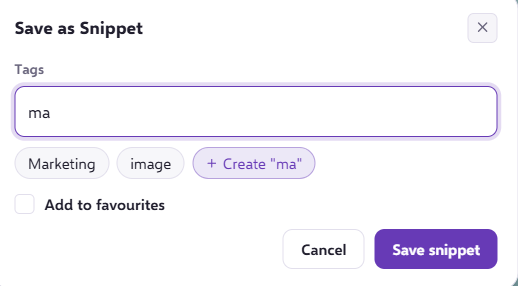
When saving your snippet you can also apply tags or add it to your "favourites" folder. This can really help to keep your snippets organised and accessible.
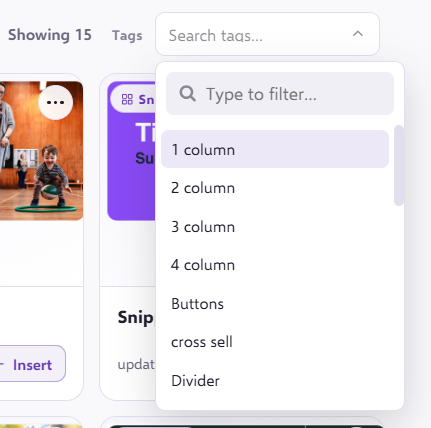
 When you have tagged your snippet, within the email library under 'Snippets' you will be able to search via the tags on the right hand side.
Duplicating
You can now duplicate a Snippet in your Email Template to save you even more time when creating your emails.
Select the 'Duplicate' Snippet icon:
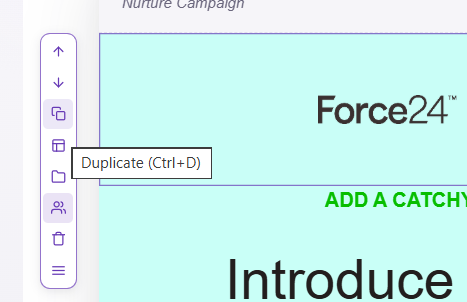
This will create a new copy of the Snippet directly below the Snippet you have duplicated within your Email Template.
Saving to Favourites
You can now save even more time by adding your most regularly used Snippets to your own 'Favourites' folder.
Select the 'Snippets' mode within your Email Template editor, located at the left of the screen:
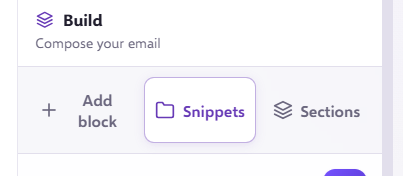
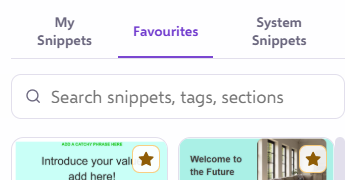
Locate the Snippet you wish to add to your 'Favourites' folder in the left hand navigation. Hover over the snippet and a grey star will appear in the top right hand corner of the Snippet.
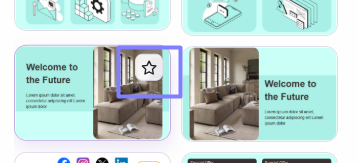
Click the star and it will turn yellow, indicating that this Snippet has been added to your 'Favourites'.
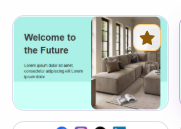
You can now find all your favourite Snippets quickly, within the 'Favourites' section of the Snippet categories.
If you have any questions, feel free to reach out to us through the live chat function available bottom right in your Force24 Platform. Our team is ready to assist you and provide support whenever you need it.