
If you've made changes to a landing page but the live site still shows the old version, the most likely cause is that the changes haven't been published yet. Saving a page and publishing a landing page are two separate steps, and the live site only updates once both are done.
Step 1: Check your changes are saved
Go to the Landing Pages area in the platform
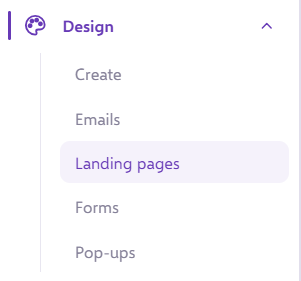
Open the landing page folder

Hover over the page you changed and click Edit
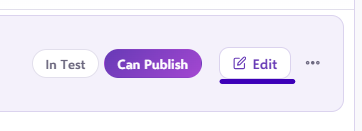
Make sure every change you want is definitely in place.
Step 2: Publish the landing page
Go back to the landing page area
Click the three dots menu on the landing page folder (not on the page)
Click Publish
Choose the same place to publish to as you did before
Let the publish complete
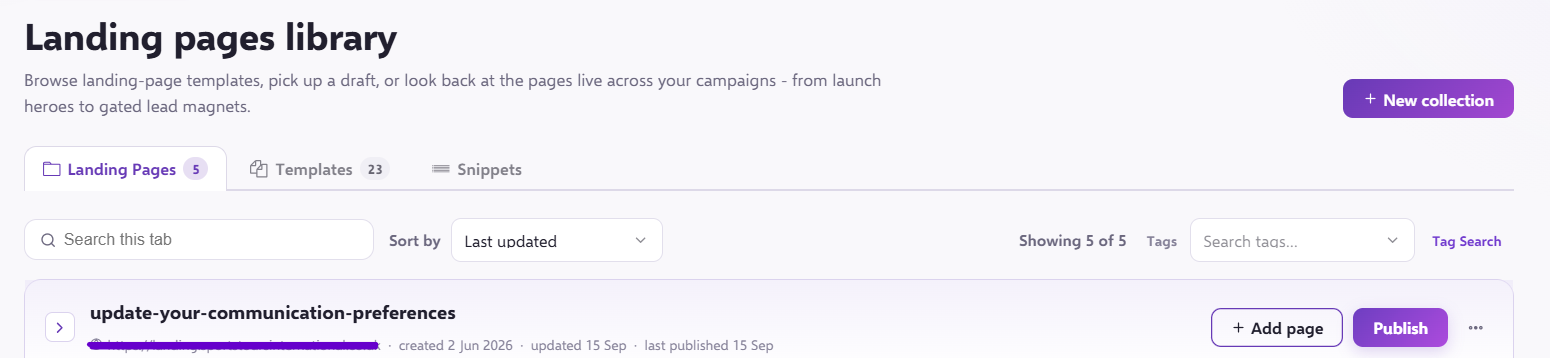

You don't need to unpublish first. Publishing again overwrites the live version with your latest saved changes.
Why every change needs publishing
This isn't specific to Force24. On any website platform, changes have to be published live to the internet once you're ready for them to go out. Otherwise you could break a live website while you're still editing it.
That applies to even the smallest change, such as a form destination URL in a form configuration. If you've changed it, you need to publish the microsite before it will take effect on the live page.
Still seeing the old version?
If you've saved your changes, published the microsite and the publish has finished, but you still can't see the change, your browser is probably showing you a stored copy of the page. Open the live URL of the microsite page and clear your cache using our guide: How to clear your cache