
You can now send a WhatsApp message template in a Journey.
To configure a contact-based journey that sends a WhatsApp message:
- In your Force24 account, navigate to Journeys.
- Click the name of a journey to edit an existing journey. Or click create journey to create a new journey.
- In right hand panel, under integrations, drag and drop ‘App step’ onto the journey builder grid.
- You can then 'Configure app' and select the ‘WhatsApp’ app.
Once you have selected ‘WhatsApp’ you will be able to select an existing connector or you'll have to 'create new connection'.
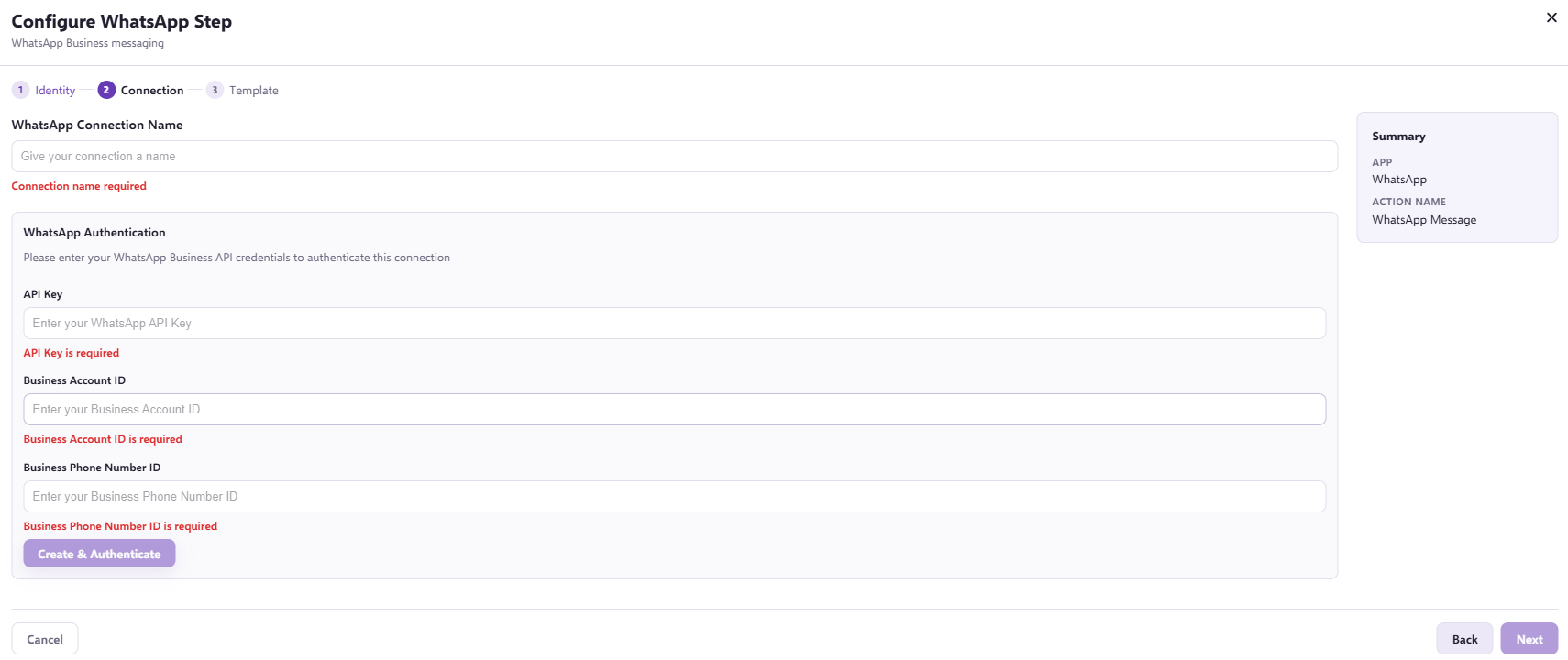
To Auth the app for the first time, you will need to follow the instructions here to generate a permanent access token, generating an API key, business account ID, and business phone number ID.
- Once these have been inputted, press 'next'.
- After completing this, you will be able to preview and select a template created within your WhatsApp business account. **Templates must be created within the account first, and cannot include personalisation within.
- After you have selected your template, you are now able to press 'add to journey' and use the WhatsApp message within your journey.
The message template should be configured for unsubscribe to include the following URLs:
- the Website URL field value must be: https://tracking1.force24.co.uk/api/whatsapp/unsubscribe
- the Sample URL {{1}} field value must be: https://tracking1.force24.co.uk/api/whatsapp/unsubscribe/anyvaluehere/anyvaluehere
If the unsubscribe is not present, the WhatsApp will fail to send, so please ensure this is included.

By default contacts are marked as 'unknown', for subscription preference for WhatsApp. This is because you must have explicit consent to send to these contacts. The contacts being marked as 'unknown' will mean that no WhatsApp content will be received by them until their preferences are updated. To find out how you can update preferences for WhatsApp, you can click here.
To get alerted of when a status has changed for your WhatsApp message (received/completed), you must set up a callback URL. Please reach out to support on our live chat for more information on how to set this up.