
You can now update data fields using an AI prompt within a Journey.
To configure a a journey that updates contact data:
- In your Force24 account, navigate to Journeys.
- Click the name of a journey to edit an existing journey. Or click create journey to create a new journey.
- In right hand panel, under integrations, drag and drop ‘App step’ onto the journey builder grid.
- You can then 'Configure app' and select the ‘OpenAI’ app.
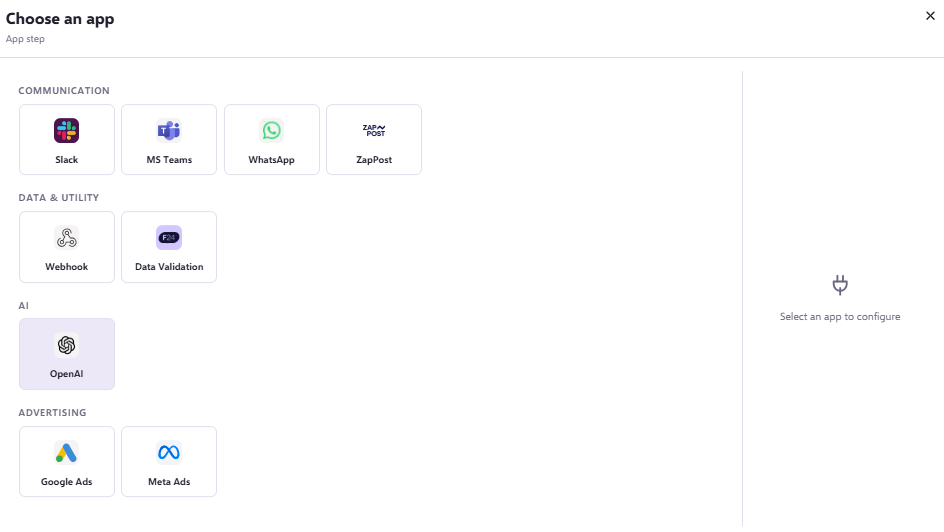
- Once you have selected ‘OpenAI’ you will be able to compose a prompt to send to AI that will inform the data passed back into your selected field per contact.
- Type the prompt into the 'compose prompt' section within the component; you can add contact data using the personalisation icon to inform the prompt, and even use your existing training data to set tone for this field.
- To generate the best outcome, it is best to follow best practices surrounding prompt generation. You can access our useful article here.
- After you are happy with the prompt you have written, you can select the destination for the response to sit within from the dropdown of existing fields.
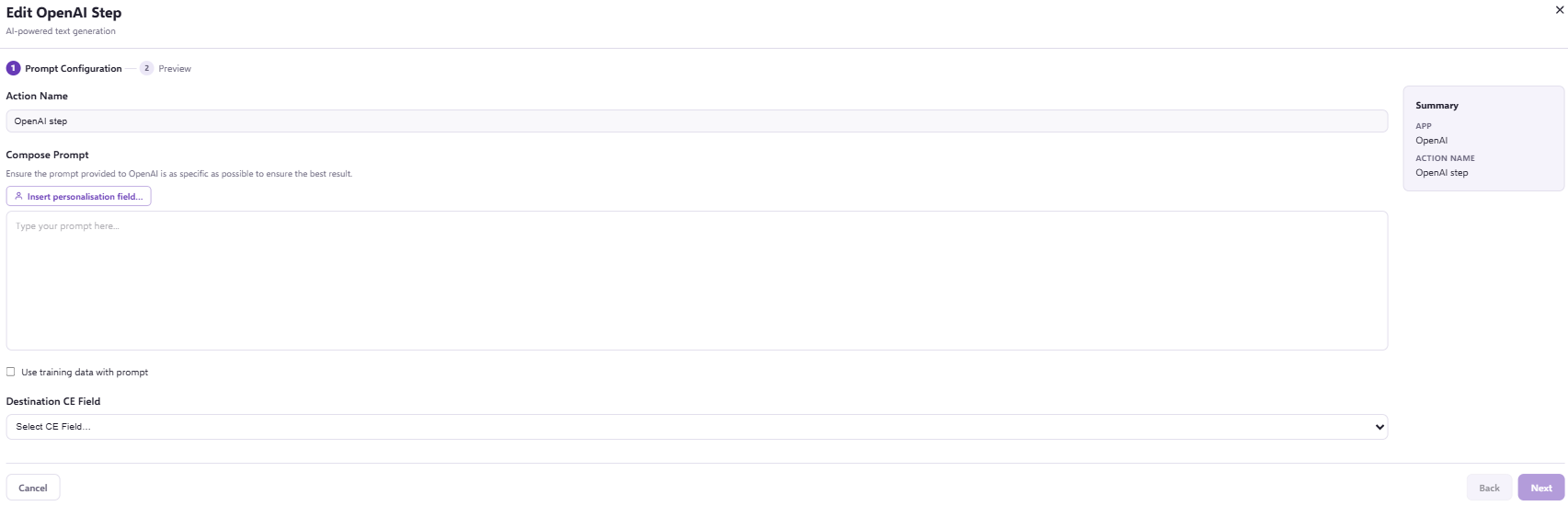
- Press next, and you will be presented with an option to generate a preview for an existing contact within your database.

- By clicking 'generate preview', the OpenAI component will send the prompt (and any wizard data if opted in to do so) and provide a preview that best fits the contact selected in the case of personalisation being used.
- Once you are happy you can select 'Save' to use and connect to other sections.