
Single Sign On (SSO) lets your users sign in to Force24 with their Microsoft account. This article shows you how to create a new SSO user, and how to convert an existing user to SSO.
How do I get SSO enabled?
If you would like to start using Microsoft to sign in, reach out to your account manager. They will get SSO enabled for you and ask you to accept the required terms and conditions.
Once SSO has been enabled on your account, you can start creating new SSO users or converting existing users to SSO.
Before you start
You won't see the SSO options until your account manager has enabled SSO for you. You will also need access to your Azure directory to find the Tenant ID and Object ID for each user.
How do I create a new SSO user?
- Log in to the platform at the address below, then open the user management section of your account settings.
https://platform.data-crypt.com/login - Click the + icon on the right-hand side of the user management menu. You can now choose a User Login Type:
- Standard is a normal user set up, where you assign a username and password, and can use 2FA.
- SSO lets the user sign in with their Microsoft account. This is the option to choose here.
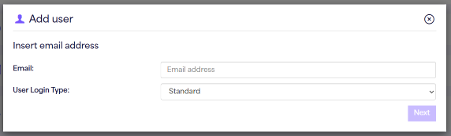
- Select SSO from the drop-down menu and click Next. You will then need to enter the user's first name, last name, Tenant ID and Object ID.
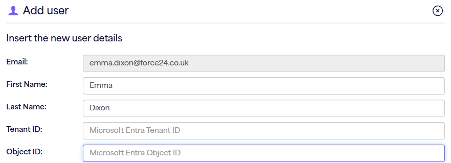
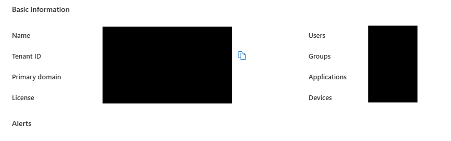
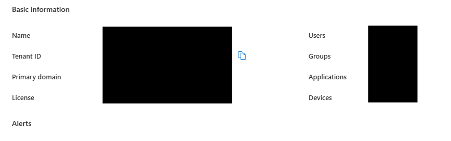
- To find the Tenant ID: open your Azure directory. The overview shows your Tenant ID alongside other account information. Copy it into the Tenant ID field in Force24.
- To find the Object ID: in the left hand panel menu of your Azure directory, select Users. This shows a full directory of the users in your Azure account, and you can also use the search bar at the top of the page to find the user. Click the user you want to create, copy their Object ID from that page, and paste it into the Object ID field in Force24.
- Click Next, assign the user's permissions, then confirm that the account information is correct.
- Once the account has been created, an email is sent to the new user so they can confirm it. They need to click the link in the email, then click Confirm on the tab that appears.
How does the new SSO user sign in?
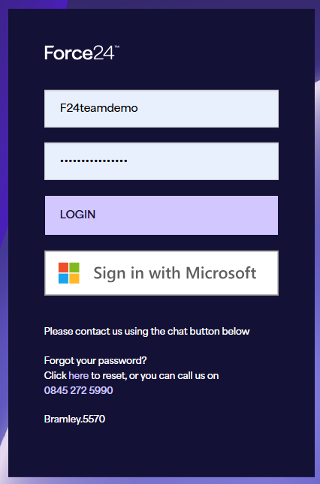
From this point, the user can sign in with their SSO account from the platform login screen.
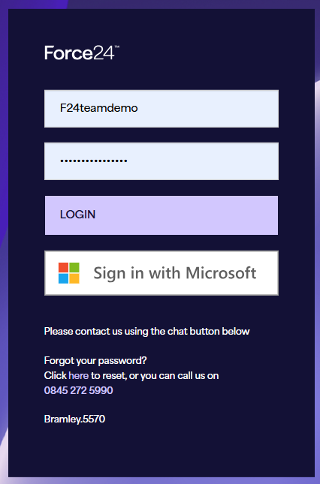
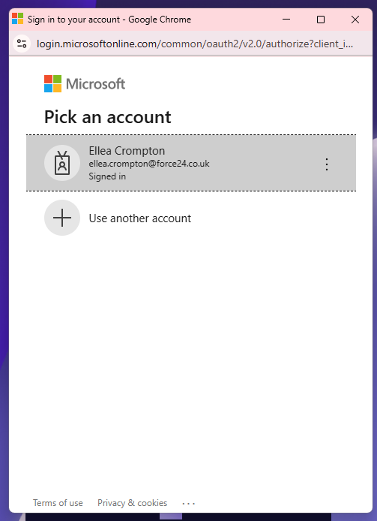
When they select Sign in with Microsoft, they will see all the Microsoft accounts in use and can click their own account to log in.
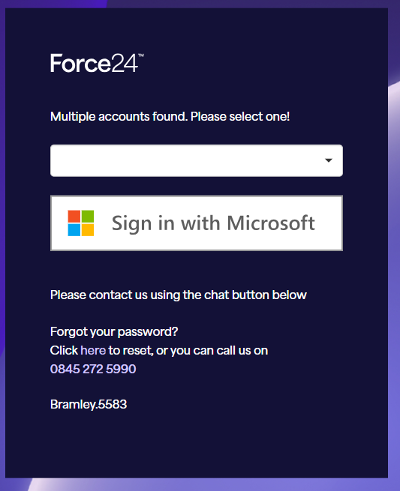
If the user exists in multiple accounts that use SSO, the following window appears before they log in.
How do I convert an existing user to SSO?
- Log in to the platform at the address below, then open user management from the settings page.
https://platform.data-crypt.com/login - You will see all your existing users. Click the ... option next to the user you want to convert.
- Select Convert to SSO from the drop-down menu. You will then be able to enter the Tenant ID and Object ID.
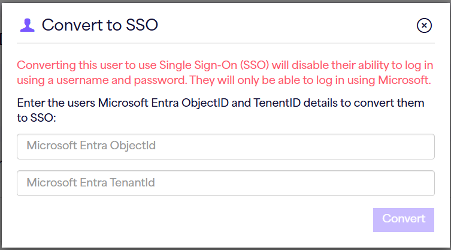
- To find the Tenant ID: open your Azure directory. The overview shows your Tenant ID alongside other account information. Copy it into the Tenant ID field in Force24.
- To find the Object ID: in the left hand panel menu of your Azure directory, select Users. This shows a full directory of the users in your Azure account, and you can also use the search bar at the top of the page to find the user. Click the user you want to convert, copy their Object ID from that page, and paste it into the Object ID field in Force24.
- Click Convert. The user is converted to an SSO user using Microsoft, and keeps all of their existing permissions.
- Once the account has been converted, an email is sent to the user so they can confirm it. They need to click the link in the email, then click Confirm on the tab that appears.
How does the converted user sign in?
From this point, the user can sign in with their SSO account from the platform login screen. When they select Sign in with Microsoft, they will see all the Microsoft accounts in use and can click their own account to log in.
If the user exists in multiple accounts that use SSO, the following window appears before they log in.
Need a hand?
If you have any questions, reach out to us on live chat using the chat bubble at the bottom right of your Force24 platform. Our team is happy to help.