
Before you start, download an authenticator app to your phone, such as Google Authenticator, Microsoft Authenticator, or any other authenticator app of your choice. You can find these in the App Store for iPhone or Google Play Store for Android by searching for "authenticator".
Step 1: Open your Force24 user settings
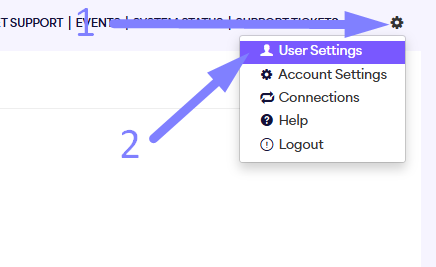
Click the cog icon in the top right of the screen and select User Settings:
Step 2: Turn on two-factor authentication
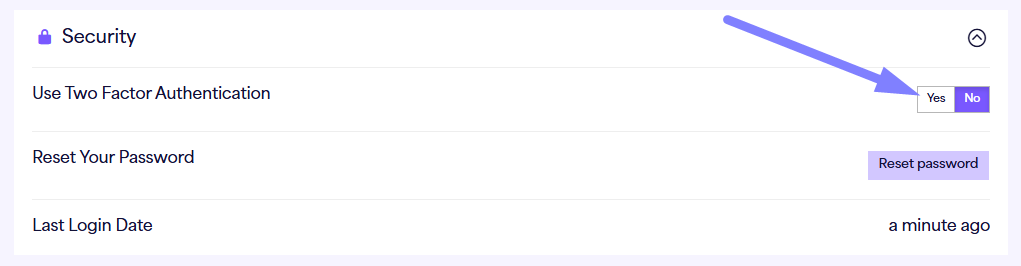
Go to the Security section in your user settings. Next to Use two-factor authentication, click Yes:
Step 3: Get your QR code
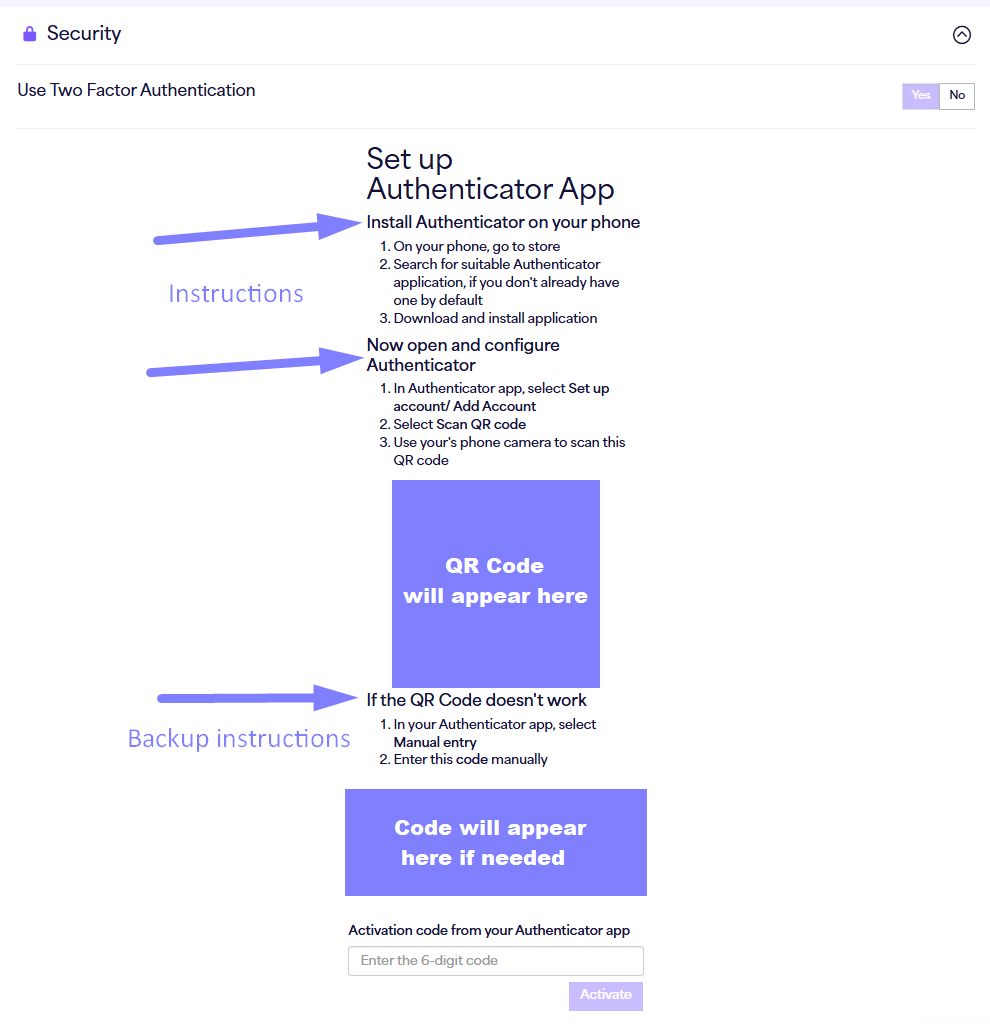
This opens the 2FA setup screen where you will see a QR code:
Step 4: Open your authenticator app and add an account
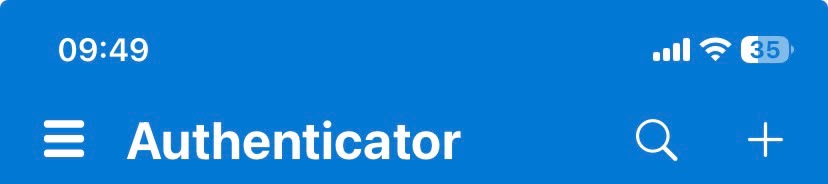
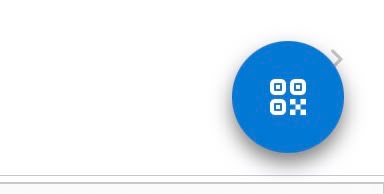
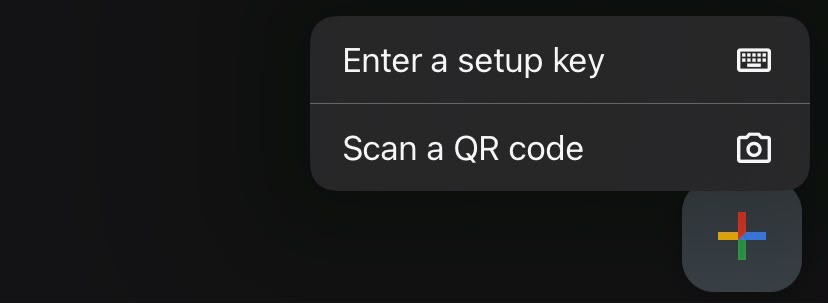
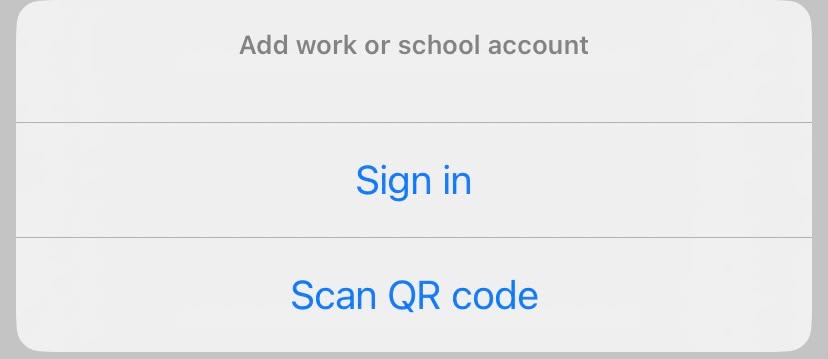
Open your authenticator app and tap the "+" button (or QR code icon) to add a new account. The button is typically located at the top or bottom corner of the main screen depending on your app:
Google Authenticator (bottom of screen):

Microsoft Authenticator (top of screen):
Some apps feature a direct QR code button:
Step 4b: Choose how to add your Force24 account
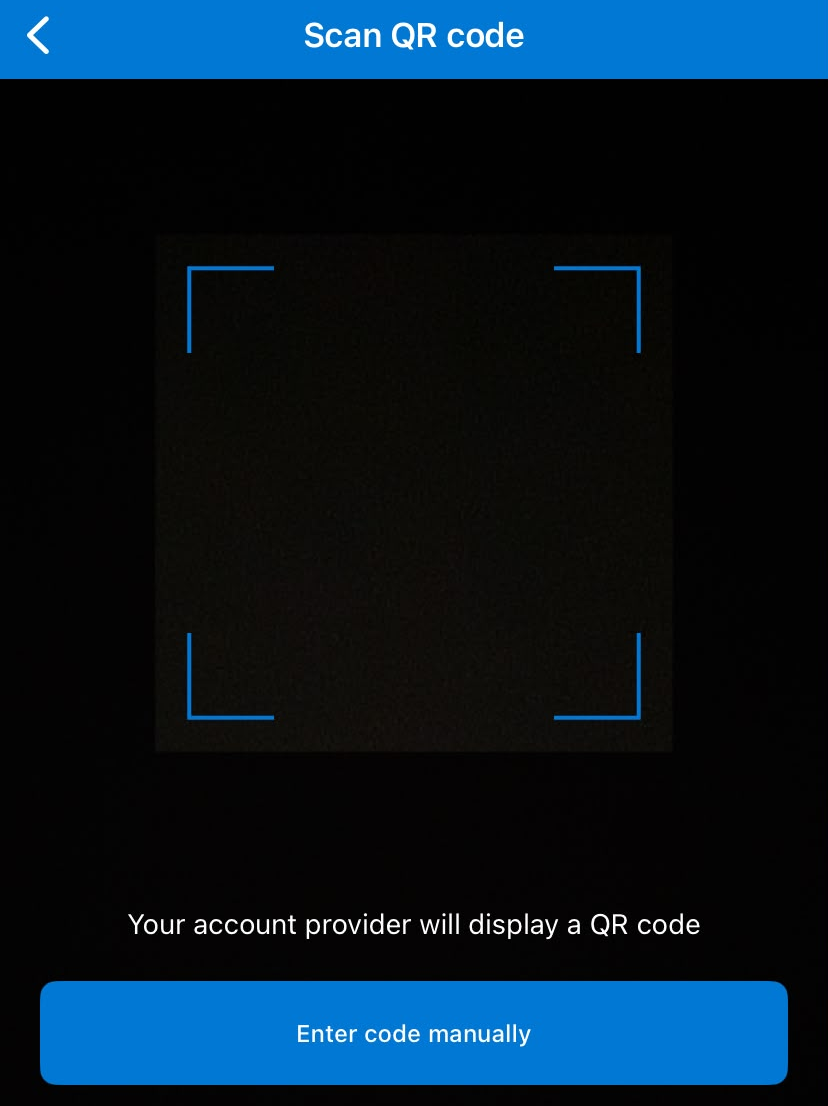
Your app will ask you to either scan a QR code or enter a code manually.
- Scan a QR code: This opens your camera. Point it at the QR code generated during step 3. We recommend trying this method first.
- Enter a code: This lets you type the code in by hand. Take the text code from underneath the "If the QR code doesn't work" area in the platform from step 3 and enter it into your app.
Step 5: Enter the code into Force24
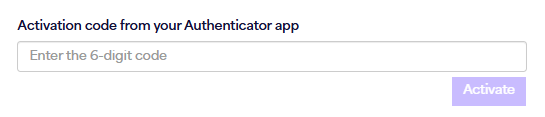
Your authenticator app will now show a 6-digit code for your Force24 account. Go back to the Force24 setup screen and type this code into the box labelled "Activation code from your Authenticator app":
Need further assistance?
If you have any questions, email Force24 support at support@force24.co.uk which will open a support ticket for you, or reach out through the live chat function in the bottom right of your platform.