
Nexus can be used to build powerful automations that deliver the right message to the right person at the right time, using content that meets their bespoke criteria and is what they care about.
Setting up your Journey
Step 1: Create a new Journey
To use Nexus within a Journey, go to Journey Manager and create a new Journey.
Step 2: Add a start audience
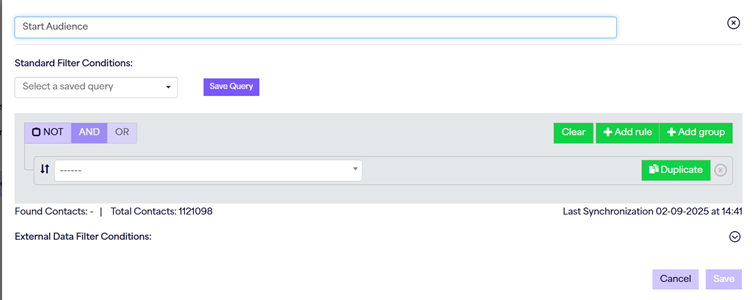
Drag and drop a Start audience component into the editor. You will see a new option appear within it, called the External data filter condition. This filter decides which external data can be included within the Journey, such as car types, holidays or newsletters.
You still need to populate your standard filter conditions, as these are contact specific. They identify which of your contacts qualify for the Journey, for example based on web activity, Segment membership or form additions:
Step 3: Set your external data filter condition
You can use the external data filter conditions in two ways.
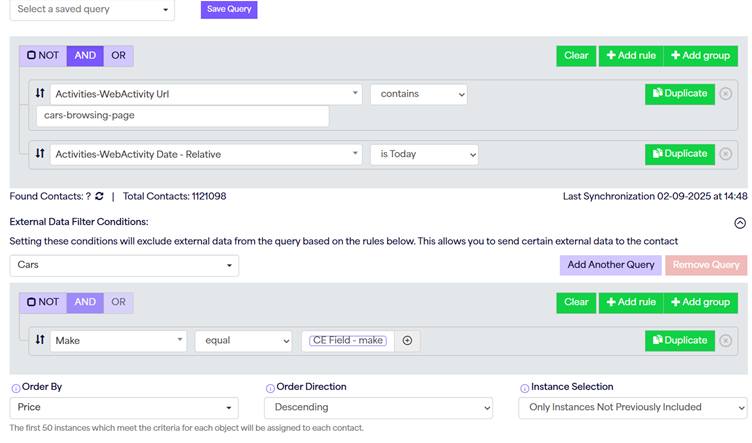
- Set criteria: Type in a fixed criteria, for example Make > Equals > Ford, which makes the Journey specific to Ford cars.
- Contact based: Match the condition to Contact Extension (CE) field data. This works well if, for example, a contact has filled in a form expressing interest in a specific make or model, or you hold their previous purchase history. If there is a car in stock that matches the data you hold, that car is brought into the Journey for the contact.
Step 4: Choose your order by criteria
There are Order by criteria set against a Journey start audience. These are specific to the data that is pulled into the Journey, which has a maximum capacity of 50 instances. For example, if there are 100 instances in total, only 50 can be added to the Journey. The order by criteria decide which 50 are prioritised for inclusion, for example the highest priced items first.
Step 5: Build your Journey
You can now build your Journey as normal. Send email components have an option to choose templates with repeaters, or standard templates.
SMS
SMS does not currently allow for external data usage.
Segmenting your data further
If you want to segment your data further, you can use a Nexus decision component. You can use multiple different instances within your Nexus decisions. However, a Nexus decision only filters the existing data in the Journey. It does not add any more data at that point.
Want to show your Nexus data in an email?
If you want to use repeaters to display this data in your emails, learn more in our How to use Nexus in the Email Builder article.
Need a hand?
If you have any questions, reach out to us on live chat using the chat bubble at the bottom right of your Force24 platform. Our team is happy to help.