
Creating a post in SoAmpli is easy. This article explains how to create a post, how to add extras such as links, images and tags, and how to edit or delete a post afterwards.
How do I create a post?
Once you are logged in, click the Create Post button in the top left corner.


When you create a post, you are adding content to the SoAmpli dashboard for all of your colleagues to see.
Only amp'd posts can be shared externally
Only “amp'd” (or approved) posts can be shared externally. Admins and amplifiers are the people who can create amp'd posts or approve existing ones.
Sharing to your social accounts straight away
If you want to share your post immediately to your social accounts, you can select from your connected profiles at the top of the Create Post window.

This gives you a separate caption box for each of the accounts or platforms you want to post to, with the word count for each in the bottom right corner.

What is the difference between "Post" and "Post and Share"?

When you “post”, you are only adding the content to your feed in SoAmpli. This makes it available for other users to see and “share” to their own social media accounts. Posting on its own does not put the content anywhere other than SoAmpli. To do that, you need to “post and share” and select the social accounts you want to share to.
How do I add extras to my post?
Add a link
To add a link to your post, copy and paste it into the Create a post box. When you press the space bar after it, SoAmpli automatically changes it to a unique shortened link. This allows you to track the reach and interaction of your content.
Add an image
Images are proven to hugely increase engagement on social media, so why not add one to your post? Click the Please upload your image here section, which adds the image to the Media Centre.

Add a video or document
To add a video or PDF document to your post, you must first upload it to the Media Centre. Once it is available in the SoAmpli Media Centre, you can add it to your post using the paperclip or camera icons in the bottom left:

This brings up the files or videos in your Media Centre, so you can select one and attach it to your new post.


Once selected, the attached file appears at the bottom of your post caption:

Add a tag
The more people there are on your company's platform, the more content there is for everyone to share. To help everyone quickly find what they are looking for, you can tag posts. Tags are labels you attach to your posts internally to show what they are about. They are clickable and searchable, and they help you filter content by subject.
Assign a channel
When you create a new post, think about whether it fits any of the channels on your company's SoAmpli. You can assign your post to any channel you follow by clicking the Choose a channel button and selecting the relevant option.

Channels and the main feed
All posts assigned to a specific channel will also appear in the main “All channels” feed, unless the channel you select is private.
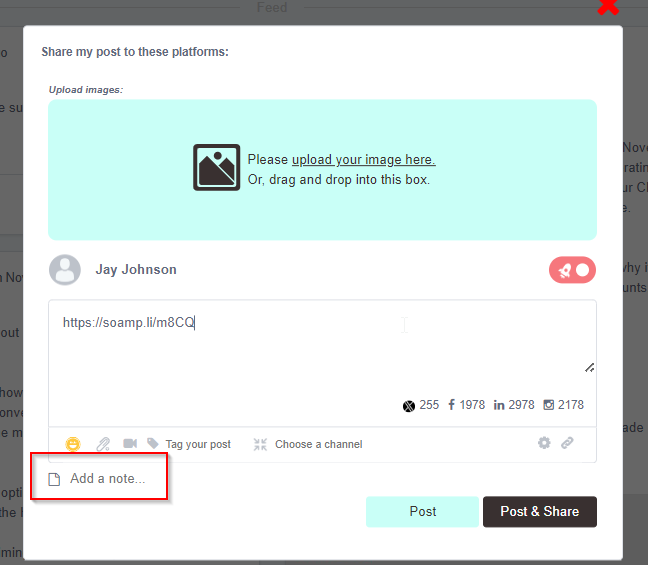
Add a note
You can also add a note to your post. A note is an internal comment that will not be seen outside the SoAmpli platform. Notes are great if you have comments about your post that you would like colleagues to see, but do not want to be seen externally.
How do I edit a post?
- Click the three dots at the bottom of the post.
- Click the Edit button and change the content.
- Click the Update button after making your changes.

Editing a post that has already been shared
Once a post has been shared outside SoAmpli, any edits made within SoAmpli will not automatically change the external post. To edit it after it has been shared, you must do so in the respective personal social channel.
Advocates can only edit or delete their own posts, while amplifiers and admins can edit or delete other users' posts as well.
How do I delete a post?
To delete one of your posts, click the three dots at the bottom of the post.

Deleting a post that has already been shared
Deleting a post from SoAmpli does not automatically delete it from an external social media page. To do that, you must delete it through the respective website.
Advocates can only edit or delete their own posts, while amplifiers and admins can edit or delete other users' posts.