
How to correctly adjust your email template spacing and padding when using background colour.
Within the template, firstly click into the snippet you want to edit, this will highlight the section in purple and open up the 'Editing' column on the right hand side.
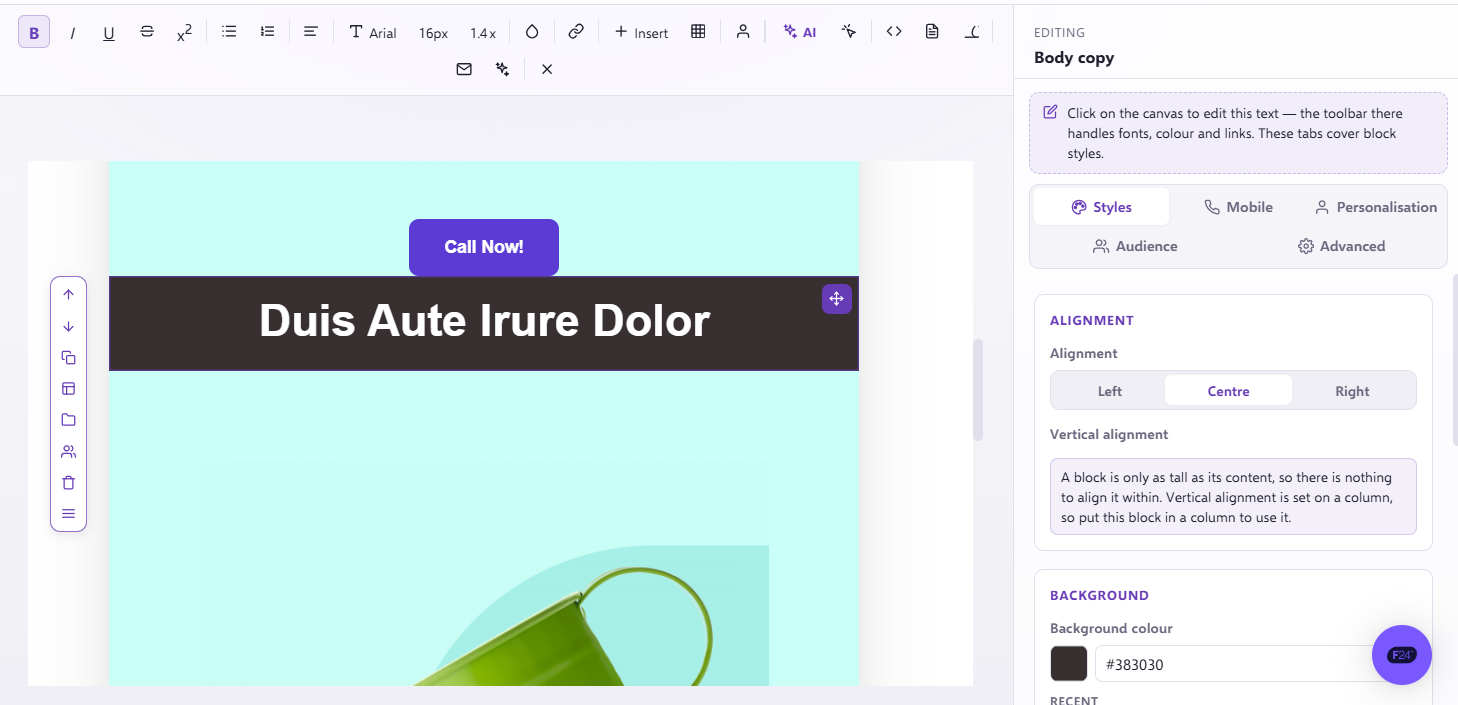
Within the editor this will bring up the 'Styles' section in there you will find the 'Spacing' section;
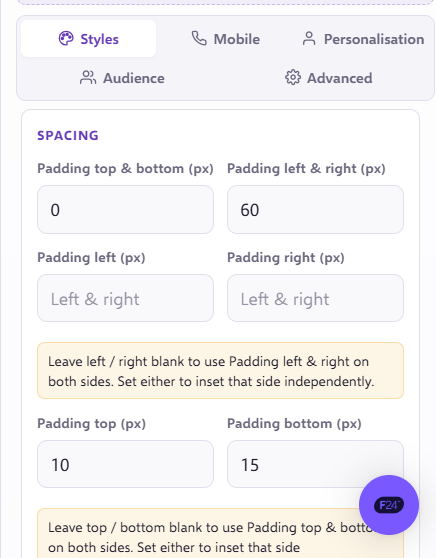
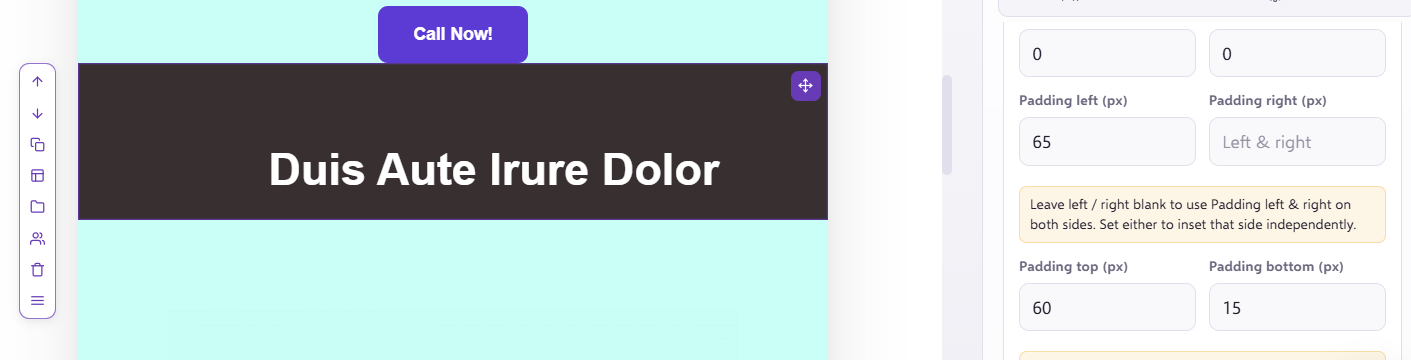
From here you can remove any spacing here in the top and bottom and also the left and right, this pulls through from the background of the row.
The spacing below should be replicated in the selected snippet:
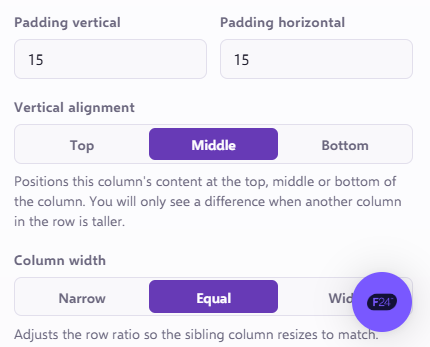
Now if you have a multiple column snippet you can click directly on one of the columns within the snippet. You should see a new 'Editing column' window on the right-hand side which will also contain which column you are editing;
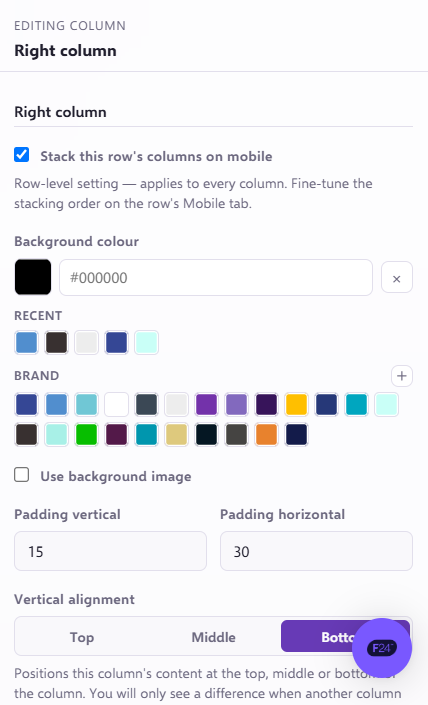
Here you can add as much spacing, horizontally and also vertically to the column to increase the borders edge, you can also change the alignment of the what is in the snippet here. Repeat this process on the other sections of the template.
If you have any questions, feel free to reach out to us through the live chat function available bottom right in your Force24 Platform. Our team is ready to assist you and provide support whenever you need it.