
Force24 allows you to upload templates from other platforms or from other Force24 accounts. This article shows you how to format your template and upload it.
How do I format my template?
For a template to work correctly:
- The file structure must be set up correctly.
- The code must be formatted in a way that is compatible with Force24.
We cannot guarantee that other platforms will export code in a format that is compatible with Force24. However, following this guide gives you the best chance of uploading and using your template successfully.
What should the zip file contain?
Before you upload, make sure your file is in the correct format. It must be a zip file. You can name the zip file whatever you like.

The zip file must contain these two items and nothing else:
- A folder named images.
- Your HTML file, which must be named template.html.

Important
There must not be anything else in the zip file. For example, do not place these two items inside another folder.
The images folder can be empty, but it must still be in the zip file. If it is missing, the upload will not work correctly.
What should I do before I upload?
We recommend running your code through our validator tool: Force24 Email HTML Validator.
You must also read and follow the instructions in our Self Service Template Upload Handbook: Self Service Template Handbook.
How do I upload my template?
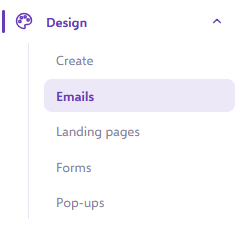
- Go to the Emails area in the left-hand navigation.
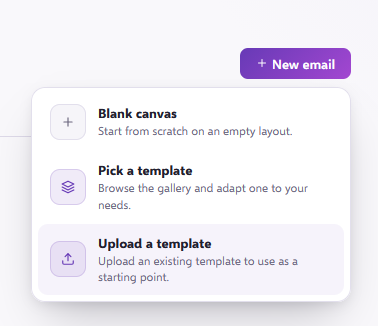
- Click the New email button at the top right, then select Upload a template.
- On the next screen, choose either Standard or AI Enhanced. We recommend trying a standard upload first, and trying the AI upload if that is unsuccessful.

- Drop the .zip file into the File Upload area on the right side.
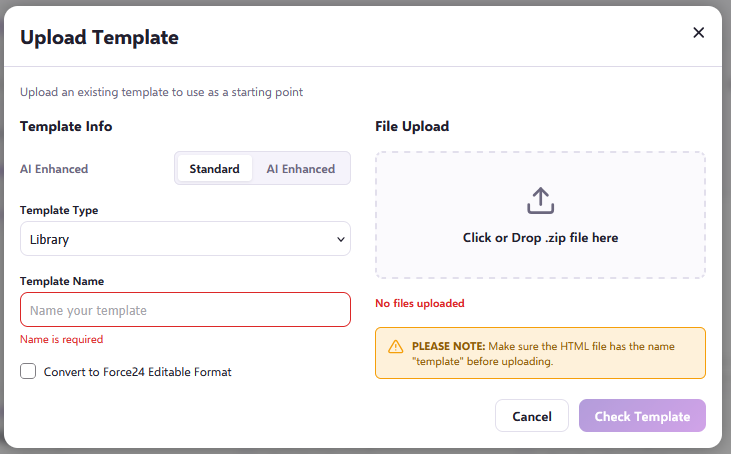
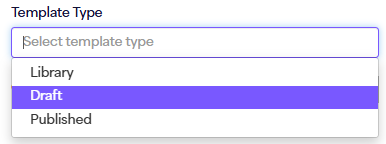
- You are prompted to select the Template Type you want to upload to:
- Draft: your current work in progress templates, which you can work on directly.
- Library: these templates enter your templates library. You can select them as starting points, which creates a draft template to work on.
- Published: these templates are locked and ready for the system to use. This is where you put your finished templates for sending campaigns.
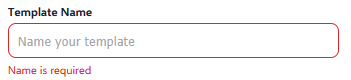
- Enter a template name. This is the name you will use to search for your template later on.
- Choose whether you want your upload to be converted into a Force24 editable format.

- Click Check Template.
- If the template can be uploaded successfully, you are taken to a screen that shows any advisory warnings. In the example below, the warning is just letting the user know that placeholder links are still in place. These aren't valid links yet, so they will need to be changed.
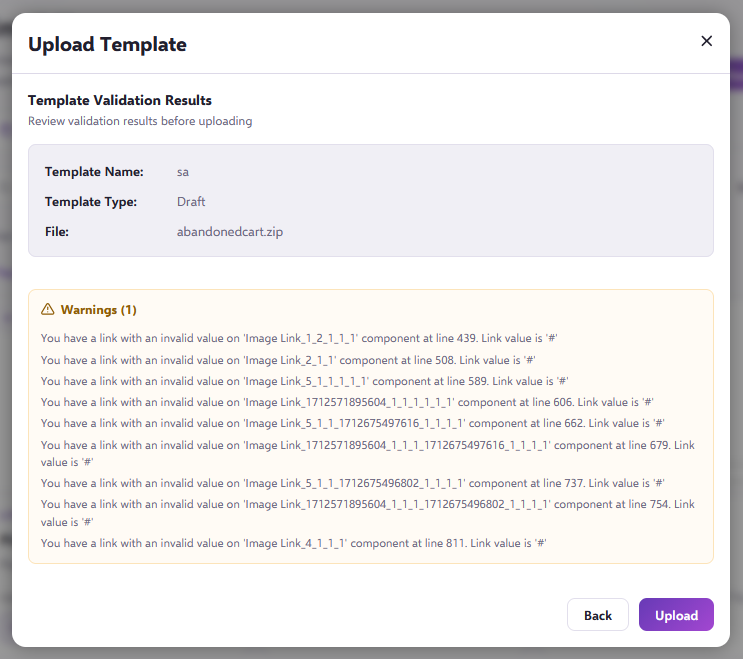
- Click Upload. Your template is built in the location you selected.

Need a hand?
If you have any questions, reach out to us on live chat using the chat bubble at the bottom right of your Force24 platform. Our team is happy to help.