You can add background images to your email templates in Force24, and this article will show you how.
Firstly you want to select the relevant snippet of the email that you wish to apply the background image to which will bring up the 'Editing' column on the right hand side.
Under the 'Styles' option you should then see options under Background, to set either a Background Colour, or Background Image.
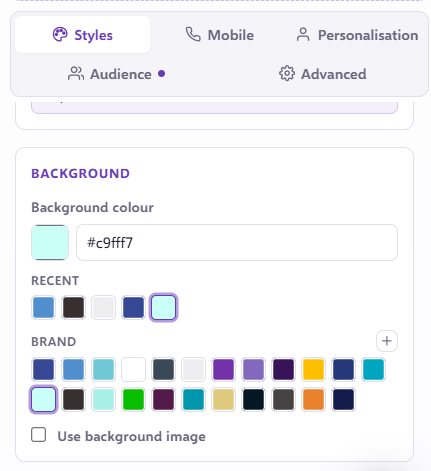
If you select the Background Image option, you will see an area pop up below where you can add your imagery, much like adding a standard image; you can drag and drop your image file into the email builder, or add an image from a URL.
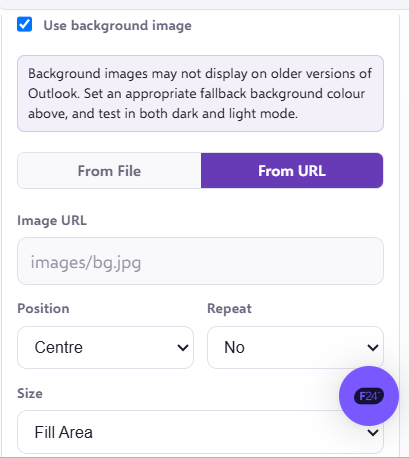
There are some additional options shown at the bottom to alter the position and size of the background image.
When using this feature it is worth bearing in mind that older Outlook versions may not render background imagery, so we advise to always set a relevant fallback background colour as well.