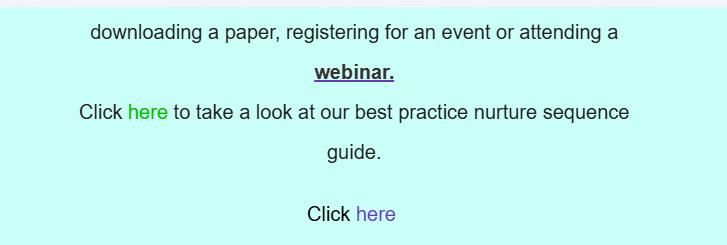
Starting with any email template, ensure you are in the snippet that you want to add the link and/or CTA into.
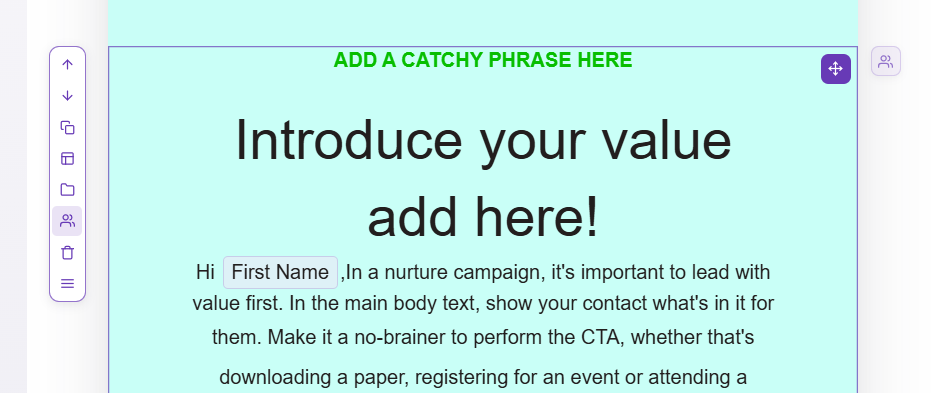
This will bring up different text option along the top of the page, where you can then add in CTAs, insert hyperlinks and chnage text fonts, size and colour.

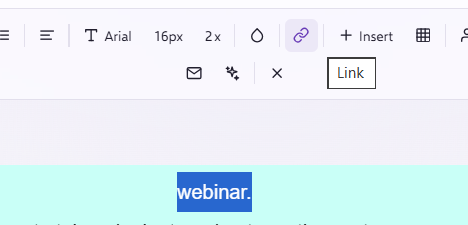
To insert a hyperlink to a text, within the same paragraph section, highlight the text you would like to add the link to, once highlighted click on the link icon on the top row..
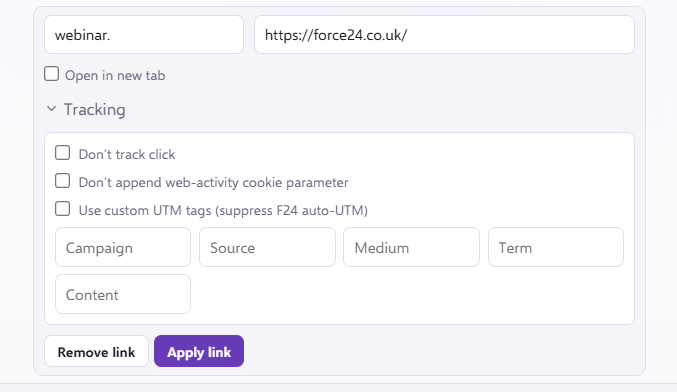
This will open up the Hyperlink Generator, where you can add your link, title, UTM tags, and choose whether you would like this to open in a new window or current. Once happy click Add Link.
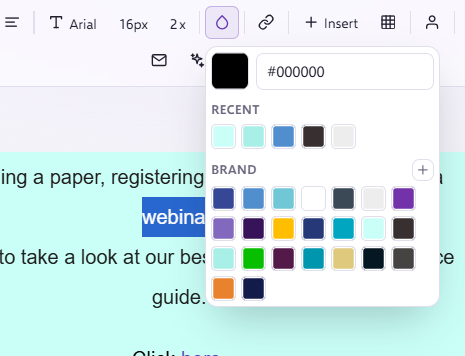
It is important to remember to change the colour of the link here, or this will show as a purple link on your emails. You can change the colour by clicking on the colour icon as below.
Now your text is hyperlinked you will be able to see when you hover over it in the email artwork it becomes underlined, indicating that it is a clickable bit of text.