
If you have noticed a mistake in an email campaign and wish to stop your campaign from going out you may cancel a campaign to prevent any further contacts from receiving the email. Be quick though, as the system works fast.
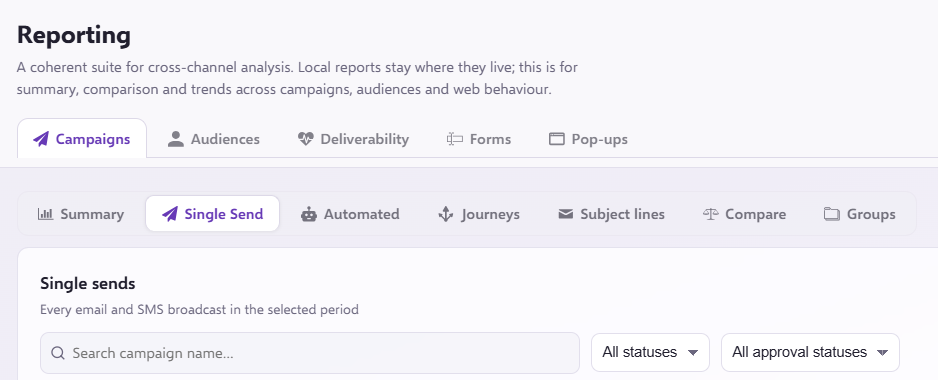
Click on the 'Campaigns' tab to access the 'Single Send' campaign you wish to stop.
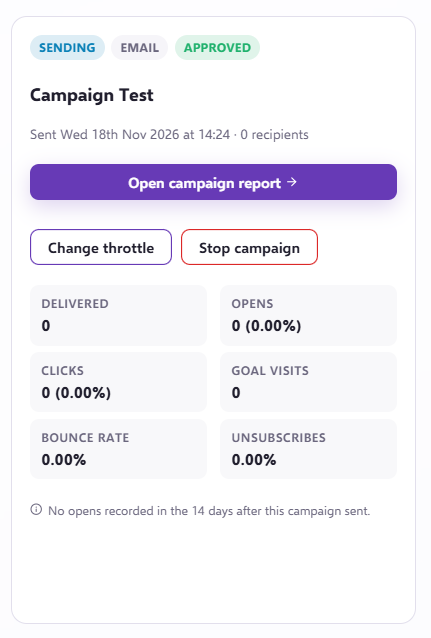
Once you have found the campaign you want to click onto it, this will give the option to 'Stop campaign'.
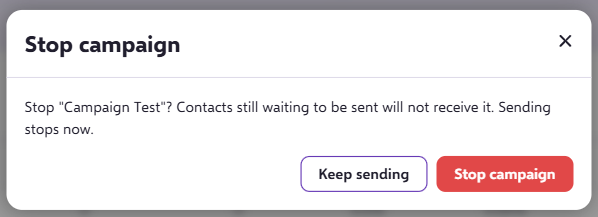
Once you click 'Stop campaign' you will be asked to specify that you wish to continue, this action will cancel your campaign.
This will take you back to the campaigns page where you will see the campaign is in the 'Stopped' status (NOTE: Some browsers will not automatically refresh, to view the updated status please refresh your browser.)
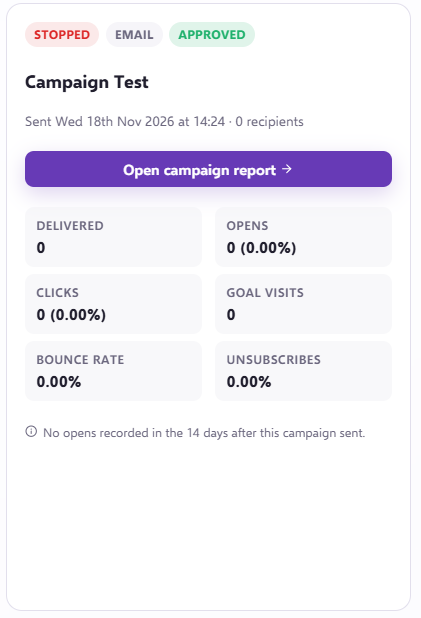
If you now wish to find contacts that have received the campaign and wish to isolate them from the next campaign, or even send them an apology email - click the 'Open campaign report' button on the cancelled campaign.
On the report page you will see a summary of the 'Total sent', or the number of 'Delivered'.
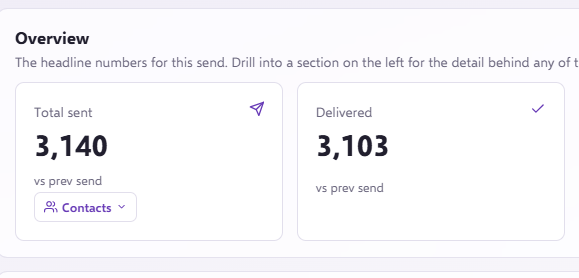
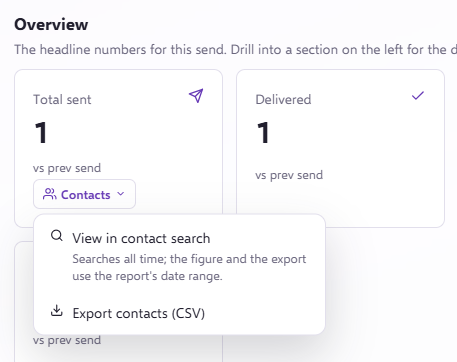
You may select either number to be taken to a 'Contacts Search' showing these specific contacts. You may also export these contacts to a CSV.
If you elect to search for the contacts you will be taken to the 'Contacts Search' function where you will see all the contacts you need to act upon:
You may either add these contacts to a new list, using the 'Add to Segment' and work with them, or 'Remove From Segment' to remove the contacts from that list.
