Removing Tracking Pixels from Email Campaigns
Force24 allows you to control the level of pixel tracking applied to your emails. Tracking can be configured for both single-send campaigns and emails sent as part of a Journey.
Why remove tracking pixels?
Tracking pixels are commonly used to record email opens and can collect information such as IP address and details about the device used, helping marketers measure campaign engagement and personalise communications.
Privacy guidance, including recommendations from the CNIL, indicates that using tracking pixels for certain purposes may require the recipient’s prior consent. Force24 therefore provides the option to remove tracking pixels from emails where tracking is not required or appropriate.
For more information, see CNIL's recommendation on tracking pixels in emails. View CNIL Recommendations
Important: The tracking policy selected will apply to the contacts included in the relevant campaign or Journey. It is the your responsibility to determine which contacts require a particular level of tracking and to select the appropriate audiences and tracking policy accordingly.
What about link tracking?
Removing the tracking pixel disables open tracking but does not disable link tracking. Links within an email may still be tracked separately.
If you also need to prevent a URL from being tracked, set the relevant link to No Track within the email editor. Understanding hyperlink settings
Important: Pixel tracking and link tracking are separate settings. Removing the tracking pixel does not make all activity within an email untracked.
Tracking options
Force24 provides three levels of pixel tracking:
Full Pixel Tracking
Tracks email opens and associated tracking information, including IP address, browser type and device type.
Minimal Pixel Tracking
Records only the date of the most recent email open. IP address, browser type, device type and the time of the open are not tracked.
No Pixel Tracking
No email open events or associated pixel-tracking information are recorded.
Removing tracking pixels from a single-send campaign
When setting up your campaign:
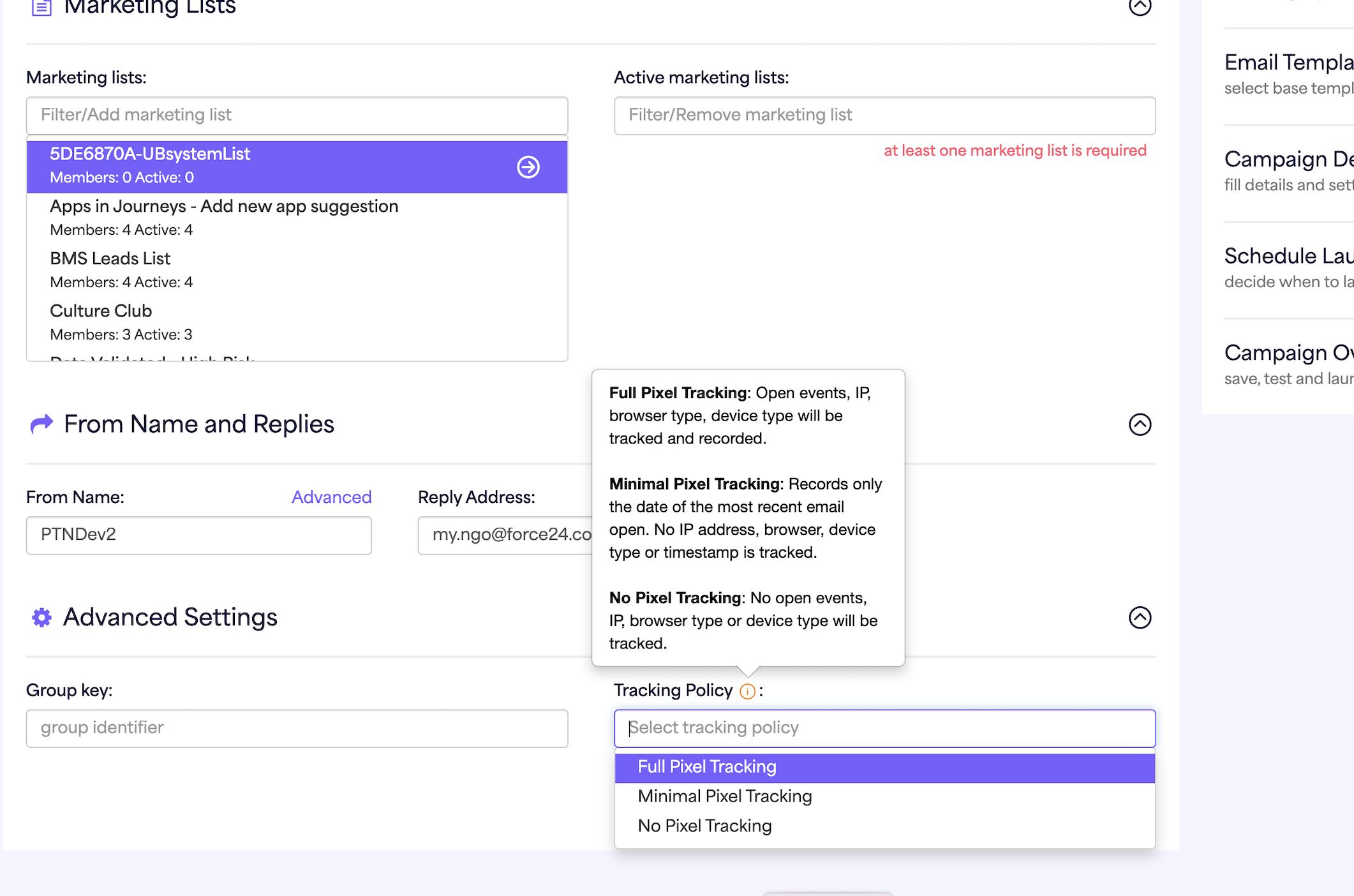
- Go to Campaign Details.
- Expand Advanced Settings at the bottom of the page.
- Under Tracking Policy, select the level of pixel tracking you require.
- The default setting is Full Pixel Tracking unless you change it.
Setting pixel tracking within a Journey
Pixel tracking can also be configured for individual emails within a Journey.
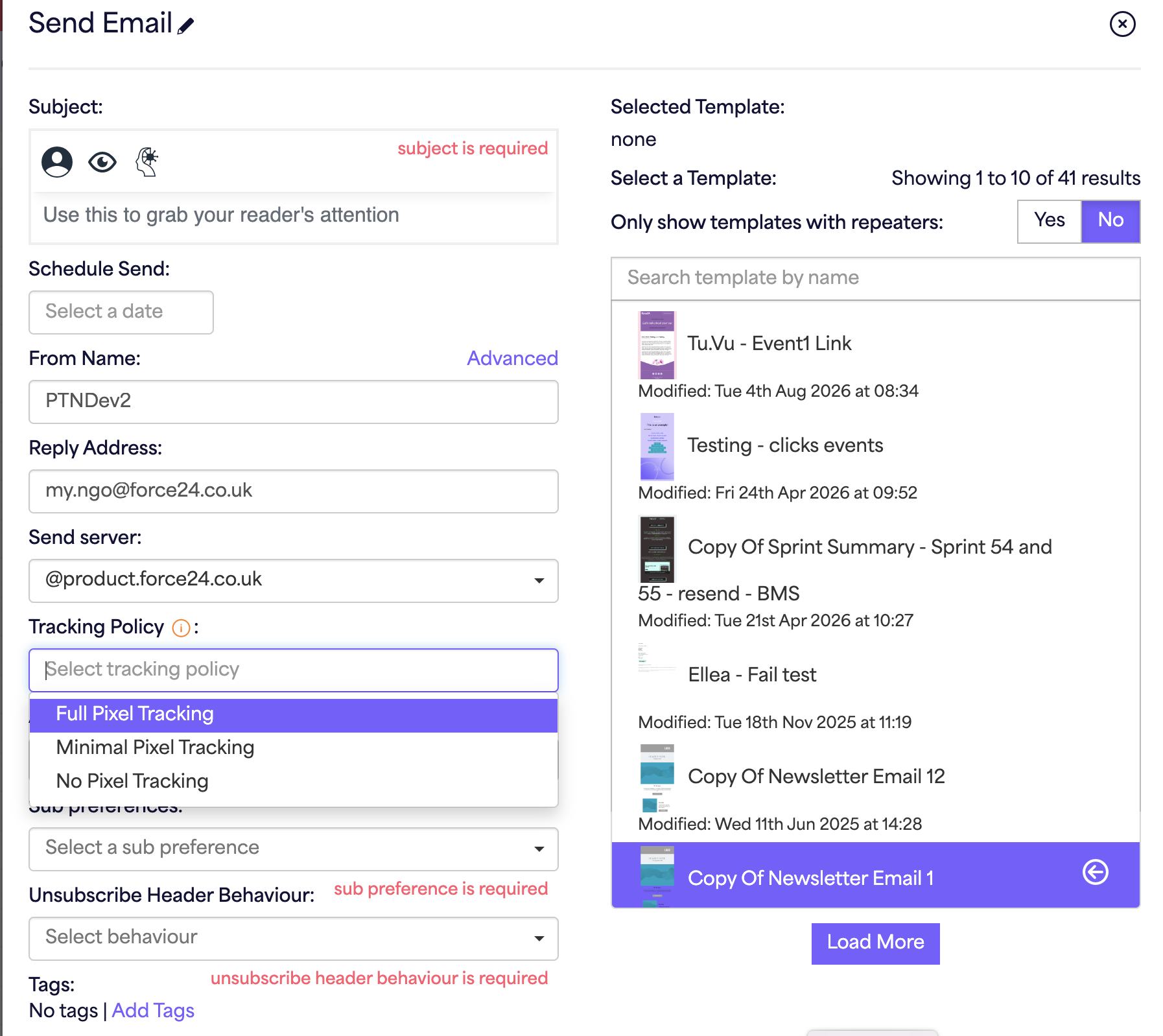
Within the Send Email component, select the required option from Tracking Policy:
- Full Pixel Tracking
- Minimal Pixel Tracking
- No Pixel Tracking