
Testing emails is really important so you can check how your email looks while you are building it.
Here is a step by step guide on how to test your emails:
- Step 1: Make a test marketing list
- Step 2: Select which template you would like to test
- Step 3: Send the test!
Step 1: Make a test marketing list
We have another article which explains how to do this:
How to create a Test Marketing List
Step 2: Select which template you would like to test.
This is likely to be the template you are currently working on but you can test any of the templates in your drafts or published. However it is more likely you will be sending a test from your drafts as these are the emails you will currently be working on.
Step 3: Send the test!
There are two different ways you can send a test:
The easiest way is to click the three dots in the right hand side of the email in question in the Drafts section which will bring up several options including Send Test:
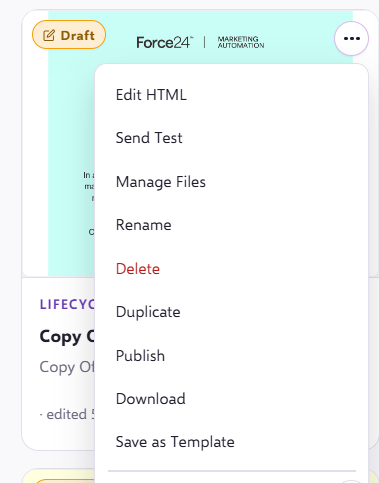
You will then want to select Send Test which will prompt you to select a test marketing list:
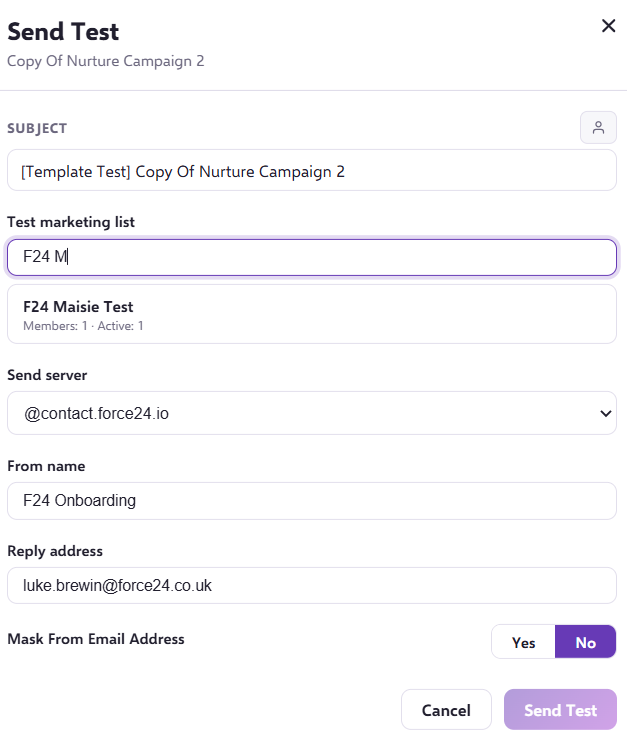
Then all you need to do is press Send Test and it will appear in your inbox!
The other way to send a test is within the actual email builder itself. In the top right you will be given an option to Send Test:

If you press Send Test, just the same as above it will ask you to select a test marketing list and then all you need to do is press Send Test.
If you have any questions, feel free to reach out to us through the live chat function available bottom right in your Force24 Platform. Our team is ready to assist you and provide support whenever you need it!